


Ever tried connecting a device to your WiFi and got stuck asking, “What on earth is my network security key?”
Most people have no idea where to find it, and it’s frustrating when you need to connect quickly. The good news is it’s easier to find than you think.
Whether you’re on a Windows PC, Android phone, or iPhone, your network security key is always within reach; you just need to know where to look.
In this blog, we’ll show you exactly how to find it on every device in just a few simple steps. Let’s get started.
What is the Network Security Key for Wifi?
A network security key is simply the password that protects your WiFi network. It’s the code your router uses to verify that only authorized devices can connect.
When you type your WiFi password into a new phone, laptop, or smart TV, that’s your network security key.
The term sounds technical, but the function is straightforward: no key, no connection.
Types of Network Security Keys
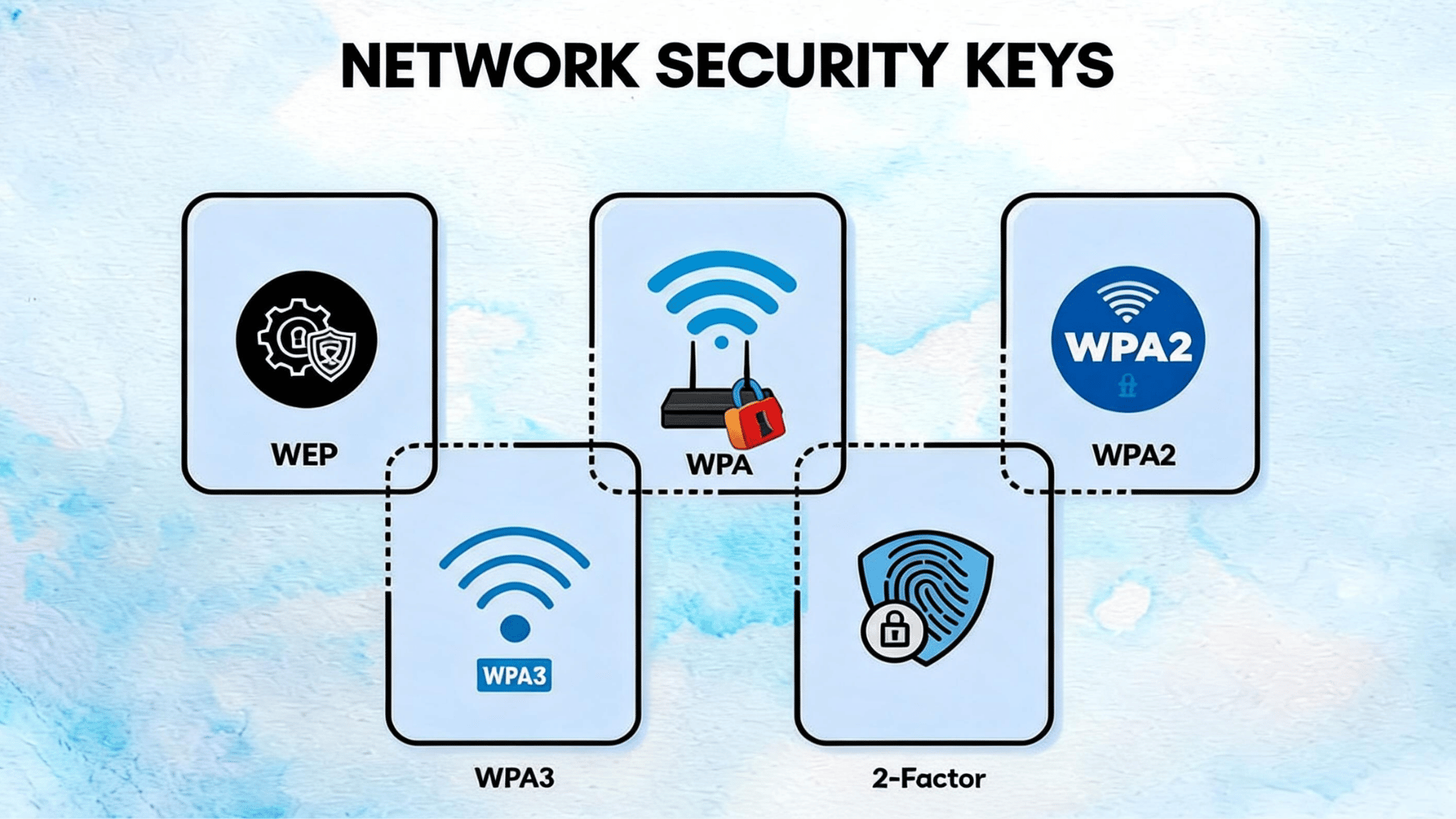
Not all WiFi passwords work the same way behind the scenes. Routers use different security protocols, and the type determines how well your network is protected.
1. WEP (Wired Equivalent Privacy): The oldest and weakest protocol. Introduced in 1997 and now considered easily hackable. Most modern routers no longer support it. If your router still runs WEP, upgrading is a security priority.
2. WPA (Wi Fi Protected Access): Replaced WEP in 2003 with significantly stronger encryption. Still functional but outdated by current standards. Most devices support it, but it’s no longer recommended for new setups.
3. WPA2 (Wi Fi Protected Access 2): The current standard on most home and office networks. Introduced in 2004 and still considered secure for everyday use. If your router runs WPA2, you’re well covered for normal home use.
4. WPA3 (Wi Fi Protected Access 3): The latest and most secure protocol was introduced in 2018. Offers stronger encryption and better protection on public networks.Available on most routers manufactured after 2020 and all new devices going forward.
Is a Network Security Key the Same as a WiFi Password?
A network security key and a WiFi password are the same credentials, but when it comes to yourrouter specifically, the distinction matters slightly more.
Why the Names Are Different?
Your router is the physical device managing your network. The network security key is the password the router assigns to protect that network.
Windows uses the term “security key” in its prompts. The router label uses terms like “WPA2 key” or “wireless key.” Same credential, different labels depending on who’s displaying it.
When They Mean the Same Thing?
When connecting a device to your router’s network, resetting router settings, logging into the router admin panel, or reconfiguring your network after an outage, the network security key is always the router-assigned password protecting access to that specific network.
Router Labels and Default Passwords Explained
Every router ships with a default network security key printed on a sticker, usually on the back or bottom panel.
This is the router’s factory-set password until you manually change it in the router admin settings.
| Router Brand | Label on Sticker |
| Net gear | Wi Fi Password / Network Key |
| TP-Link | Wireless Password / PIN |
| Linksys | Wi Fi Password |
| Asus | WPA2-PSK / Wi Fi Password |
| Xfinity | Network Key |
| AT&T | Wi Fi Password / Access Code |
| Spectrum | Network Security Key |
| D-Link | Wi Fi Password / WPA Key |
If you have never changed your router password, the sticker is your current network security key.
Why is Wi-Fi Asking for a Security Key Instead of a Password?
Nothing changed on your network; your device just uses different words for the same thing.
A security key prompt means your device is asking for your Wi Fi password. Type the same password you always use, and it will connect normally.
1. Windows and Android Use Different Terms: Windows calls it a “network security key.” Android calls it a “Wi Fi password.”
Apple devices just say “password.” Every prompt is asking for the exact same thing: the password printed on your router or the one you set yourself.
2. Security Key Prompts During Hotspot Setup: When you turn your phone into a mobile hotspot, your device creates a brand new network and assigns it a security key automatically.
Other devices connecting to that hotspot will see a security key prompt. Just enter the hotspot password shown on your phone’s hotspot settings screen.
3. Common Connection Errors: The three most common errors are wrong password, wrong network selected, and outdated saved credentials.
If your device keeps rejecting the key, forget the network completely and reconnect from scratch. This clears any saved incorrect passwords, which causes the repeated failures.
4. Incorrect Password vs Incorrect Security Type: An incorrect password gives you a “wrong password” or “authentication failed” error.
An incorrect security type, such as connecting a WPA3-only device to a WPA2 network, results in a “can’t connect” error with no password prompt. Two different problems that look similar but need different fixes.
How to Find Your Network Security Key on Different Devices?
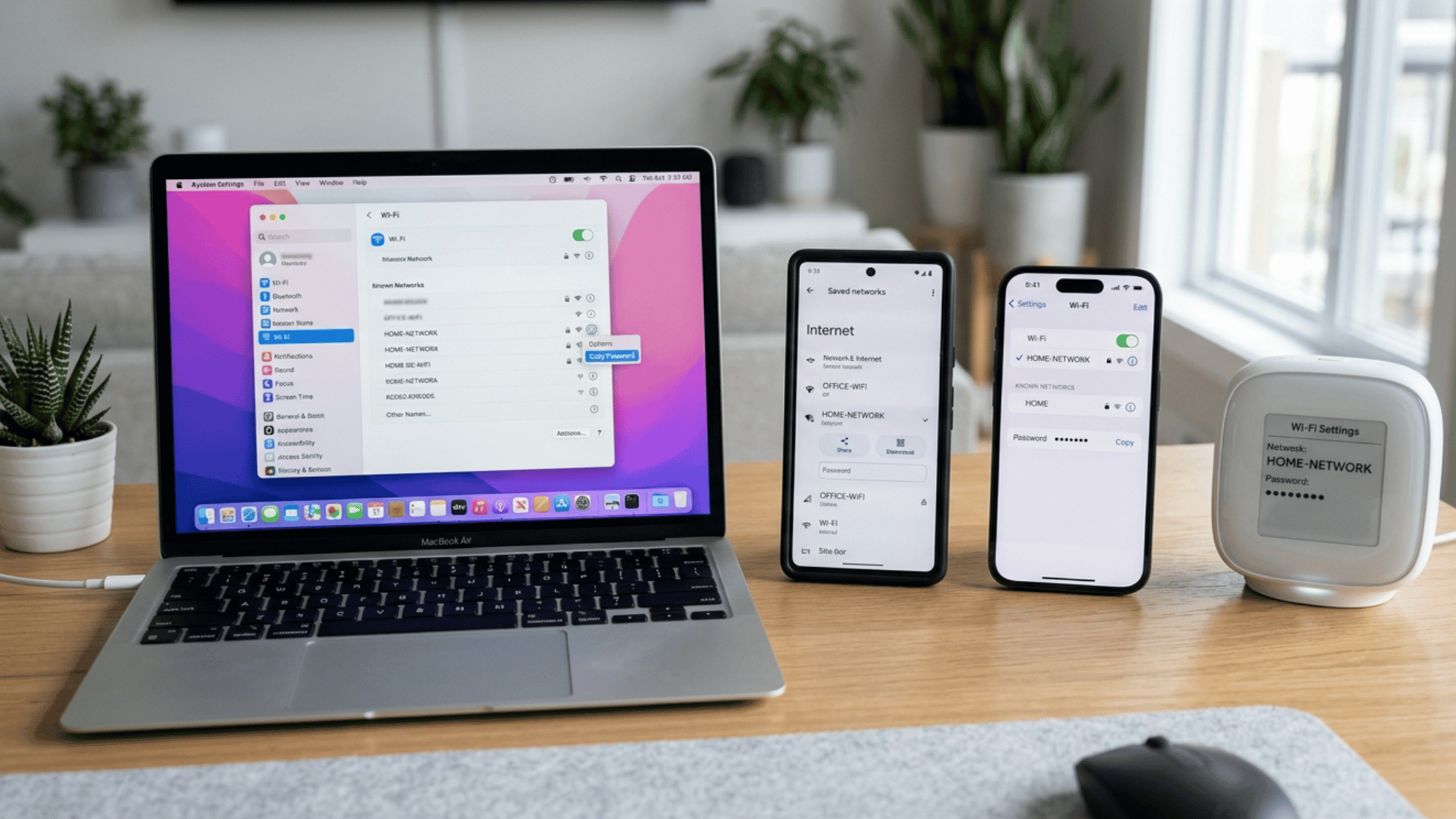
You can find your network security key on phones, laptops, routers, and other devices using a few simple settings and WiFi options.
1. Windows 10
Windows 10 lets you view your saved Wi-Fi network security key in the Control Panel and wireless settings.
Using Control Panel:
- Open Control Panel
- Click Network and Internet
- Click Network and Sharing Center
- Click your Wi Fi network name
- Click Wireless Properties
- Go to the Security tab
- Check Show Characters to reveal your key
2. Windows 7
In Windows 7, you can find your saved Wi-Fi password by opening the Network and Sharing Center settings.
Network Sharing Center Method:
- Click Start Menu
- Open Control Panel
- Click Network and Sharing Center
- Click your active Wi Fi connection
- Select Wireless Properties
Wireless Properties Method:
- Click the Security tab
- Check the Show Characters box
- Your network security key appears instantly
3. PC & Laptop
Most PCs and laptops let you view the saved network security key in the Wi-Fi or router settings, or in Command Prompt.
Through Wi Fi Settings:
- Click the Wi-Fi icon in the taskbar
- Right-click your connected network
- Select Properties
- Check Show Password
Through Router Settings:
- Type 192.168.1.1 in your browser
- Log in to the router admin panel
- Go to Wireless Settings
- Your network key is displayed there
Using Command Prompt:
- Open Command Prompt as administrator
- Type: netsh wlan show profile name=”Your Network Name” key=clear
- Find Key Content under Security Settings
- That is your network security key
4. Android
Android phones make it easy to view or share saved WiFi passwords using QR codes and network settings.
Saved Wi Fi QR Code Method:
- Open Settings
- Tap Connections, then Wi Fi
- Tap your connected network
- Tap the QR Code icon
- Scan with another device to share the password instantly
Android Settings Method:
- Go to Settings
- Tap Network and Internet
- Tap Wi Fi, then your network name
- Tap Share and authenticate
- Password appears below the QR code
5. iPhone
iPhones let users reveal saved Wi-Fi passwords or quickly share them with nearby Apple devices.
Through Wi Fi Settings:
- Open Settings
- Tap Wi Fi
- Tap the info icon next to your network
- Tap the Password field
- Authenticate with Face ID or passcode to reveal it
Using iCloud Keychain:
- Open Settings
- Tap Passwords
- Search your network name
- Authenticate to view the saved password
Sharing Password Between Apple Devices:
- Bring both Apple devices close together
- Try connecting on the second device
- A Share Password prompt appears on the first device
- Tap Share Password, and the connection completes automatically
What is the 8 Digit Network Security Key?
The 8-digit network security key is your router’s WPS PIN, a shortcut that lets devices connect to your network without entering the full Wi-Fi password.
It is completely separate from your regular Wi Fi password and serves a different purpose entirely.
You’ll find this PIN printed on the back or bottom sticker of your router, or in your router’s admin settings under the WPS section.
Some laptops, printers, and smart home devices ask for it during initial setup.
However, the WPS PIN has well-documented security weaknesses. Hackers can crack it faster than a regular password. Disabling WPS in your router settings and using your standard Wi Fi password is always the safer option.
Common Reasons Your Network Security Key is Not Working
Typed your network security key correctly, but still can’t connect? Here are the most common reasons it’s not working and how to fix each one.
1. Wrong Password Entered: Double-check every character carefully. Network security keys are case-sensitive. One wrong letter results in complete connection failure every time.
2. Password Changed Recently: If someone updated the router password recently, all saved connections stop working immediately. Forget the network and reconnect using the new password.
3. Incorrect Security Type: Your device and router must use matching security protocols. A WPA3-only router won’t connect with a device that only supports WPA2.
4. Caps Lock and Typing Mistakes: Caps Lock on means every letter typed is wrong. Always check Caps Lock first before assuming your password is incorrect.
5. Router Firmware Problems: Outdated router firmware causes random connection failures. Log in to your router admin panel and check for available firmware updates under the settings menu.
Conclusion
Your Wi-Fi network security key is more important than many people realize.
It helps protect your internet connection, personal information, and connected devices from unwanted access.
Whether you are trying to find, change, or fix your WiFi security key, the steps are usually simple once you understand what it means.
Keeping your password strong and up to date can improve both your safety and performance.
Now that you know how network security keys work, have you checked whether your Wi-Fi password is secure enough for your home network?
Frequently Asked Questions
Why is the Laptop Asking for a Network Security Key?
Your laptop asks for a network security key when connecting to a Wi Fi network for safety and verification. It is simply asking for the correct Wi Fi password to access the internet.
Why is the Network Security Key Not Working?
Your network security key may not work due to an incorrect password, a typing mistake, or changed router settings. Restarting the router and re-entering the correct Wi Fi password usually fixes the issue.
How to Find Saved Wi Fi Passwords on Any Device?
You can find saved Wi Fi passwords through your device’s Wi Fi or network settings. Most phones, laptops, and PCs allow you to view or share saved passwords after verification.