



Few things break concentration faster than a keyboard that can’t keep up. A sentence gets typed, but half the letters land late, or a key gets pressed, and nothing shows up on screen at all.
It feels like a hardware mystery, but most cases of keyboard delay come down to one of a few familiar culprits, and each has a fix that’s already been worked out.
Anyone askingwhy my keyboard is laggingisusually facing one of a small set of well-documented issues.
This blog below walks through those causes one by one, starting with the quickest checks and moving toward the deeper fixes for stubborn cases.
Understanding Keyboard Lag Before Troubleshooting
Keyboard lag refers to any noticeable gap between pressing a key and seeing the result on screen, and it shows up differently depending on the setup.
A short delay during fast typing is the mildest version, while missed letters, double-registered keys, or a brief freeze across the whole keyboard signal a more stubborn issue.
Lag that sticks to a handful of keys usually points toward wear or debris in that specific spot, while lag affecting every key at once tends to trace back to a software, driver, or connection problem instead.
Spotting which pattern applies before jumping into fixes saves time and avoids chasing the wrong cause.
What Causes Keyboard Lag or Delayed Typing
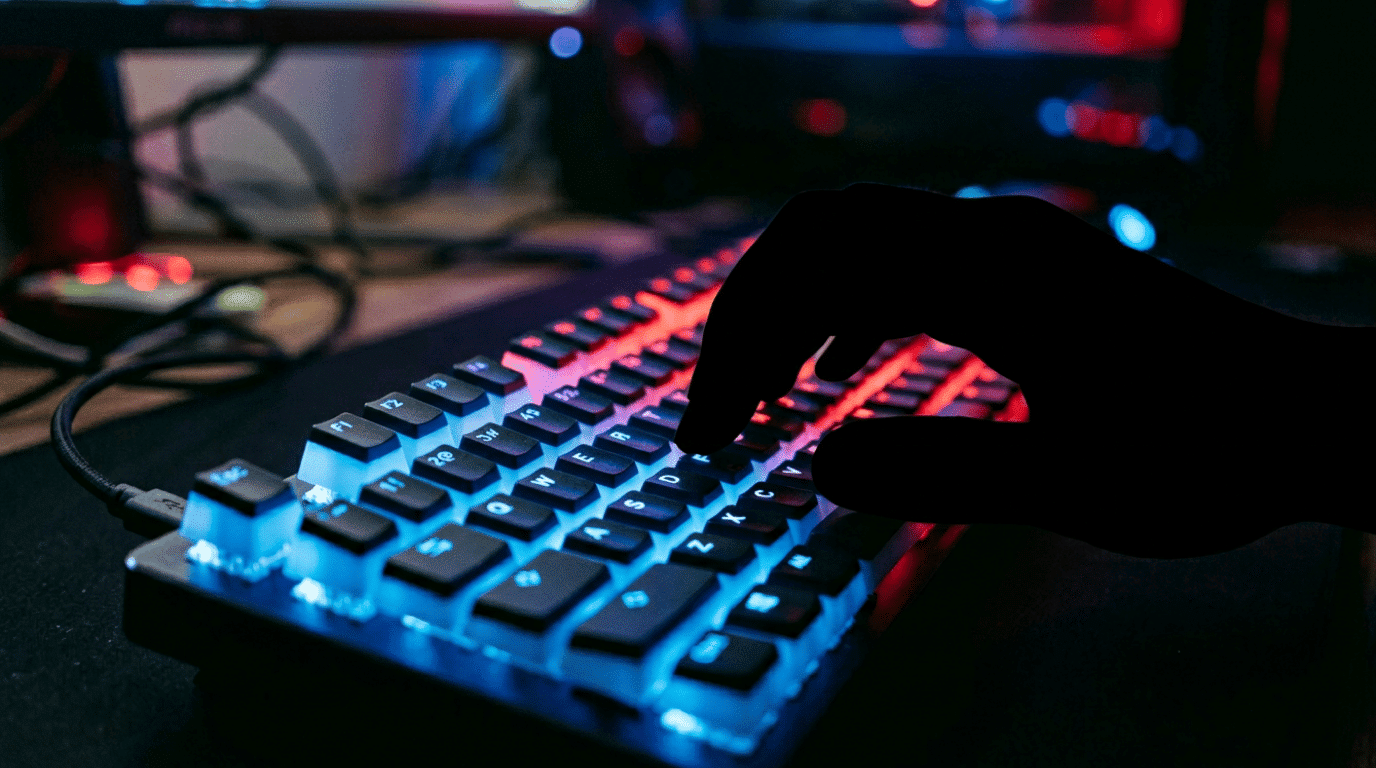
Keyboard lag or delayed typing usually happens due to slow system performance, outdated drivers, wireless connection issues, low battery, background apps, or keyboard settings.
Software-Related Causes
Conflicting background apps, accidentally enabled accessibility settings like Filter Keys, and pending operating system updates also frequently appear in support threads.
Many users found that a fresh driver install or a quick settings check solved the issue without touching any hardware.
Some cases trace back to a recently installed program that runs in the background and competes for system resources, slowing the processing speed of input.
Hardware-Related Causes
Worn-out key switches, debris stuck under the keycaps, a failing USB port, weak batteries in wireless models, or a frayed cable are common culprits.
Users who tested their keyboard on a second computer often found the lag followed the keyboard itself, pointing to a hardware fault rather than a system setting.
Liquid spills, even small ones, can also damage the internal circuitry of a keyboard in ways that cause intermittent delay rather than a complete failure.
How to Fix a Lagging Keyboard Step-by-Step
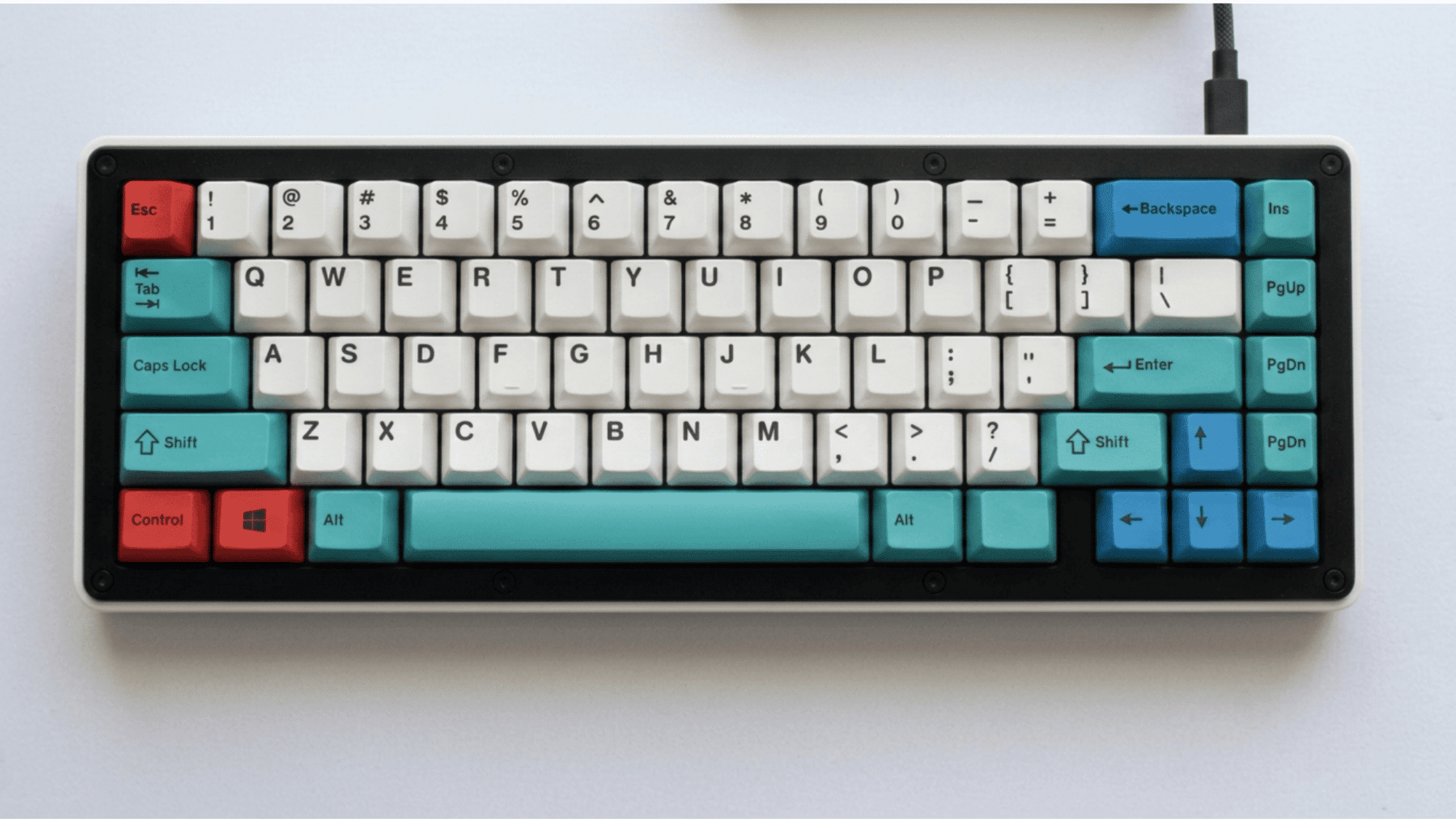
Most fixes for a keyboard that can’t type properly follow a simple order: start with the easiest checks, then move toward driver updates, and finally test the hardware directly.
- Restart the device to clear temporary glitches.
- Check accessibility settings to rule out accidental changes.
- Update the keyboard driver to resolve most software-based lag.
- Switch USB ports or test on another device to narrow down whether the keyboard or the computer is at fault.
Quick Fixes Anyone Can Try
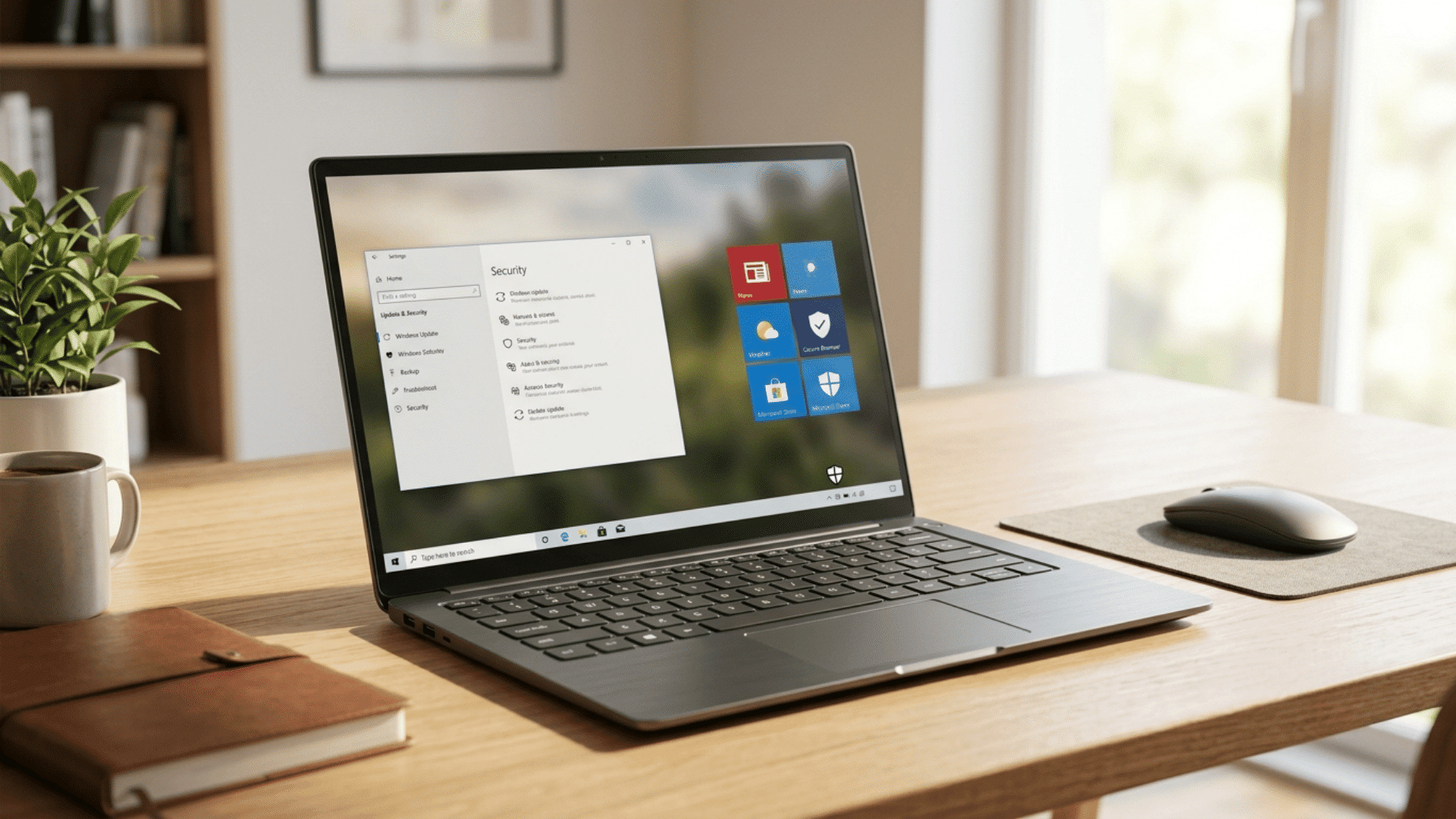
Quick fixes for keyboard lag include restarting the computer, reconnecting the keyboard, checking accessibility settings, and closing apps using too many resources.
- Restart the computer first, since this clears background processes that may be competing for resources.
- Unplug and replug the keyboard into a different USB port.
- Open accessibility settings and turn off Sticky Keys or Filter Keys, since these can be triggered by accident and cause noticeable typing delay.
- Close unused browser tabs and background applications to free up system resources, especially on older machines.
Driver and Software Fixes
Driver and software fixes for keyboard lag include updating, rolling back, reinstalling keyboard drivers, and checking for pending operating system updates.
- Open Device Manager, locate the keyboard entry, and update the driver.
- Roll back the driver to a previous version if the lag started right after a recent update, since this often restores normal typing speed.
- Check for pending operating system updates, since several reported lag issues were tied to known bugs that were later patched.
- Uninstall the keyboard driver entirely and let the system reinstall it automatically on restart if a simple update did not help.
What Realtime Users Say Worked
Reddit threads on this topic tend to follow a similar arc, moving from confusion to a confirmed fix. The pattern below traces that path using real exchanges from the discussions.
1. The Problem Surfaces
A user on a new 2022 laptop reports both lag and stuck-key behavior:
“I’ll tap a key and it will take 0.5-1.5 seconds to register the key was struck… it is most common when I type a key after not using the keyboard for 5+ seconds.”
2. the Pattern Spreads
Other users confirm the same experience, showing this wasn’t an isolated case:
“Same here, 2022 model, purchased a month ago, keyboard is very annoying. Stuttering and jamming as I type right now.”
3. A Diagnostic Clue Appears
A commenter offers a way to confirm the cause rather than guess at it:
“You can be certain this is your issue by installing USBLogView… you can see that app register a pair of events for the keyboard, a disconnect followed by a reconnect.”
4. Two Competing Theories Form
The thread splits into two root causes that kept resurfacing:
“For the first one you want to go into device manager and then human interface devices… make sure they aren’t being turned off to save power.”
“In my case, it was caused by ArmoryCrateService. I disabled it, and the lag was gone.”
5. The Fix Gets Refined Over Time
Later replies sharpen the original fixes with more precise tools:
“Check windows Event Viewer, go to windows logs and then applications… an application called LEDkeeper2.exe kept crashing over and over again.”
“My solution was to uninstall Armory Crate and instead use GHelper.”
Breakthrough line:
What started as a mystery freeze turned out to trace back to one quiet culprit: background software fighting the keyboard for control, not a broken keyboard at all.
When to Replace the Keyboard
If specific keys consistently lag no matter which device the keyboard connects to, the switches beneath those keys may be worn out.
Visible damage to the cable, cracked keycaps, or a keyboard that still lags after a full factory reset on the connected computer are also strong indicators that replacement is the more practical option than continued troubleshooting.
A keyboard that has been in daily use for several years is also more likely to develop wear-related lag that no fix can fully reverse.
Final Thoughts
A keyboard that finally responds the way it should changes how the whole machine feels to use, since something as small as a delayed keystroke shapes every task that runs through it.
The patience it takes to work through a few checks pays off the moment typing feels normal again, whether the answer turned out to be a setting, a driver, or a piece of background software nobody noticed running.
For anyone still stuck, a more specific search using the exact keyboard model and the symptoms experienced often turns up an answer that closely fits the situation.
Frequently Asked Questions
Can You Spray Wd-40 on The Keyboard?
WD-40 is not recommended for keyboards. It can damage plastic components, attract dust, and seep into switches, causing more lag or stickiness over time rather than fixing the issue.
What is the Best Lubricant for Keyboards?
Dielectric grease or specialized switch lubricants, such as Krytox or Tribosys, work best. These are designed for electronics and won’t damage internal components the way general-purpose oils can.
Do Gamers Prefer Membrane or Mechanical?
Most gamers prefer mechanical keyboards for their faster response time, tactile feedback, and durability, though membrane keyboards remain popular for quieter typing and lower cost.