



You’re in the middle of an important task when your browser suddenly stops loading websites and displays a disruptive message: “DNS Server Not Responding.”
Even worse, you may see errors saying you can’t reach the DNS server, leaving you disconnected from the web despite having an active internet connection.
In most cases, this problem can be fixed in just a few minutes without technical expertise.
Keep reading to learn how to fix a DNS server not responding with the most effective solutions and get your internet working again.
DNS Server Not Responding: Step-by-Step Fixes
If the quick checks didn’t resolve your issue, it’s time to get hands-on. Work through these fixes in order; each one targets a different layer of the problem, from the simplest reboot to bigger network-level changes.
1. Restart Your Router and PC
It sounds too simple, but a full power cycle clears temporary glitches in your network stack.
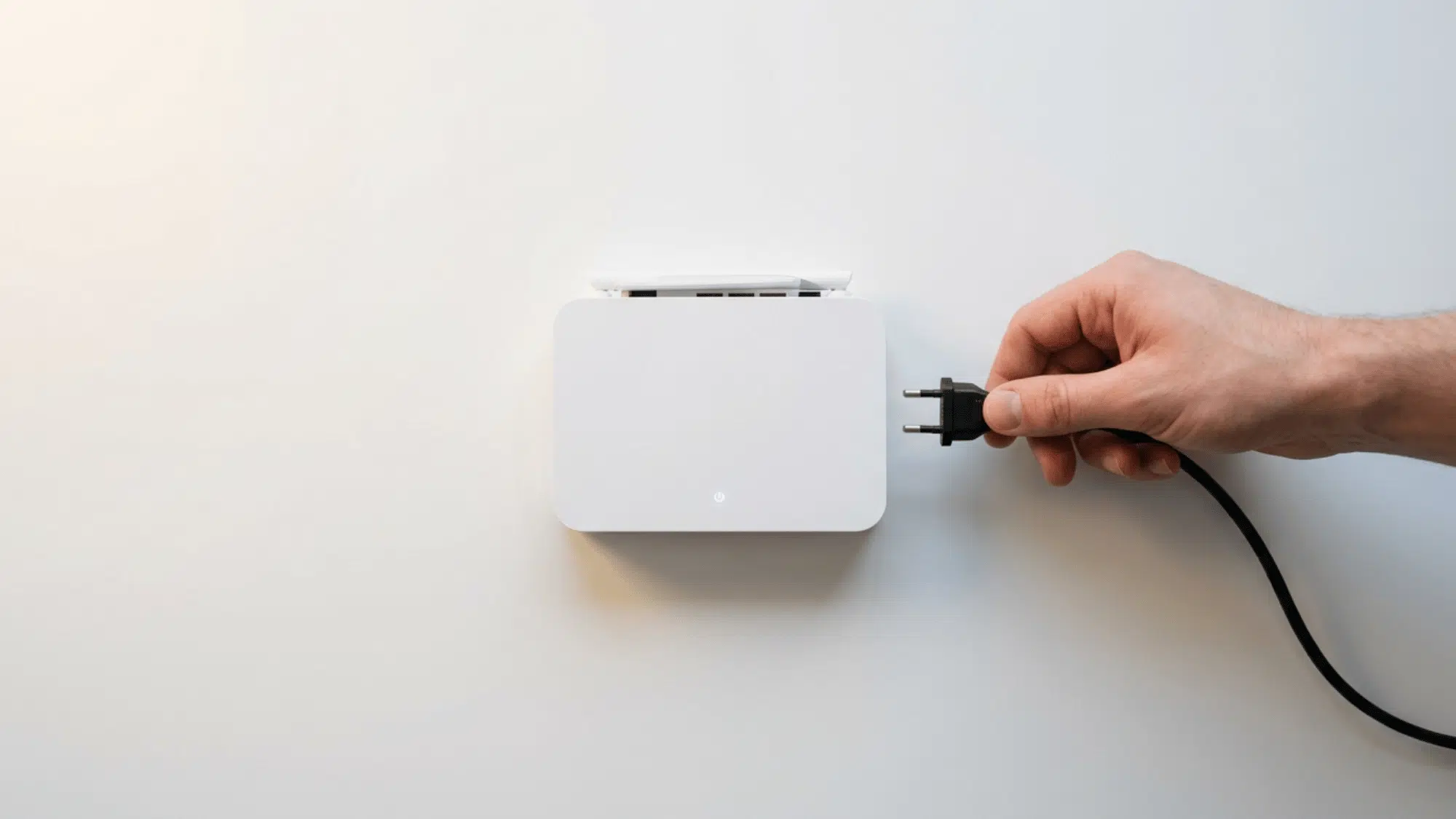
Unplug your router and modem from the power source, wait 30 seconds, then plug them back in. Once the connection is restored, restart your PC as well.
This alone resolves a surprising number of cases in which the DNS server is unresponsive, especially when the error appears suddenly without any system changes.
2. Run the Windows Network Troubleshooter
Windows has a built-in diagnostic tool that can automatically detect and fix common DNS issues:
- Go to Settings → System → Troubleshoot → Other Troubleshooters
- Click Run next to Internet Connections
- Follow the on-screen prompts
If the tool detects a DNS problem, it will flag it directly. In many cases, it resolves the error automatically, particularly useful if you’re unsure where the problem is coming from.
3. Flush Your DNS Cache
Over time, your PC stores old or corrupted DNS records that can cause conflicts. Flushing the cache forces Windows to fetch fresh DNS data:
- Open Command Prompt as Administrator
- Type
ipconfig /flushdnsand hit Enter - You should see: “Successfully flushed the DNS Resolver Cache”
This is one of the fastest and most effective fixes when you suddenly can’t load websites despite having an active internet connection.
4. Change Your DNS Server to Google or Cloudflare
Your ISP’s default DNS server is often the weakest link. Switching to a faster, more reliable public DNS is one of the most effective ways to fix DNS server not responding errors permanently:
- Go to Control Panel → Network and Internet → Network Connections
- Right-click your active connection → Properties
- Select Internet Protocol Version 4 (TCP/IPv4) → Properties
- Enter
8.8.8.8(Google) or1.1.1.1(Cloudflare) as your Preferred DNS
5. Disable IPv6 on Your Network Adapter
IPv6 conflicts with certain routers, and ISPs can quietly trigger DNS errors. Disabling it temporarily is a safe and easy test:
- OpenNetwork Connections → right-click your adapter → Properties
- Uncheck Internet Protocol Version 6 (TCP/IPv6)
- Click OK and restart your PC
Many users report that this single step resolved the “DNS server not responding” error, especially on Windows 10 and 11 systems with older routers.
6. Update or Reinstall Your Network Adapter Driver
An outdated or corrupted driver can break communication between your PC and the DNS server without showing any obvious error:
- Right-click Start → open Device Manager
- Expand Network Adapters → right-click your adapter
- Select Update Driver → Search automatically
If updating doesn’t help, tryUninstall Device, restart your PC, and let Windows reinstall the driver fresh. This often clears deep-rooted connectivity issues.
7. Reset TCP/IP and Winsock
When nothing else works, resetting your network configuration from scratch can clear underlying issues that cause the “DNS server not responding” error. Open Command Prompt as Administrator and run these commands one by one:
netsh int ip resetnetsh winsock resetipconfig /flushdns
Restart your PC after running all three. This resets your entire network stack to its default state, a clean slate for DNS communication.
How to Fix Can’t Reach DNS Server on Specific Windows Versions
While the core fixes apply broadly, certain Windows versions have unique settings and behaviors that can specifically trigger DNS errors. Here’s what to look for based on your system.
| Scenario | Windows 10 | Windows 11 |
| DNS Settings via Modern UI | Not available, must use Control Panel for DNS changes | Settings → Network & Internet → select connection → DNS Server Assignment → Edit |
| Metered Connection Blocking DNS | Settings → Network & Internet → Wi-Fi → select network → turn off Metered Connection | Settings → Network & Internet → Wi-Fi → select network → Metered Connection → toggle Off |
| Windows Firewall DNS Exception | Control Panel → Windows Defender Firewall → Allow an app → ensure DNS Client is permitted | Settings → Privacy & Security → Windows Security → Firewall → Allow an app through firewall |
| Network Reset Option | Settings → Network & Internet → Status → Network Reset (resets all adapters) | Settings → Network & Internet → Advanced Network Settings → Network Reset |
| DNS Client Service | Services → DNS Client → right-click → Restart or set Startup Type to Automatic | Same path — press Win + R → services.msc → DNS Client → Restart |
| Checking DNS via PowerShell | Run Resolve-DnsName google.com In PowerShell to test DNS resolution manually | Same command applies — Windows Terminal (Admin) → Resolve-DnsName google.com |
Quick Checks Before You Begin
Before moving into advanced fixes, it’s worth ruling out a few basics that could save you a lot of time.
- First, check if the problem affects all websites or just one. If it’s a single site, the issue likely isn’t DNS-related.
- Next, try opening the same page on another device connected to the same network. If that device works fine, the problem is isolated to your PC.
- Also, try switching to a different browser to rule out browser-specific glitches.
- Finally, restart your router and modem by unplugging them for 30 seconds.
A simple reboot fixes moreDNS server not responding errors than most people realize, and often gets you back online without any technical steps at all.
What Causes “DNS Server Not Responding” Error?
Before jumping into fixes, it helps to understandwhy you’re seeing this error. Here are the most common reasons your DNS server is not responding:
- Overloaded or Down DNS Server: Your ISP’s DNS server may be temporarily overloaded or offline. When it can’t reach the DNS server requests, your browser simply fails to load any website.
- Incorrect DNS Settings on Your PC: If your network adapter is pointing to an incorrect or outdated DNS address, Windows won’t know where to route your requests, triggering the “DNS server not responding” error.
- Outdated or Corrupted Network Adapter Driver: A faulty driver can silently break your connection to the DNS server. Updating or reinstalling the driver often resolves the issue without any other changes needed.
- Antivirus or Firewall Interference: Overly aggressive security software can block DNS traffic entirely. If you suddenly can’t reach the DNS server after installing new security software, this is likely the culprit.
- Router or Modem Misconfiguration: Your router acts as a middle layer between your PC and the DNS server. A misconfigured or outdated router can prevent DNS queries from going through.
Quick Tip: If multiple devices on the same network are showing the DNS server not responding error, the issue is almost certainly with your router or ISP; not your PC
How to Prevent DNS Errors in the Future

Fixing a DNS error once is good; making sure it doesn’t come back is better. These simple habits will keep your connection stable and help you avoid DNS disruptions going forward.
- Use a VPN with Built-in DNS Protection: A quality VPN routes your DNS queries through secure servers, reducing your dependence on your ISP’s often unstable DNS infrastructure.
- Monitor Your Network Health Regularly: Use free tools like GlassWire or PRTG to catch unusual network behavior early, before it triggers an unexpected DNS server not responding error.
- Assign a Static IP Address to Your PC: Dynamic IPs can conflict with DNS settings after network changes. A static IP keeps your DNS configuration consistent and prevents unexpected resets.
- Keep Your Router Firmware Updated: Manufacturers release firmware updates that fix known DNS routing bugs. Check your router’s admin panel every few months to stay current.
- Disable Unnecessary Browser Extensions: Certain extensions silently interfere with DNS resolution. If you frequently can’t reach the DNS server for no clear reason, disabling extensions one by one can quickly identify the culprit.
Conclusion
A broken DNS connection can bring your entire internet experience to a halt, but it’s rarely a reason to panic.
From a simple cache flush to switching your DNS server entirely, you now have a complete toolkit to tackle the DNS server not responding error head-on.
The fixes are straightforward, the results are immediate, and most solutions take under five minutes.
Bookmark this page because DNS errors tend to show up at the worst possible times. Stay ahead of the problem, and your connection will thank you.
Frequently Asked Questions
Can a DNS Error Also Affect Gaming or Streaming?
Yes. Online games and streaming platforms rely on DNS to connect to their servers. A DNS error can cause lag, failed logins, or content not loading, even when your internet appears active.
Is It Safe to Use Public DNS Servers Like Google or Cloudflare?
Absolutely. Both are trusted, encrypted, and used by millions worldwide. They are generally safer and faster than most ISP-provided DNS servers.
Does DNS Affect Internet Speed?
Indirectly, yes. A slow DNS server increases domain resolution time, making websites feel sluggish even with a fast internet connection.