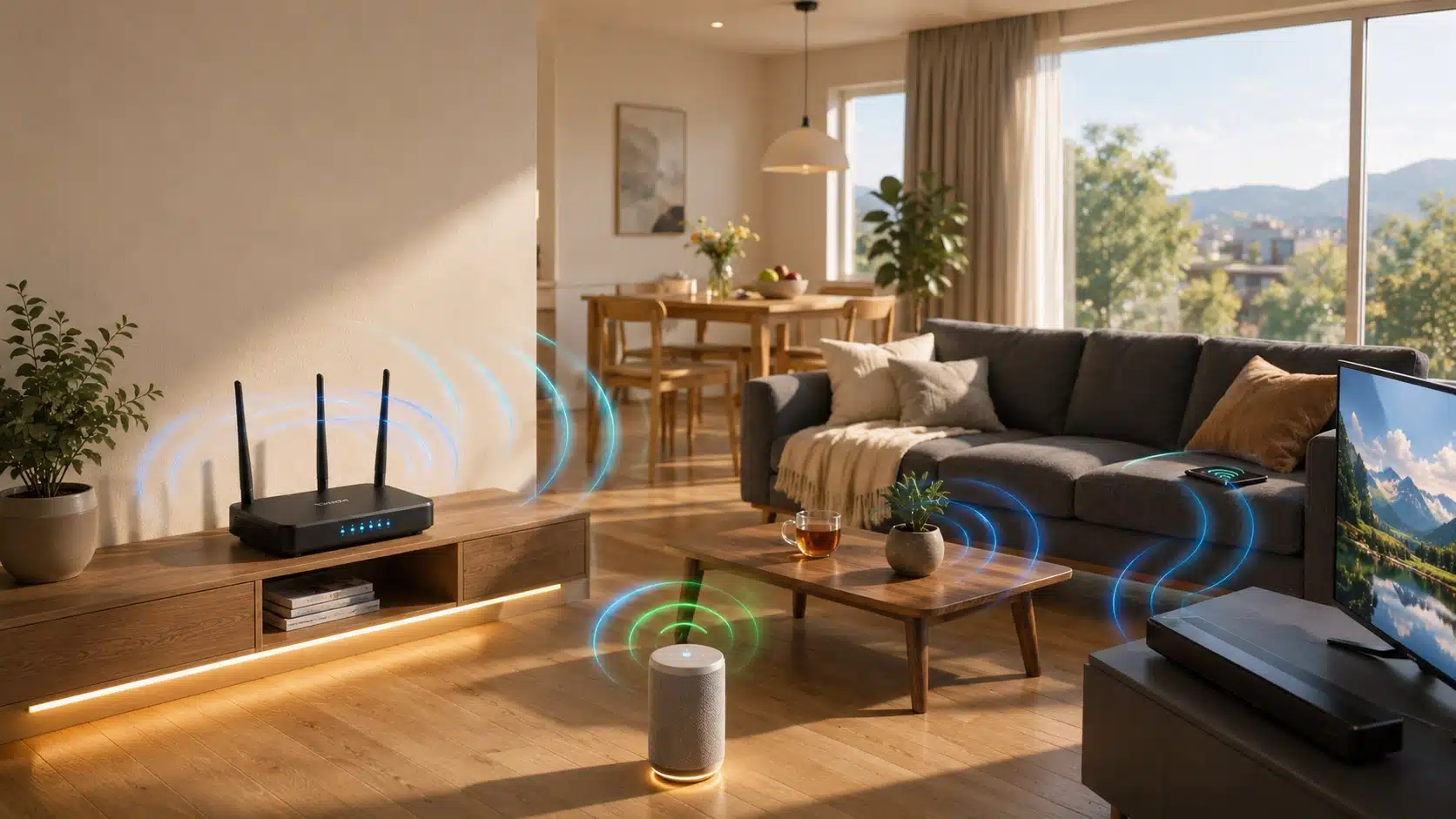
Every router has a small WPS button that promises an easier way to get online, but plenty of people press it without knowing what it actually does or where to find it in the first place.
If you’ve searched for how the WPS button on a router works, you’re likely trying to connect a printer, smart TV, or another device that’s being stubborn about a typed password.
If it’s tucked on the back panel or hidden behind a small hole, knowing what to look for saves a lot of guesswork.
This explanation covers exactly that: where the button usually sits, the step-by-step process for connecting a device, and what to know before deciding whether to actually use it.
What is a WPS Button on a Router?
WPS stands for Wi-Fi Protected Setup, a feature built into many routers that makes it easier to connect devices to a Wi-Fi network without entering the password manually.
WPS is typically found on routers rather than standalone wireless access points, since the two devices serve different roles within a network.
Instead of typing a long password, you press the WPS button on the router and then activate WPS on the device you want to connect.
The router and device automatically exchange the information needed to establish a secure connection.
WPS was designed for devices that are difficult to type on, such as printers, smart TVs, wireless cameras, and smart plugs. While convenient, some routers now disable WPS by default because of security concerns.
Where is the WPS Button Located on Your Router?

Router manufacturers place the WPS button in slightly different spots, but a few patterns cover most models you’ll run into. The two categories below cover almost every router you’re likely to own.
On Most Home and ISP-Provided Routers
Newer routers and the boxes provided by internet companies tend to follow a fairly predictable layout, which makes the button easy to spot once you know what to look for.
- A labeled button on the back panel, usually marked “WPS” with a two-arrow icon
- Positioned near the power port or reset button on many consumer routers
- On some ISP-supplied routers (cable or fiber boxes), the icon may sit on the front panel instead
These placements cover the vast majority of routers sold in the last several years, so start there before assuming your router doesn’t have one at all.
On Older or Budget Routers
Older or lower-cost routers are a bit less consistent, and the button itself can be harder to identify at a glance.
- A small recessed button that needs a pin or paperclip to press
- Sometimes combined with the reset button, so check the label carefully before pressing
- May be unlabeled entirely on very old models, in which case the manual is the fastest way to confirm
If the button still isn’t obvious after checking both panels, the model number printed on the router is usually enough to find an exact diagram online.
If you can’t find it anywhere on the case, logging into your router’s admin panel is the next best step, and Microsoft’s own guide to finding your default gateway address makes that part quick.
How to Connect a Device Using the WPS Button
Once you’ve located the button, connecting a device takes one of two routes depending on what your gadget supports. Both methods lead to the same result, just through slightly different steps.
1. Push-Button Method

This is the faster and more common option, and it’s the one most modern devices default to automatically.
Follow these steps to connect your device using the WPS push-button method:
- Put your device into WPS or pairing mode (check its settings menu or manual)
- Press the WPS button on your router
- Within about two minutes, the two devices should connect automatically
- Confirm the connection on your device’s screen or status light
Most people never need to go further than this method, since the vast majority of current routers and devices support it out of the box.
2. PIN Method

Some older or specific devices ask for a PIN instead of using the button directly, which takes a little more manual entry but works the same way underneath.
Follow these steps to connect your device using the WPS PIN method:
- Find the 8-digit WPS PIN, usually printed on the router or shown in its admin settings
- Enter that PIN into your device when prompted
- The device sends the PIN to the router to request access
- If the PIN matches, the connection completes automatically
Most modern devices only support the push-button method now, so try that first unless your device specifically asks for a PIN.
Connecting Different Devices via WPS
Not every device handles WPS the same way, and knowing what to expect from each type saves some trial and error.
- Printers: Most WPS-enabled printers have their own button, usually near the paper tray or control panel
- Smart TVs: Look for a WPS option inside the network settings menu rather than a physical button on the TV itself
- Smart plugs and IoT devices: Many rely on their companion app to trigger WPS pairing instead of a button on the device
- Phones and tablets: Most current Android and iOS devices no longer offer a built-in WPS option, since manual password entry has become the standard
Checking your specific device’s settings menu before assuming it lacks WPS support is worth the extra minute, since the option is sometimes buried a level or two deep.
WPS Push-Button vs. PIN Method
Both methods get a device online without typing a password, but they aren’t equally practical or secure. Here’s how they compare.
| Feature | Push-Button Method | PIN Method |
|---|---|---|
| Speed | Fast, usually under two minutes | Slightly slower, requires entering digits |
| Security | Requires physical access to the router | More vulnerable to brute-force guessing |
| Device Support | Supported by nearly all WPS devices | Less common on newer devices |
WPS itself is a certified standard maintained by the Wi-Fi Alliance, which is worth a look if you want the technical specification behind how the handshake works.
Is Using WPS Safe?
WPS is convenient, but the PIN method in particular has a known weakness: its 8-digit code can be cracked through repeated guessing in a matter of hours on unprotected routers.
The push-button method is safer since it requires someone to physically press the button during the connection window, but it’s still worth treating as a temporary tool rather than a default setting.
If you disable WPS, devices simply connect the traditional way by entering the network security key instead.
This is also why the Cybersecurity and Infrastructure Security Agency (CISA) recommends it as part of general home network hardening.
What to Do If the WPS Button Isn’t Working
A few common issues explain most WPS connection failures, and working through them in order usually turns up the fix.
- Confirm WPS is actually enabled in your router’s settings, since many models ship with it turned off
- Restart the router and try again, since a stuck process can block new connections
- Make sure you’re completing the device side within the two-minute window before it times out
- Double-check that your device actually supports WPS, since many phones and newer laptops don’t
If none of these steps solve it, resetting the router to its factory settings and reconfiguring WPS from scratch usually clears up whatever’s stuck.
Final Thoughts
The WPS button on a router is a genuinely useful shortcut once you know where to find it and how the two connection methods actually differ.
It works best for stubborn devices like printers, smart plugs, or older smart TVs rather than everyday gadgets that already have your Wi-Fi password saved.
Treat it as a temporary convenience rather than a permanent setting, and you’ll get the quick connection without leaving the door open longer than needed.
Still having trouble getting a device to connect? Check your router’s manual for its exact WPS location and try the steps above again before assuming something’s broken.
Frequently Asked Questions
Is WPS the Same as Wi-Fi Direct?
No. WPS connects a device to your existing router network, while Wi-Fi Direct lets two devices connect straight to each other without a router involved at all.
Do I Need My Wi-Fi Password If I Use WPS?
No. That’s the main point of WPS: the router and device exchange the connection details automatically, so you don’t need to type the password in at all.
Can Two Devices Connect via WPS at the Same Time?
No. Most routers only allow one WPS connection request at a time, so devices need to be paired one after another rather than simultaneously.
Does WPS Work on Both 2.4GHz and 5GHz Networks?
Yes. WPS generally works across both bands, though some older devices may default to connecting on the 2.4GHz band specifically.