


You open your phone expecting to find an app you use every day, but the icon has suddenly disappeared. Before assuming it is gone forever, know that a missing app is often just hidden from view.
Whether it happened because of privacy settings, a launcher change, or account controls, finding the right fix can bring it back quickly.
Understandinghow to unhide an app helps you identify where the app went and what to check next.
If you also want to learnhow to hide apps on iPhone, knowing both sides makes managing your apps much easier without accidental changes or confusion.
What Does It Mean When an App Is Hidden?
Before you start tapping through settings, figure out which kind of “hidden” you’re actually dealing with, since the fix depends on it.
Sometimes the phone locks an app and tucks it into a separate folder, like the Hidden section in App Library, and it works fine once you unlock that folder.
Then there’s App Store purchase history, where hiding a past purchase has nothing to do with whether the app is actually installed on your phone. And once in a while, the app isn’t hidden at all.
It’s just gone, fully deleted, so you’ll need to redownload it instead of hunting for an unhide button. Knowing which one you’re dealing with saves a lot of wasted tapping.
How to Unhide an App on Every Device?
The exact steps depend on where the app disappeared from, so this section walks through each platform on its own. Start with the device you are using, then move to the App Store section further down if the issue is a hidden purchase rather than a hidden app.
1. On iPhone
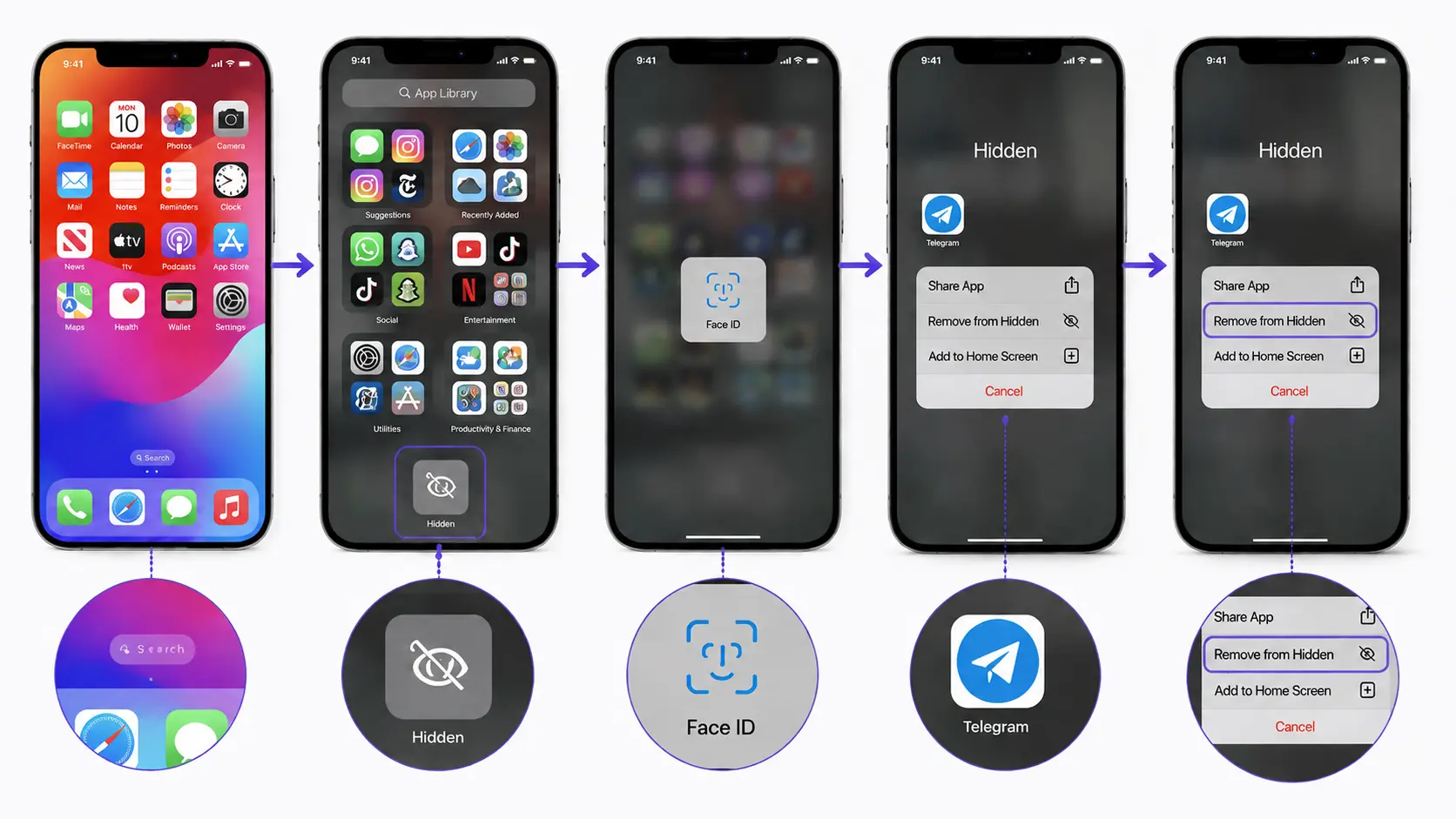
According to Apple’s support documentation, a hidden app stops appearing on the Home Screen and in App Library, and it also drops out of Spotlight results, which is why the standard search bar will not help in this case.
Follow these steps to restore a hidden app on iPhone:
Step 1: Get to the App Library: Swipe left past every Home Screen page until it appears.
Step 2: Open the Hidden folder: Scroll down to the bottom of the App Library and tap it.
Step 3: Authenticate: Use Face ID, Touch ID, or your passcode to unlock the folder.
Step 4: Long-press the app: Hold the icon until the quick actions menu pops up.
Step 5: Remove the hidden status: Tap Don’t Require Face ID, or the matching Touch ID or passcode option.
Once you complete these steps, the app returns to the regular App Library rather than jumping straight back to the Home Screen.
Remember: If the Hidden folder does not open, check whether Face ID or Touch ID is working properly on your device. You can use your passcode if biometric verification fails. Remember, hidden app settings only apply to that device and do not sync across your other Apple devices.
2. On Android Phones
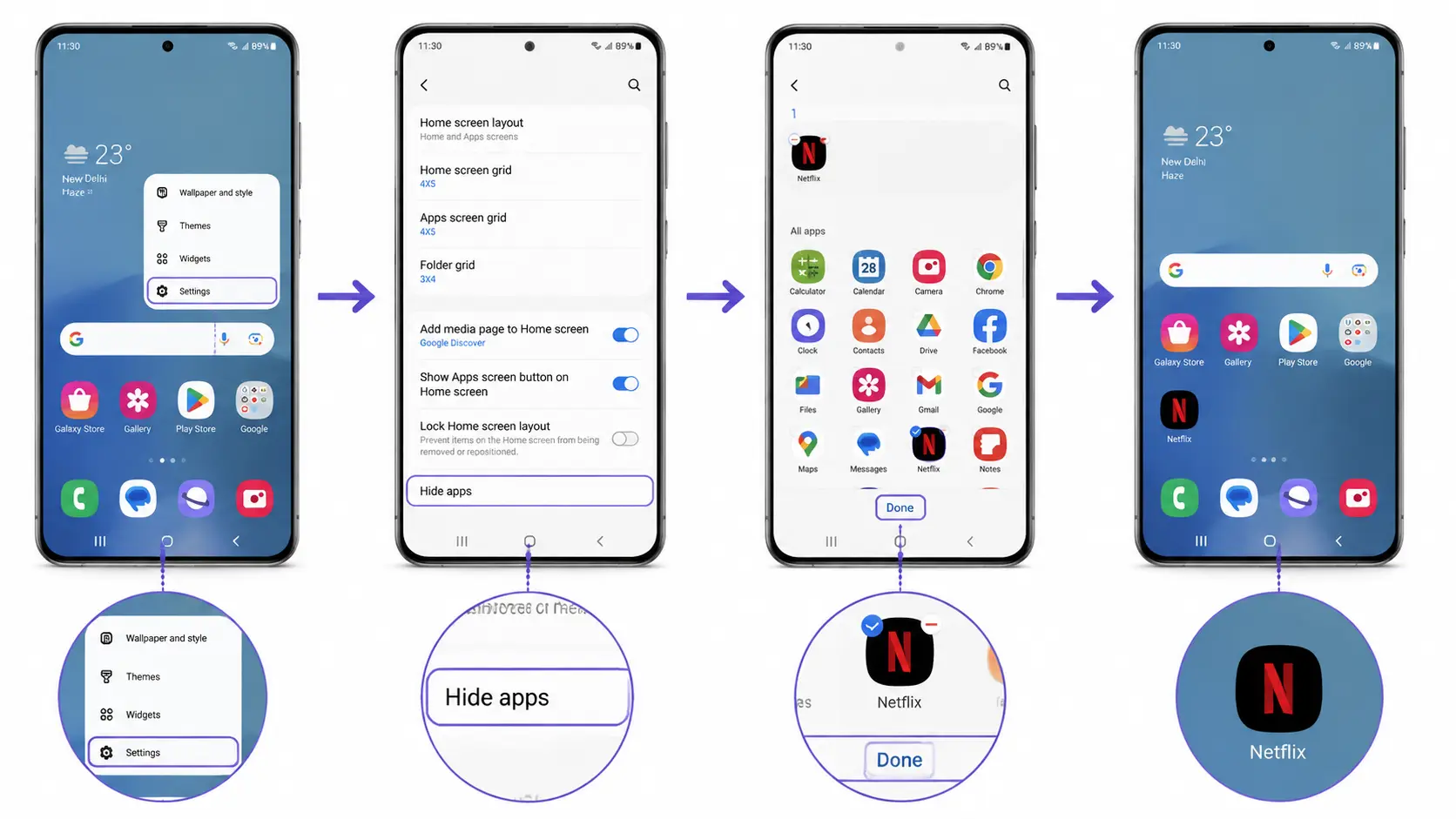
Android does not use one universal hidden apps system the way iPhone does. Each manufacturer and each launcher built on top of Android handles app visibility differently, so the correct menu depends on the specific phone in your hands.
Follow these steps to restore a hidden app on Android Phones:
Step 1: Open Home Screen settings: Press and hold an empty area of the screen, then tap Settings.
Step 2: Select Hide Apps: Find it in the Home Screen settings menu.
Step 3: Find the app: Locate it in the hidden list and tap to remove it.
Step 4: Confirm the change: The app returns to the Home Screen and app drawer.
Per Google’s Android support page, these apps sit inside a separate area that opens from the Home Screen or All Apps, and open with its own private space lock or the device’s regular screen lock.
Remember: Newer Pixel phones and other devices running Android 15 or later use a separate system called Private Space rather than a simple hide toggle.
3. From App Store Purchase List
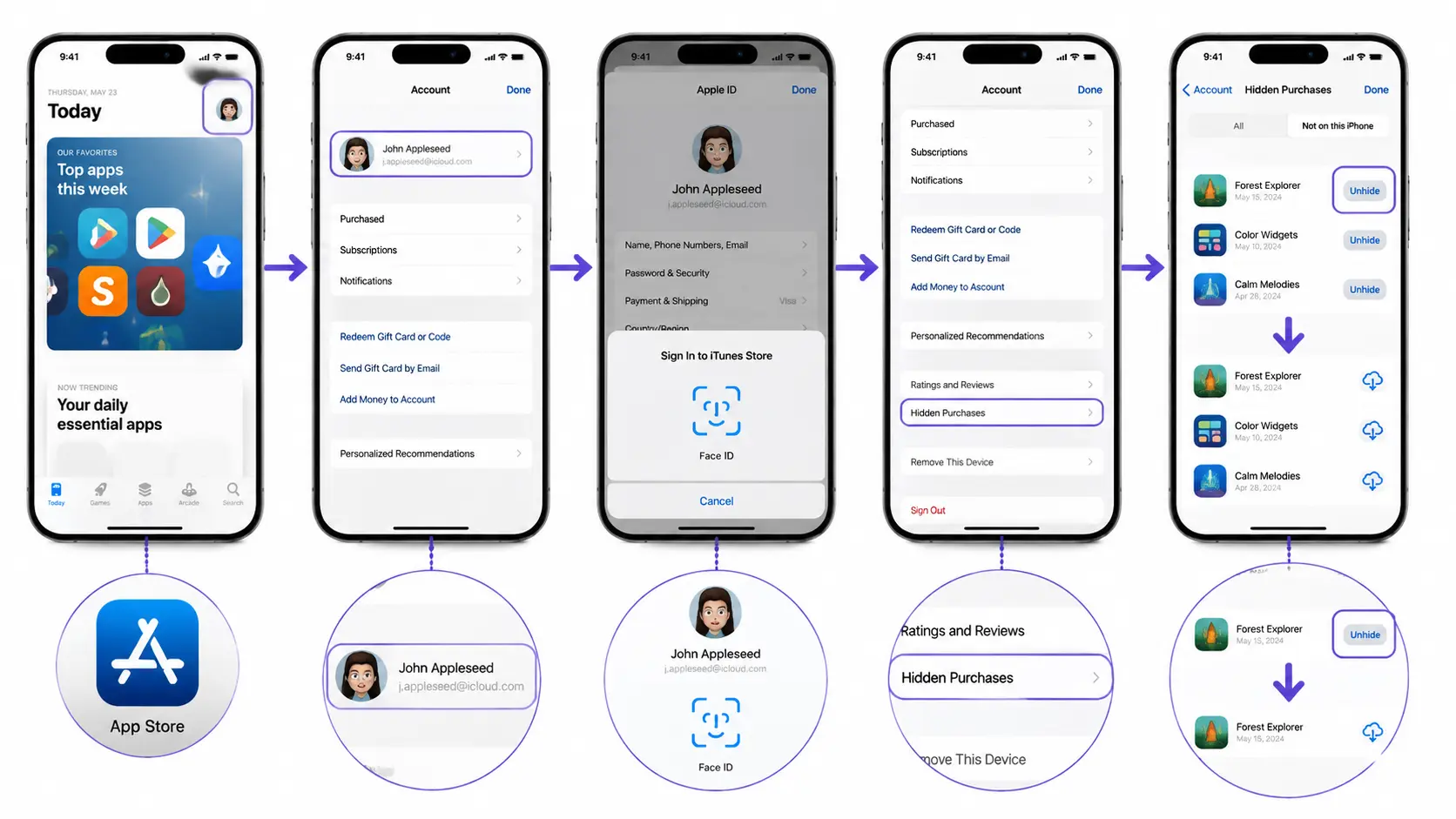
Hidden purchases are a separate issue from hidden apps on your device. Hiding a purchase only affects what shows up in your App Store account history, and it has no effect on whether the app is currently installed on your phone.
To unhide a purchase and make it available for redownload, follow these steps:
Step 1: Open the App Store: Launch it from your iPhone or iPad.
Step 2: Tap My Account: Use the button or your photo at the top of the screen.
Step 3: Tap your name: Sign in again if the app asks you to.
Step 4: Find Hidden Purchases: Scroll down and tap it in the account menu.
Step 5: Tap Unhide: Select it next to the app you want back.
As per Apple’s official guidance, hiding an app from the purchase list removes it from the App Store purchases screen, though it remains listed in the complete purchase history found in Settings.
Remember: On Mac, hidden purchases can be managed through the Mac App Store settings. After unhiding an app, it becomes available again on other Apple devices using the same account. The hidden status is linked to your Apple Account, not a single device.
How Hidden Apps Work on iPhone
Understanding how hiding works in the first place makes it easier to reverse when needed. On iPhone, hiding an app locks it behind Face ID, Touch ID, or a passcode and simultaneously moves it into the Hidden folder in App Library, out of normal view.
| Action | What Happens |
| Hide App | Removes normal visibility and requires authentication |
| Unhide App | Restores access and returns the app to App Library |
| Delete App | Removes the application and its local data |
Choosing the correct option prevents accidentally deleting an app when the goal is only to make it visible again. If an app is already gone and none of these menus show it, the next step is checking whether it was deleted rather than hidden.
Why the App Still Isn’t Showing Up
Sometimes the unhide steps work correctly, yet the app still seems to be missing. Running through this checklist usually reveals the actual cause.
| Possible Cause | What To Do |
| App is in App Library or the app drawer but never added back to the Home Screen | Drag it out of the App Library or app drawer onto the Home Screen manually |
| App was deleted at some point instead of hidden | Download it again from the App Store or Play Store |
| Screen Time restrictions on iPhone are limiting which apps can open or show | Check Settings, then Screen Time, for app limits or blocks |
| Parental controls on a shared device are blocking visibility | Review the parental control app or account settings |
| A recent software update moved settings menus to a new location | Search Settings for “hidden” or “hide apps” to find the current menu |
| The app was removed from the device entirely rather than hidden | Reinstall it, since a removed app cannot be brought back with an unhide step |
Working through each item in order usually identifies which scenario applies before more time gets spent retracing the original unhide steps.
If the app has reappeared but still isn’t working properly or keeps freezing, the issue may be related to stored app data rather than its visibility. In that case, clearing the app cache on your iPhone can help resolve common performance problems.
Common Mistakes When Trying to Unhide Apps
A few habits slow down the process of getting a missing app back where it belongs.
- Check the App Library or app drawer instead of searching only the Home Screen.
- Make sure the app is hidden, not deleted.
- Look in the right settings section for your device.
- Complete any Face ID, passcode, or lock verification when needed.
- Remember that app settings can differ across phones and launchers.
- Check if Screen Time, parental controls, or other restrictions are hiding the app.
Taking a moment to identify which of these applies before repeating the same steps usually gets the app back into view faster than trying every menu at random.
Final Takeaway
Finding a missing app does not always mean it has been deleted. In many cases, it is simply hidden or moved out of sight.
Once you understand where the app disappeared from, choosing the right solution becomes much easier.
Whether you searched how to unhide an app or wanted to learnhow to hide apps on iPhone for privacy reasons, knowing these settings helps you manage your device better.
Keep these tips in mind whenever an app seems to vanish, and you can avoid unnecessary confusion while keeping your apps organized.
Have you ever hidden an app by mistake? Share your experience in the comments below.
Frequently Asked Questions
Can I Find a Hidden App Without Knowing Where It Was Hidden?
Yes, you can still find it by checking the places where your device stores hidden apps.
The location depends on whether you use an iPhone, Android phone, or an app store account.
Does Hiding an App Delete Its Data or Settings?
No, hiding an app does not remove its data or saved information. Your login details, preferences, and app settings usually stay unchanged unless the app was deleted.
Can I Hide Apps From My Family Sharing Account?
No, hiding an app does not completely remove it from Family Sharing visibility.
Shared account settings and purchase permissions may affect what others can access.