


Sending a message at the right time can be difficult when life gets busy or plans change.
iPhone users can schedule certain messages for later, making it easier to handle reminders, greetings, work updates, and personal plans.
The exact method depends on the iOS version, device setup, and message type. Knowing these differences helps you choose the right option and avoid confusion.
Read on to learn how to schedule a text on iPhone and manage it with confidence.
Can You Schedule a Text on iPhone?
Yes, you can schedule a text on an iPhone using the Send Later option in the Messages app.
The feature is available on iPhones running iOS 18 or later and works with iMessage conversations.
You can choose a date and time up to 14 days ahead, and the recipient will not see that the message was scheduled.
The scheduled message stays visible in the conversation and can be managed anytime before its delivery time.
You need an internet connection to schedule or change the message.
Note: Send Later works only with iMessage conversations and does not support scheduling standard SMS, MMS, or RCS messages.
Requirements for Scheduling a Text on iPhone
Apple’s Send Later feature requires a compatible iPhone setup, active iMessage, and internet access before you can schedule.
1. iOS 18 or Later: The iPhone must run iOS 18 or newer to access Send Later in Messages.
2. iMessage Must Be Active: Confirm that iMessage is enabled before attempting to schedule a message.
3. Internet Access: An internet connection is required to schedule, edit, delete, or reschedule a message.
4. Messages App: Scheduling must be done through Apple’s built-in Messages app using an iMessage conversation.
5. Valid Delivery Time: The selected delivery date and time must fall within Apple’s 14-day scheduling window.
6. Compatible Recipient: The recipient can use any device and will not be notified that the message was scheduled.
How to Schedule a Text on iPhone?

Schedule an iMessage directly in Apple’s Messages app on iOS 18 or later, up to 14 days ahead, with options to manage it before delivery.
Step 1: Open an iMessage Conversation
Open the Messages app and choose the person or group that should receive the scheduled text.
To begin a new conversation, tap the compose button and select the correct contact. Confirm that the intended conversation is open before continuing.
This reduces the chance of preparing the message for the wrong recipient and keeps the scheduling process focused from the start.
Step 2: Select Send Later
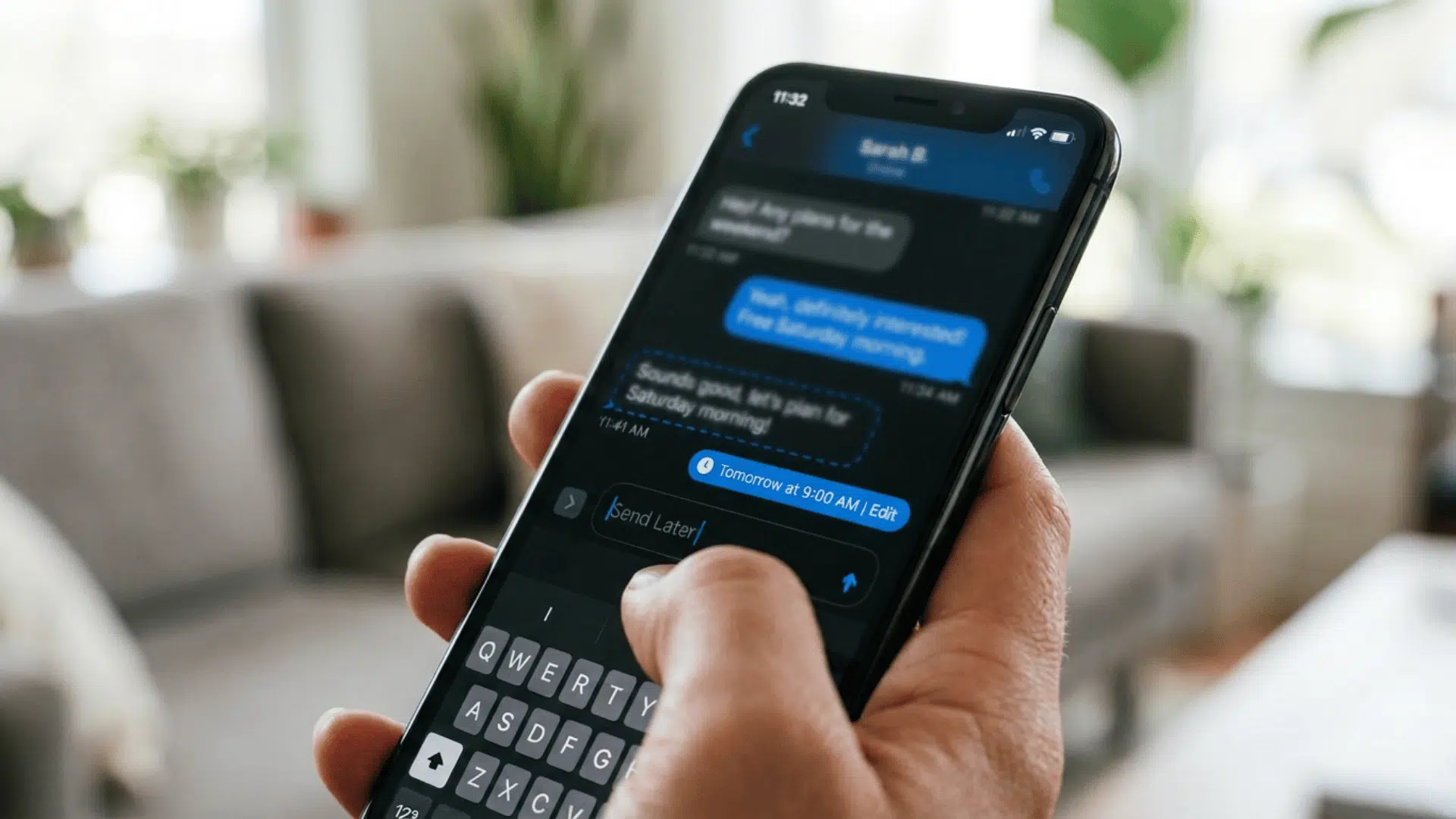
Tap the plus button beside the message field to open the available Messages tools. Choose Send Later from the menu.
A delivery time appears above the text field, and the message box changes to a dashed border.
This visual cue confirms that the conversation is now set for scheduled delivery instead of sending the message immediately at the chosen time.
Step 3: Choose The Delivery Time
Tap the displayed date or time to open the scheduling controls. Choose the preferred day and exact delivery time from the available options.
Review the selection carefully before continuing, especially when timing matters for birthdays, appointments, or work communication.
The chosen schedule remains visible above the message field, making it easy to confirm before writing the final text and moving forward.
Step 4: Write and Schedule The Message
Type the message in the text field as usual, then read it once before sending.
Make sure the wording suits the intended purpose and that the chosen delivery time still works. Tap the send button to place the message in the queue.
It will remain pending inside the conversation until the selected delivery time arrives and the message is sent.
Step 5: Check or Change The Message
Return to the conversation anytime before delivery if you need to update the scheduled text.
Open the pending message to change its wording, choose another delivery time, send it immediately, or remove it entirely.
Once the scheduled time passes and delivery is complete, the message returns to the normal appearance used for regular sent messages within the conversation after it has been sent.
How to Schedule a Text on Older iPhones
Older iPhones that do not support Send Later can use the Shortcuts app to schedule a text through a personal automation.
1. Open The Shortcuts App: Open Shortcuts, tap Automation, then choose the option to create a new personal automation.
2. Choose a Time: Select Time of Day, set when the message should run, and choose the preferred repeat schedule if needed.
3. Add The Message Action: Tap Add Action, search for Send Message, enter the message, and select the recipient.
4. Review The Automation: Check the settings before saving. Depending on the iOS version and automation settings, you may need to confirm before the message is sent.
Text Scheduling Limits on iPhone
Apple’s Send Later feature has a few limits that affect when and how messages can be scheduled. It works with iMessage conversations on iPhones running iOS 18 or later.
Messages can be scheduled up to 14 days in advance, but standard SMS, MMS, and RCS messages cannot use Send Later.
The iPhone also needs an internet connection when creating or modifying a scheduled message.
Before delivery, you can edit the message, change its scheduled time, send it immediately, or delete it. Once delivered, it behaves like a regular iMessage.
Can You Schedule Photos, Links, or Attachments?
Apple’s Send Later feature is built mainly for scheduling iMessage text. Support for other content depends on how you add the item to the message.
| Content Type | Can It Be Scheduled? | What to Know |
|---|---|---|
| Plain Text | Yes | Type the message after choosing Send Later, then select a delivery time. |
| Website Links | Usually yes | Paste or type the URL into the scheduled message. A preview may appear. |
| Photos and Videos | Not officially listed | Apple’s instructions do not confirm scheduled delivery for media attachments. Send them separately if timing matters. |
| Files and Documents | Not officially listed | Attachments from Files are not covered in Apple’s Send Later instructions. |
| Stickers and Effects | May be limited | Some Messages features may not work inside a scheduled message. |
Privacy Considerations for Scheduled Messages
Scheduled iMessages use Apple’s security protections, but you should still check the recipient, timing, and content carefully before delivery.
- Messages Stay Encrypted: Scheduled iMessages remain encrypted while stored on Apple’s servers before the selected delivery time arrives.
- Temporary Server Storage: Apple keeps scheduled messages on its servers only until delivery, then removes them after sending.
- Limit Sensitive Details: Avoid including unnecessary private information in messages that will remain visible before delivery.
- Protect Your Device: Scheduled messages remain visible in conversations, so anyone using an unlocked iPhone may be able to read them.
- Review Before Delivery: Recheck scheduled messages before delivery and edit or delete sensitive content if circumstances or details change.
- Avoid Shared Devices: Messages may appear on other devices signed into the same Apple Account, depending on iCloud settings.
Wrapping Up
In the end, Send Later is a practical iPhone feature for messages that need to arrive at the right moment.
Once set up correctly, Send Later makes planned messaging easier to manage from the Messages app.
A quick final review can help keep scheduled messages accurate and intentional.
Once you understand these limits, scheduling reminders, greetings, and work updates becomes much easier.
Try it with your next important message, then drop a comment and share when this feature is most useful for you.
Frequently Asked Questions
Can Multiple Messages Be Scheduled Separately?
Yes. Different messages can be scheduled for separate times within the same conversation, provided each schedule meets Apple’s limits.
Can Scheduled Messages Be Sent From iPad?
Supported iPads with compatible software can use Send Later in Messages when iMessage is enabled and properly configured.
Does Scheduled Messaging Affect Battery Life?
Scheduled messaging has no major effect on battery life because Messages handles delivery without keeping the app actively open.