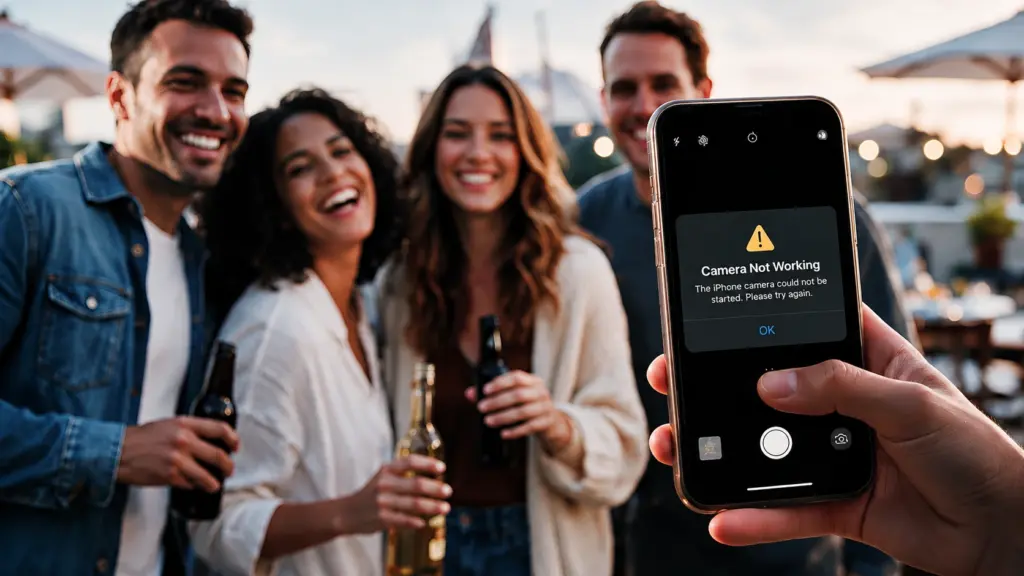
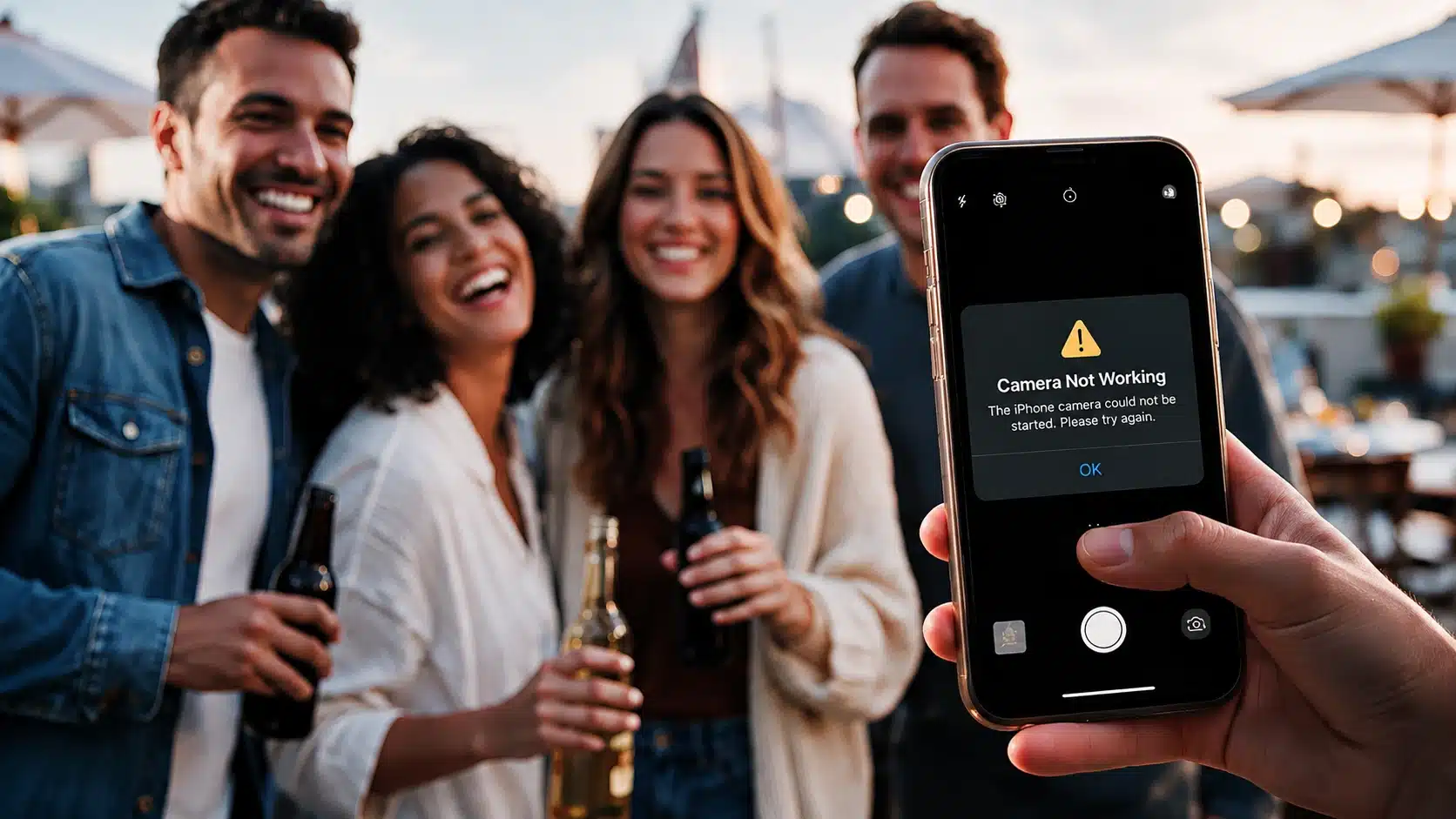



Opened your iPhone camera and found a black screen, a frozen preview, or no response? When you notice your camera not working on iPhone, it can feel alarming, but it doesn’t always mean damaged hardware.
Temporary glitches, app conflicts, permission blocks, or software issues may be the real cause. Start with quick checks before moving to advanced solutions.
Restarting your iPhone, reviewing camera settings, updating iOS, and checking app access can often restore normal function.
If the problem continues, deeper troubleshooting can help identify the source. Follow the right steps to fix your iPhone camera and capture moments again without unnecessary worry.
Use proven fixes to save time during troubleshooting and regain reliable camera performance whenever you need clear photos and videos with confidence.
Why Is My Camera Not Working on iPhone?
An iPhone camera may stop working due to app glitches, incorrect settings, permission issues, iOS problems, or hardware damage. The cause is not always clear, but common signs can help identify the issue.
You may notice :
- Camera app opens with a black screen
- Camera freezes or closes suddenly
- Front or rear Camera stops responding
- Camera fails in third-party apps
- Photos look blurry or cannot focus
- Flash stops working
Finding the cause starts with checking whether the issue is limited to the Camera app, another app, or the camera hardware. Simple troubleshooting steps can often fix temporary problems quickly without major changes, the same layered approach that helps when a touchscreen stops responding properly.
Try These Quick Fixes First
Before changing settings or resetting your iPhone, try these basic checks. They solve many temporary camera problems and only take a few minutes.
| Quick Fix | Why It Helps |
|---|---|
| Clean the camera lens | Removes dust, fingerprints, and smudges that can affect image quality. |
| Close and reopen the Camera app. | Refreshes the app when a temporary glitch prevents it from working properly. |
| Remove the case or accessories. | Prevents covers or attachments from blocking the lens or camera components. |
| Switch between front and rear cameras. | Helps identify whether the problem affects one Camera or the entire system. |
Quick takeaway: These checks solve many common camera issues and are the easiest steps to try before before you move to software settings or advanced troubleshooting discussed below.
Does Your iPhone Camera Work In Other Apps?
Before changing iPhone settings, check whether the camera problem happens everywhere or only inside one app.
Open another app that uses the Camera, such as FaceTime, Instagram, or WhatsApp, and test it.
- If the Camera works in other apps but not the Camera app, the issue may be related to the Camera app or iOS.
- If the Camera fails across multiple apps, the problem may involve permissions, software settings, or the camera hardware.
- If only one third-party app cannot access the Camera, check that app’s camera permissions.
This quick test helps narrow down the cause before moving to detailed troubleshooting steps, and if the issue seems tied to one specific app rather than the whole system, clearing that app’s stored Cache is often worth trying next.
Step-by-Step Troubleshooting Guide to Fix Your iPhone Camera
If quick checks don’t restore your iPhone camera, move on to deeper troubleshooting steps. Follow these steps to identify whether the cause is a software glitch, app conflict, or hardware issue.
Step 1: Close And Reopen The Camera App

A Camera app that freezes, stays black, or refuses to load may have temporarily lost its connection with the iPhone camera system.
Swipe up from the bottom of the screen and pause to open the app switcher. Find the Camera app preview, swipe it upward to close it, then open Camera again.
Refreshing the app can clear temporary loading errors and restore normal camera behavior without changing any settings.
Step 2: Restart Your iPhone
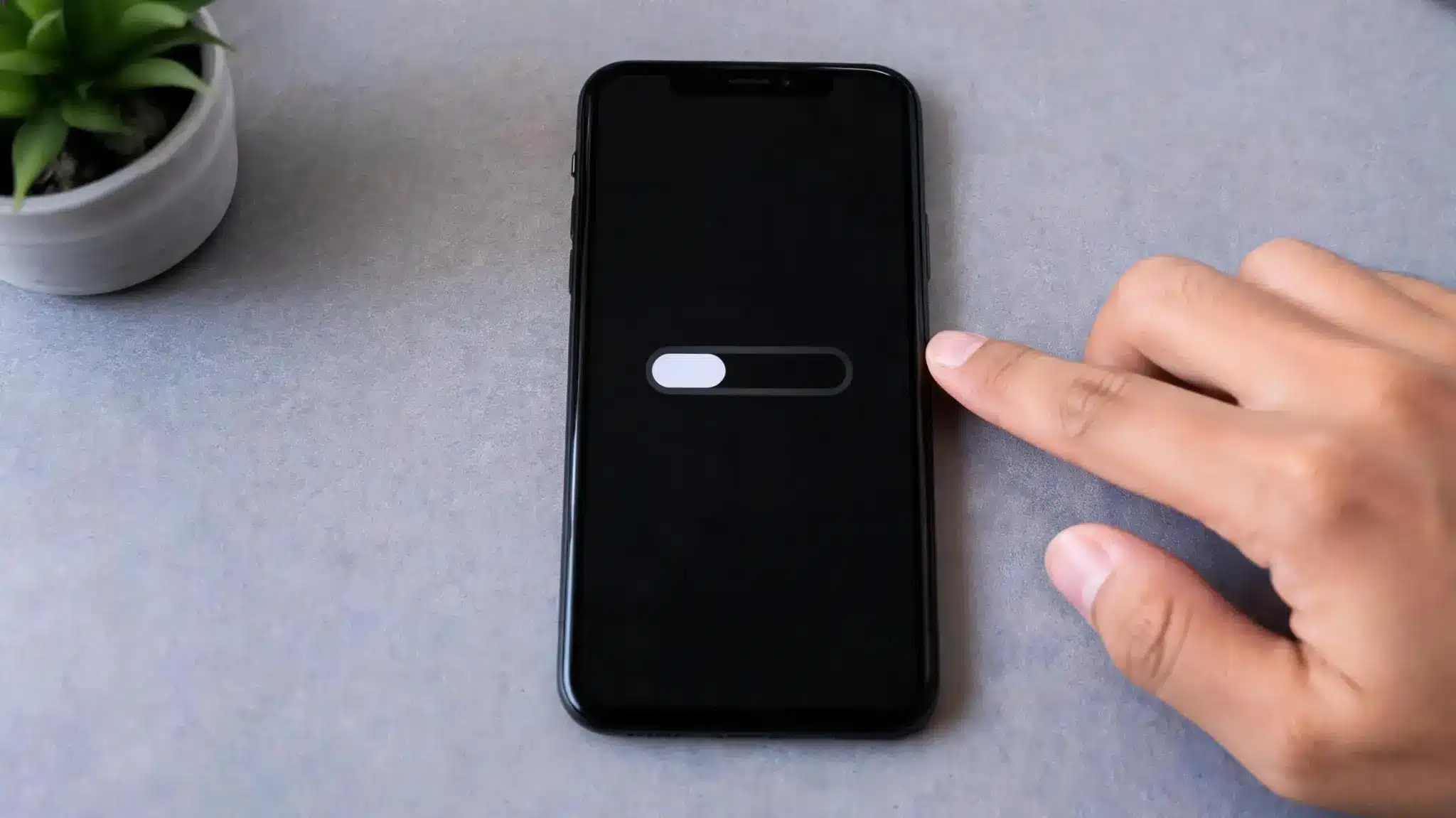
A restart can clear temporary iOS problems that affect the Camera app, especially when the Camera stops opening after using another app or after a software change.
Open Settings → General → Shut Down, wait for the iPhone to turn off, then restart it using the side button.
If your iPhone is frozen, use Apple’s force restart instructions for your specific model.
Restarting reloads system processes and can restore communication between iOS and the camera hardware.
Step 3: Test The Front And Rear Cameras
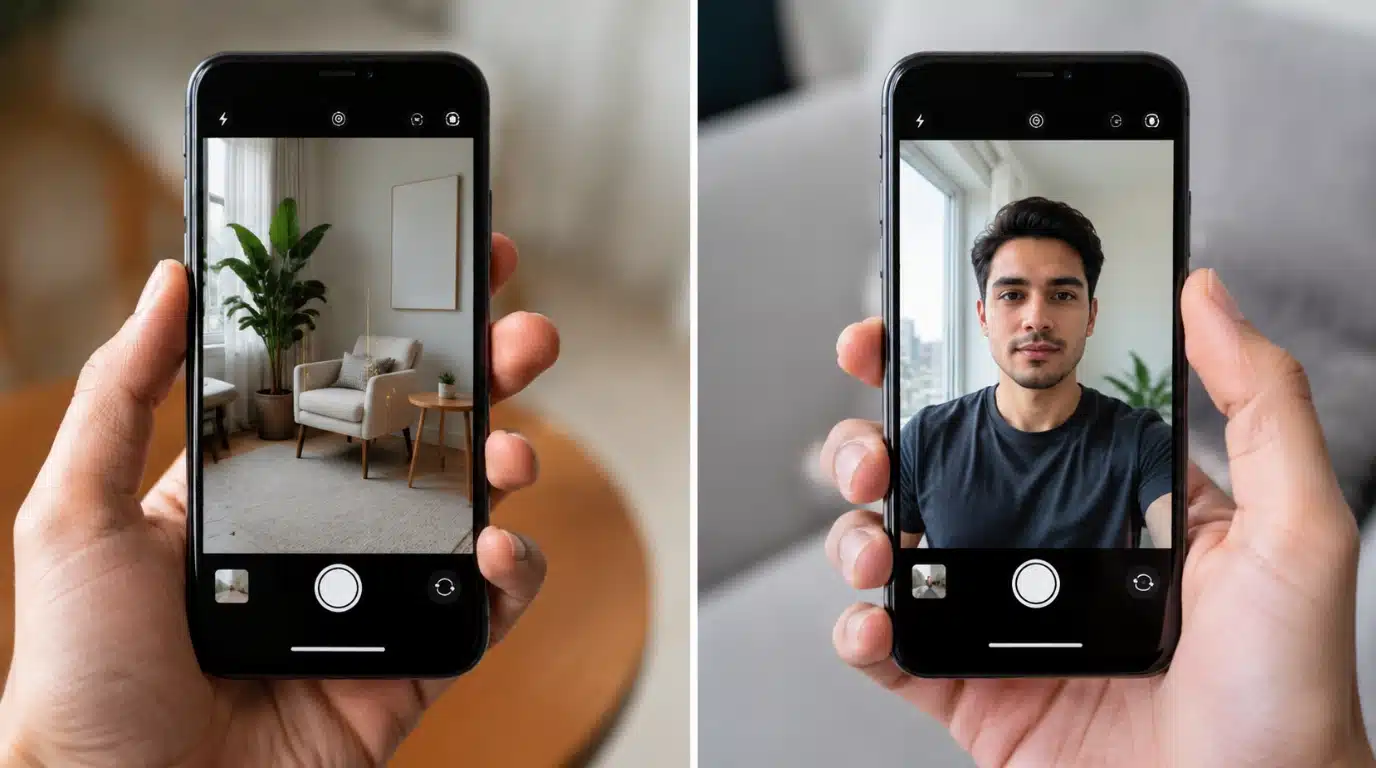
If one Camera works while another does not, the failure may be limited to a specific camera component rather than the entire Camera app.
Open the Camera app and switch between the front and rear cameras. Try different modes, such as Photo and Video, to check whether the problem appears in every camera function or only one area.
Testing both cameras helps identify whether the cause is a software problem or a possible hardware fault, similar to isolating whether a microphone issue is limited to one app or affects the whole device.
Step 4: Update iOS

An outdated iOS version or software bug can sometimes affect camera performance. Installing the latest update ensures your iPhone has current system improvements and bug fixes.
Go to Settings → General → Software Update and install any available update. Check Apple’s official update instructions for help.
Updating iOS can resolve camera failures caused by software errors without requiring additional troubleshooting.
Step 5: Reset All Settings On Your iPhone
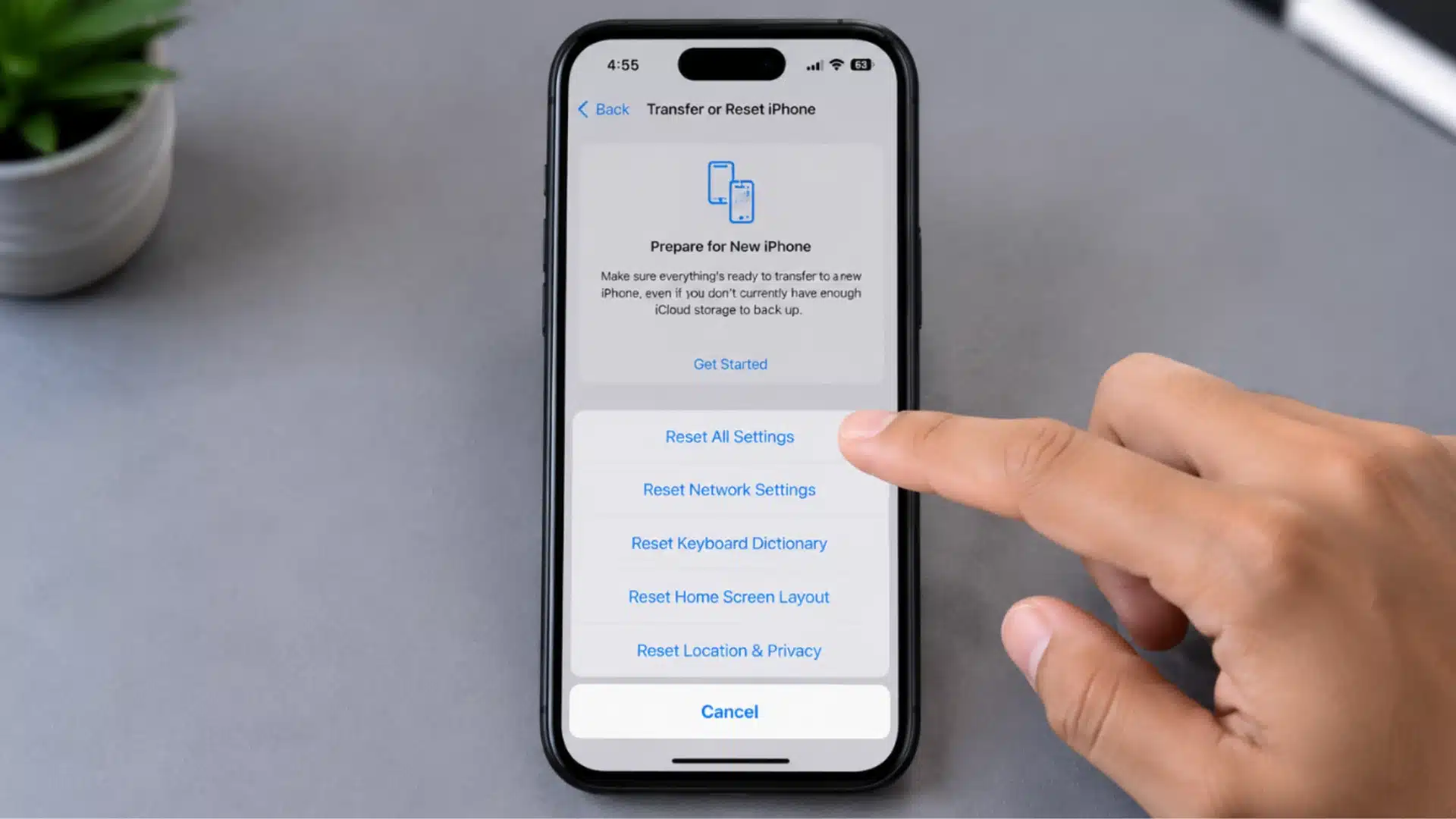
If the Camera still does not work, a settings conflict may be preventing normal operation.
Go to Settings → General → Transfer or Reset iPhone → Reset → Reset All Settings. This will not remove photos, apps, or personal files, but it will restore system preferences such as Wi-Fi settings and privacy choices.
Resetting settings can help when a hidden configuration change is affecting camera access or system behavior.
Step 6: Check How The Camera Fails in Different Situations
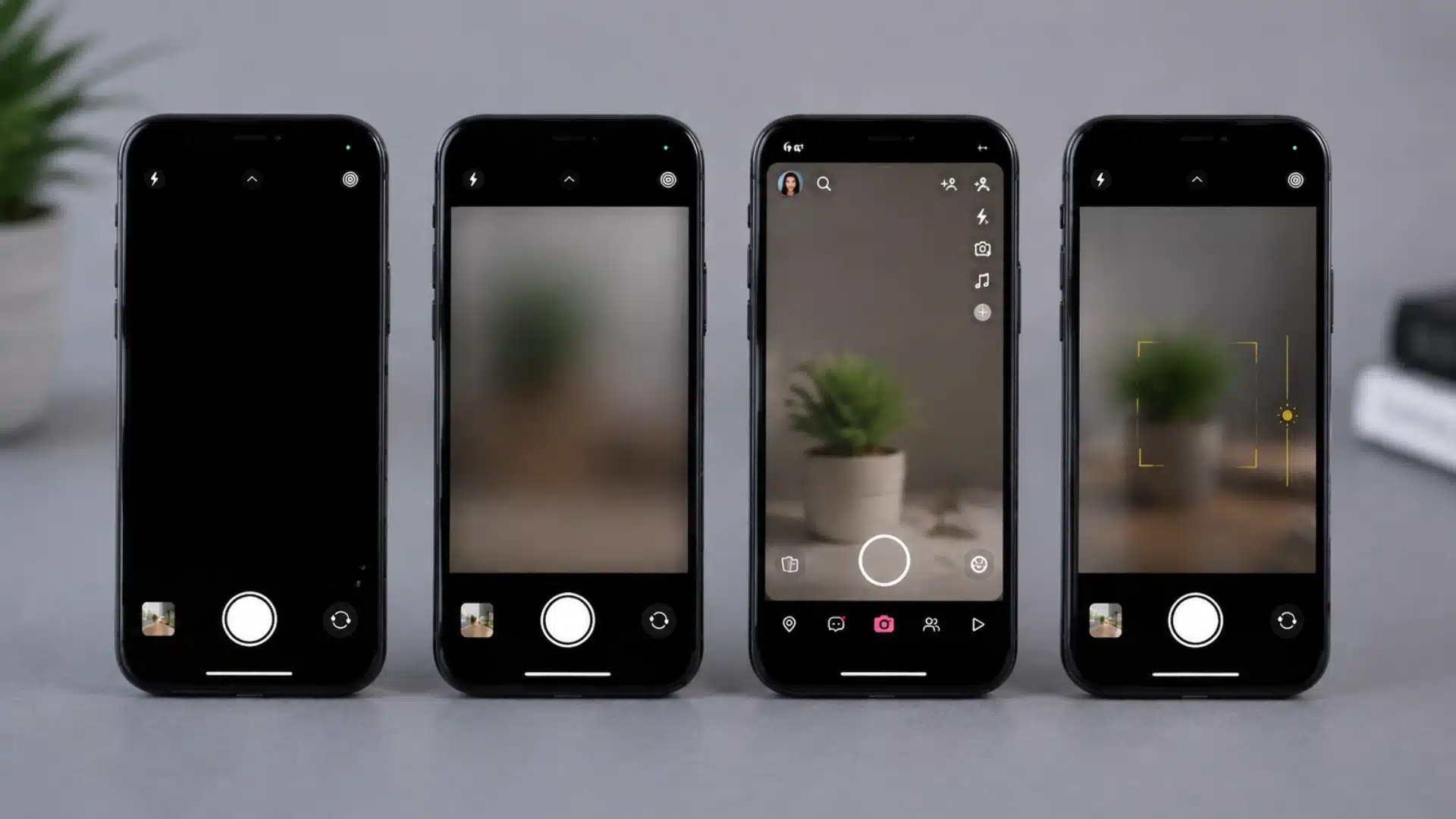
The exact way your Camera stops working can reveal where the problem is coming from.
Open the Camera app and check whether the screen stays black, whether only one Camera fails, whether the Camera works in Apple’s Camera app but not another app, or whether focusing and movement behave incorrectly.
Understanding the pattern of the failure makes it easier to choose the right next step and avoid unnecessary resets or repairs.
Is Your iPhone Camera Problem Software Or Hardware Related?
The way your Camera fails can help identify the likely cause. Check these common situations before deciding whether you need further troubleshooting or repair.
| Camera Symptom | More Likely Cause | What To Check |
|---|---|---|
| Camera shows a black screen | Software glitch or camera hardware failure | Restart iPhone, update iOS, and test if the issue continues |
| Camera works in one app but not another | App permission or software issue | Check camera access and update or reinstall the affected app |
| Front or rear Camera stops working | Camera module issue or temporary software error | Test both cameras and check if only one side is affected |
| Camera shakes, cannot focus, or stays blurry | Hardware damage or camera module fault | Check for drops, lens damage, or moisture exposure |
| Camera stopped after an update or settings change | iOS setting conflict or software bug | Review permissions, restrictions, and reset settings if needed |
If the Camera still fails after software checks or shows signs of physical damage, professional inspection may be required.
Camera Permissions and App-Specific Issues
If the iPhone Camera works in the Camera app but fails in apps like Instagram, Snapchat, Zoom, or banking apps, the issue is usually related to permissions.
Take 1: Check Camera Permissions
- Open Settings.
- Scroll down and select the affected app.
- Turn on Camera access.
You can also check all apps here: Settings → Privacy & Security → Camera
Take 2: If Permissions Are Already Enabled
If the Camera app works but one app still cannot access the camera:
- Update the app from the App Store.
- Force close and reopen the app.
- Reinstall the app if the issue continues.
Reinstalling removes corrupted app data and resets settings that may be preventing camera access
When Your iPhone Camera Needs Professional Repair
If your iPhone camera still does not work after software troubleshooting, the cause may be a hardware fault that requires professional inspection.
You should consider contacting Apple Support if the Camera has a cracked lens, stays black after restarting and updating iOS, cannot focus properly, shakes unexpectedly, shows signs of water damage, or one camera module keeps failing.
Before arranging service, back up your iPhone and note the symptoms you noticed along with the troubleshooting steps you already tried.
You can check available repair options through Apple’s repair service page to find the next step.
Wrapping it Up
An iPhone camera not working does not always mean a hardware failure. Checking the Camera app, restarting your device, reviewing permissions, updating iOS, and testing different camera functions can help identify and fix many common problems.
Understanding whether the issue comes from software, app conflicts, settings, or physical damage makes troubleshooting easier and helps you choose the right solution.
If your iPhone camera still shows a black screen, fails to focus, or stops responding after these steps, professional support may be the next option.
Follow the troubleshooting steps that match your situation, and take action based on the symptoms your device shows.
Frequently Asked Questions
Why Is My iPhone Camera Black But The Flash Works?
A working flash with a black camera screen may indicate a software glitch or camera sensor issue. Restarting and testing other camera modes can help identify the cause.
Can A Damaged iPhone Camera Be Repaired Separately?
Yes, Apple or authorized providers can inspect and repair camera components depending on the damage, device model, and available service options.
Why Does My iPhone Camera Work Slowly After Opening?
A slow camera launch may happen because of limited storage, background processes, outdated iOS, or temporary system performance issues.
Can A Screen Protector Affect The iPhone Camera?
A screen protector usually does not affect the Camera, but damaged cases, lens covers, or accessories near the Camera can interfere with performance.