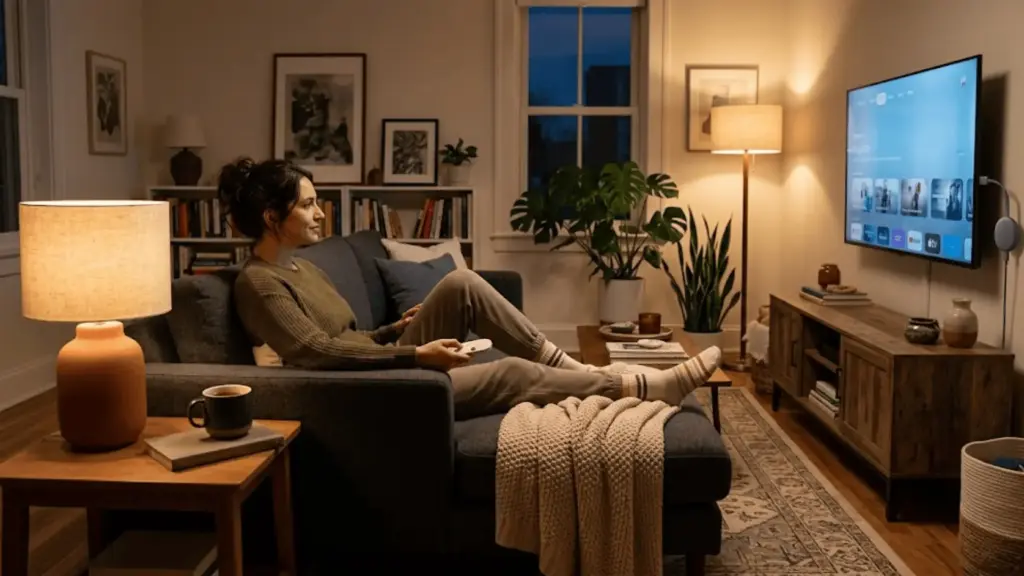
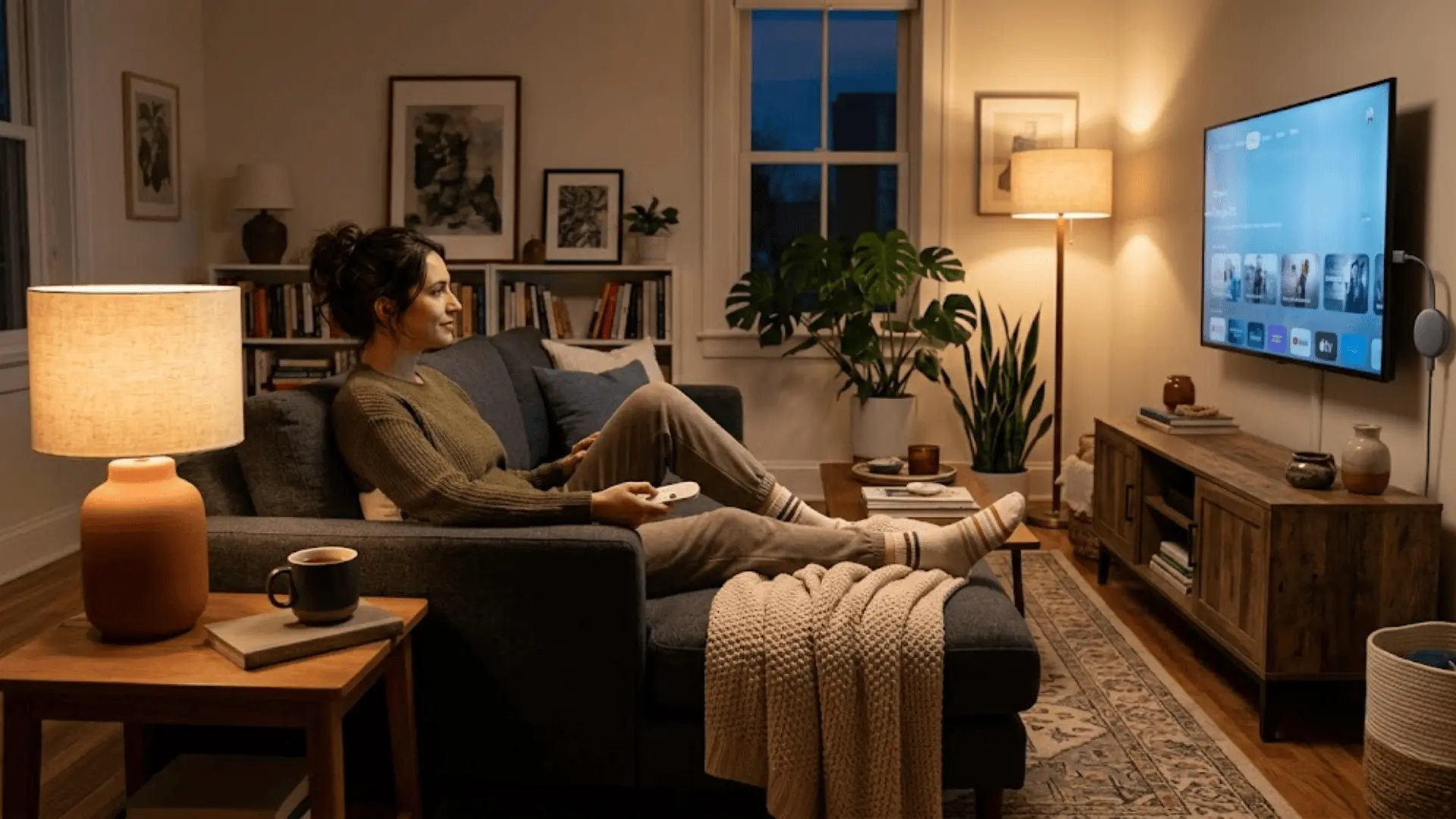



A Chromecast remote that stops responding can throw off your whole watch night, especially when you’re finally settled in and ready to stream.
It feels frustrating, but most issues trace back to something surprisingly simple.
Pairing glitches, low batteries, connection hiccups, these are all quick fixes once you know where to look.
Stick around for easy resets, step-by-step solutions, and deeper troubleshooting tips that will have you back on your couch and streaming smoothly in no time.
What’s Actually Going on With Your Chromecast Remote?
Your Chromecast remote is doing more work than it looks like.
It runs on batteries, connects through Bluetooth, and stays in constant communication with your device, so when any one of those elements slips, the whole thing feels like it’s given up.
Issues can stem from something as minor as a low battery or as layered as a software glitch or lost pairing.
The silver lining is that most of these problems are temporary and completely fixable without having to swap out your remote for a new one.
Common Reasons Your Chromecast Remote Isn’t Working
Before jumping into fixes, it helps to understand what might be causing the problem in the first place.
Most remote issues come down to a handful of repeating culprits that are easier to solve once you can spot them.
1. Dead or Weak Batteries
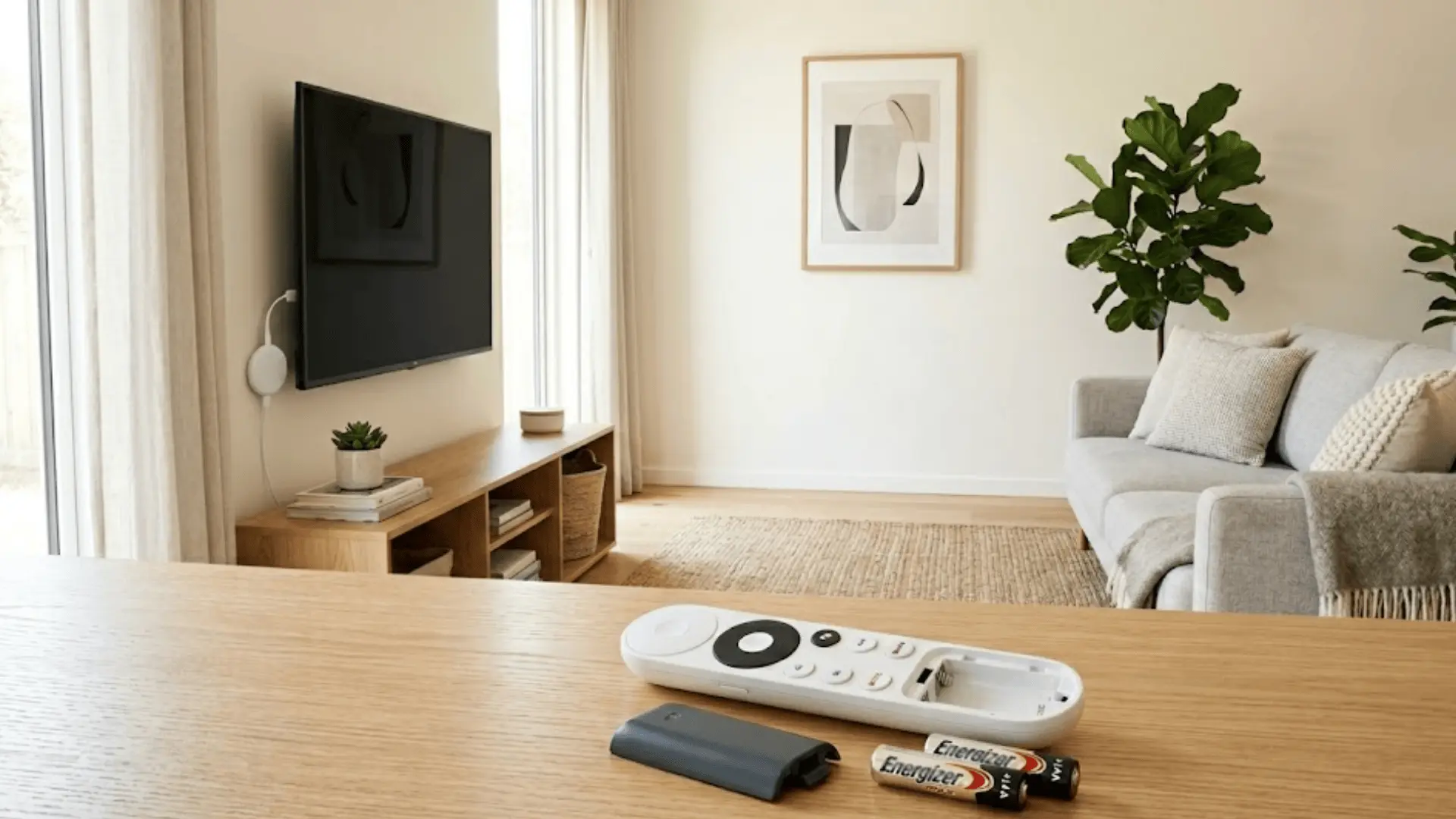
It sounds obvious, but dead or weakened batteries are behind more remote failures than anything else.
When power runs low, the remote may stop responding mid-session, or the LED light won’t blink at all when you press a button.
Swapping in a fresh pair of batteries is always the smartest first step before digging into anything more complicated.
2. Bluetooth Pairing Issues
Your Chromecast remote connects through Bluetooth, and that connection can quietly drop without much warning.
Disconnections often happen after a device reset, a firmware update, or simply from extended inactivity.
When the pairing breaks, the remote stops communicating with your Chromecast altogether, making it seem like the hardware is broken when it really just needs to re-establish its connection.
3. Chromecast Device Glitches
Sometimes the remote is perfectly fine, and the Chromecast device itself is the one causing communication problems.
Software bugs, memory overload, or a minor system hiccup can block the remote’s signals from registering properly.
A simple restart of the Chromecast often clears these temporary glitches and gets everything talking to each other again.
4. Signal Interference or Range Problems
Bluetooth has its limits, and your environment plays a bigger role than most people realize.
Physical obstacles like walls, electronics, or even a crowded Wi-Fi space can weaken or block the remote’s signal.
Other wireless devices operating nearby can also interfere with Bluetooth performance, so distance and placement matter more than you’d expect.
5. Software or Firmware Bugs
Running outdated firmware is a quieter culprit that often gets overlooked.
An outdated software version can cause noticeable lag, random disconnections, or unresponsive button presses that feel hardware-related but are actually rooted in the software layer.
Keeping your Chromecast updated ensures the remote and device stay fully compatible and running the way they should.
Most Chromecast Remote Issues Stop Right Here
Sometimes the simplest solutions are the ones that actually work. Run through these quick checks before anything else because most Chromecast remote issues get resolved right here.
Check and Replace Batteries
Weak batteries are the sneakiest culprits. If your remote feels sluggish or completely unresponsive, start here before anything else.
- Step 1: Pop open the battery compartment on the back of the remote.
- Step 2: Remove the old batteries and insert a fresh pair of AAA batteries.
- Step 3: Make sure the positive and negative ends are aligned correctly.
- Step 4: Press any button and check if the LED light flashes.
Move Closer to the TV
Bluetooth signal weakens with distance and physical barriers more than people realize. Closing the gap between your remote and the Chromecast can make an immediate difference.
- Step 1: Move within a comfortable range of your TV.
- Step 2: Remove any objects sitting between the remote and the Chromecast.
- Step 3: Test the remote buttons and see if responsiveness improves.
Restart Your Chromecast Device
A quick restart clears out minor software hiccups that silently interfere with your remote’s performance.
- Step 1: Unplug your Chromecast from the power source.
- Step 2: Wait for about 30 seconds before plugging it back in.
- Step 3: Once it restarts fully, test your remote again.
Step-by-Step Troubleshooting Guide
If the quick fixes didn’t quite do it, it’s time to go a little deeper.
These steps are straightforward, and working through them in order gives you the best shot at getting your remote back on track.
Step 1: Reinsert Batteries Properly
It’s not just about having fresh batteries; it’s about making sure they’re sitting in correctly. Remove both batteries, check for corrosion or debris, then reinsert them firmly aligning properly.
Once done, press any button and watch for the LED to flash twice, which confirms the remote is powered up and responding.
Step 2: Reboot Your Chromecast
A proper power cycle does more than a simple restart. Unplug your Chromecast from its power source, give it a full 60 seconds before plugging it back in, and allow it to boot up completely.
This process resets the device’s connection state and often restores communication with the remote, especially after a glitch or an unexpected software hiccup.
Step 3: Re-Pair the Chromecast Remote
If rebooting didn’t restore the connection, re-pairing the remote manually usually does the trick. Head into Settings, navigate to Remotes and Accessories, and select your remote.
Hold the Back and Home buttons together for about 3 seconds to initiate pairing mode. Once the remote shows as connected, it should respond normally again.
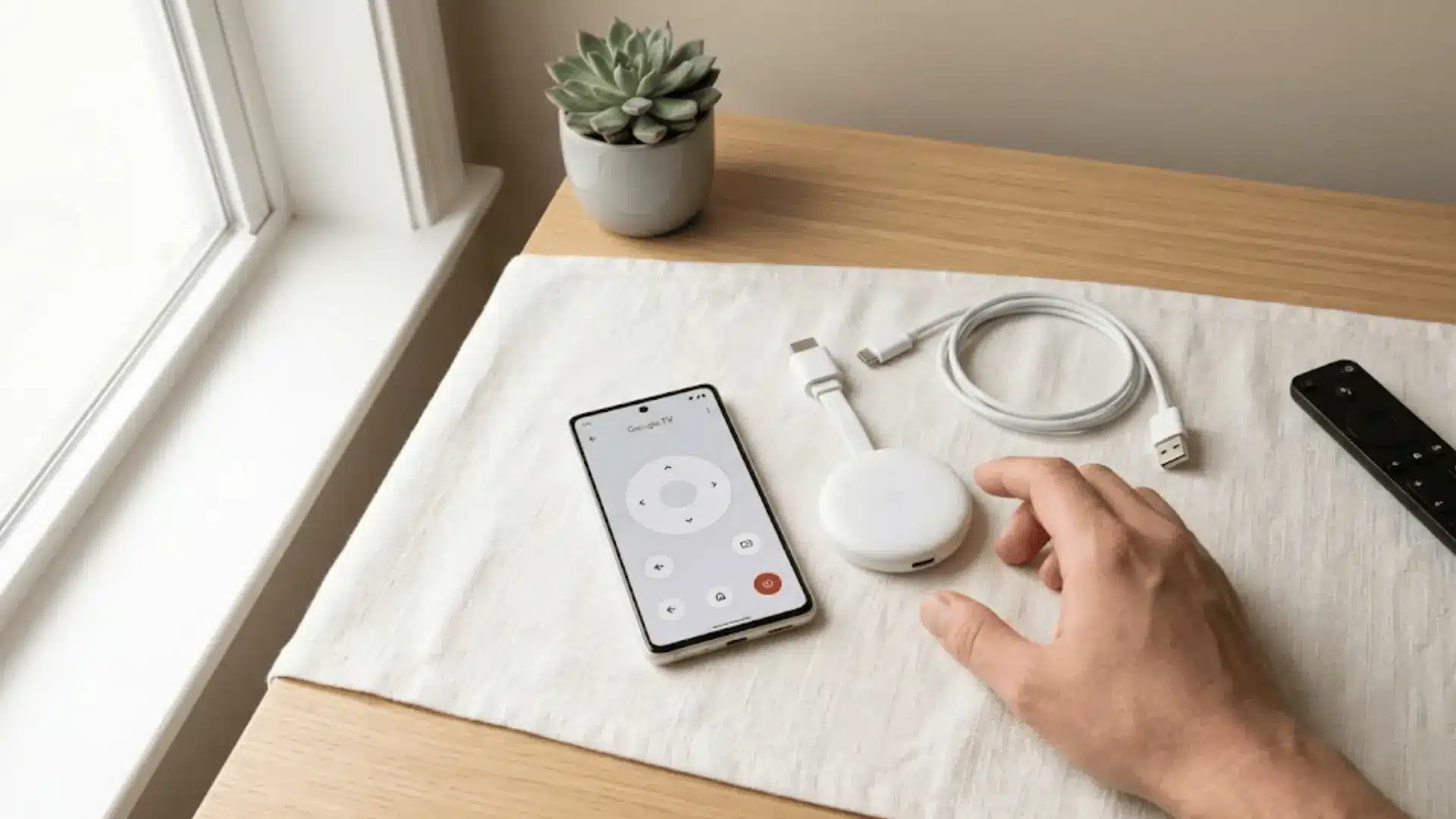
Step 4: Use Your Phone as a Temporary Remote
When the physical remote isn’t cooperating, your phone can step in without missing a beat.
Download the Google TV app or open Google Home, connect to the same Wi-Fi network as your Chromecast, and use the in-app remote to navigate. It’s a handy workaround while you sort out what’s going on with your actual remote.
Advanced Fixes When the Remote Still Won’t Cooperate
If you’ve made it this far, the issue runs a little deeper than usual, but that doesn’t mean it’s unsolvable.
These advanced steps target the root causes that basic troubleshooting tends to miss.
1. Factory Reset the Chromecast Remote
When nothing else works, resetting the remote itself clears out any corrupted settings and gives it a clean slate to work from.
- Step 1: Remove the batteries from the remote completely.
- Step 2: Press and hold the Home button while reinserting the batteries.
- Step 3: Keep holding for about 10 seconds until the LED flashes.
- Step 4: Re-pair the remote through Settings once the reset is complete.
2. Reset Your Chromecast Device
A full factory reset on the Chromecast wipes deeper software issues that a restart simply can’t touch.
- Step 1: Go to Settings and navigate to System, then About.
- Step 2: Select Factory Reset and confirm your choice.
- Step 3: Alternatively, hold the reset button on the device for 25 seconds.
- Step 4: Set up your Chromecast fresh and re-pair the remote.
3. Update Chromecast Firmware
Outdated firmware quietly causes more problems than most people suspect, including unresponsive remotes.
- Step 1: Go to Settings and open the System menu.
- Step 2: Select About and then System Update.
- Step 3: Install any available updates and allow the device to restart.
4. Check for Interference
Other electronics crowding your setup can disrupt Bluetooth performance more than you’d expect.
- Step 1: Move your router at least a few feet away from the Chromecast.
- Step 2: Relocate other wireless devices like speakers or gaming controllers nearby.
- Step 3: Test the remote again once the space around the Chromecast is clearer.
Fixing Specific Chromecast Remote Issues
Not every remote problem looks the same, and knowing what’s actually happening helps you fix it faster.
Here’s a breakdown of the most common issues and exactly what to do about each one.
- Check that your Chromecast is fully powered on and attempt to re-pair the remote through Settings, Remotes and Accessories.
- Press any button and watch for LED activity; no flash usually points to dead batteries that need replacing.
- Move closer to the TV and clear any physical obstructions to strengthen the Bluetooth signal.
- Relocate your router or nearby wireless devices to reduce interference, causing lag or frequent disconnections.
- If nothing resolves the issue, factory reset both the remote and the Chromecast for a completely fresh start.
Tackling the issue by symptom makes the whole process feel less overwhelming and gets you to the right fix without unnecessary guesswork.
When to Replace Your Chromecast Remote?
Most remote issues are fixable, but there are a few signs that point toward replacement rather than another round of troubleshooting.
If the LED shows zero activity even after fresh batteries and a factory reset, the internal hardware has likely given out.
Visible physical damage, stuck buttons, or significant wear are also clear indicators that no software fix will help.
At that point, picking up a new remote is the more practical call and, honestly, the less frustrating one.
Pro Tips to Prevent Remote Issues
A little maintenance goes a long way in keeping your Chromecast remote working without interruptions. Keep these habits in mind going forward.
- Swap out batteries every few months rather than waiting for the remote to stop responding.
- Keep your Chromecast firmware updated so the remote and device stay fully compatible.
- Keep wireless devices like routers and speakers at a reasonable distance to avoid Bluetooth interference.
- Store the remote somewhere safe and consistent to prevent physical damage or misplacement.
- Re-pair the remote proactively after any major device reset or firmware update.
A bit of upkeep now means way fewer interruptions during your next watch session.
Wrapping Up
Dealing with a Chromecast remote not working is annoying, but as you’ve seen, it’s rarely a dead end.
Most issues come down to something simple, and even the trickier ones have a clear path forward. Hopefully, your remote is back in action by now, and these fixes stay handy for the next time something feels off.
If you found this helpful or have a fix that worked for you, drop it in the comments below because someone else might need exactly that.
Frequently Asked Questions (FAQs)
Why is My Chromecast Remote Not Responding?
Most of the time, a non-responsive remote comes down to dead batteries, a dropped Bluetooth connection, or a minor pairing glitch. Start with a battery swap and a quick re-pair before assuming anything more serious.
How Do I Reset My Chromecast Remote?
Remove the batteries completely, then press and hold the Home button while reinserting them. Hold for about 10 seconds until the LED flashes, confirming the reset is done.
How Do I Re-Sync My Chromecast Remote?
Press and hold the Back and Home buttons together for 3 seconds to enter pairing mode. Then head to Settings, select Remotes and Accessories, and complete the pairing from there.