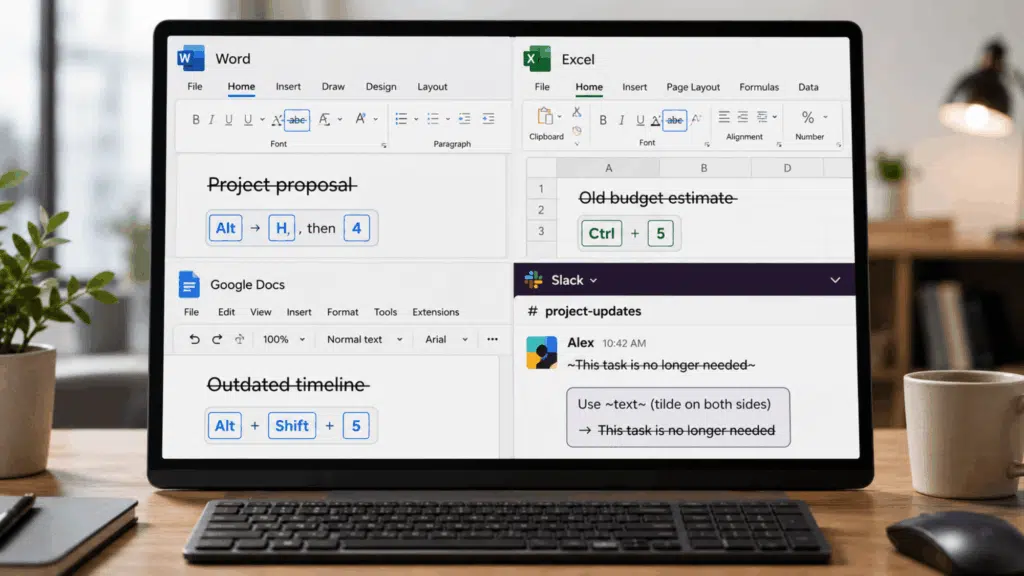



You are mid-task, your cursor is already on the line you want crossed out, and clicking through three menu layers feels like the slowest part of your day.
A keyboard shortcut for strikethrough fixes that in under a second, whether you are editing a Word document, marking off a to-do list, or cleaning up a spreadsheet.
The right combination changes depending on the app you are using, and a few small details, like your operating system, can throw the whole thing off.
We walk you through every major tool, what to press, and what to do if the shortcut suddenly stops working for you.
The Fastest Way to Cross Out Text Depends on the App
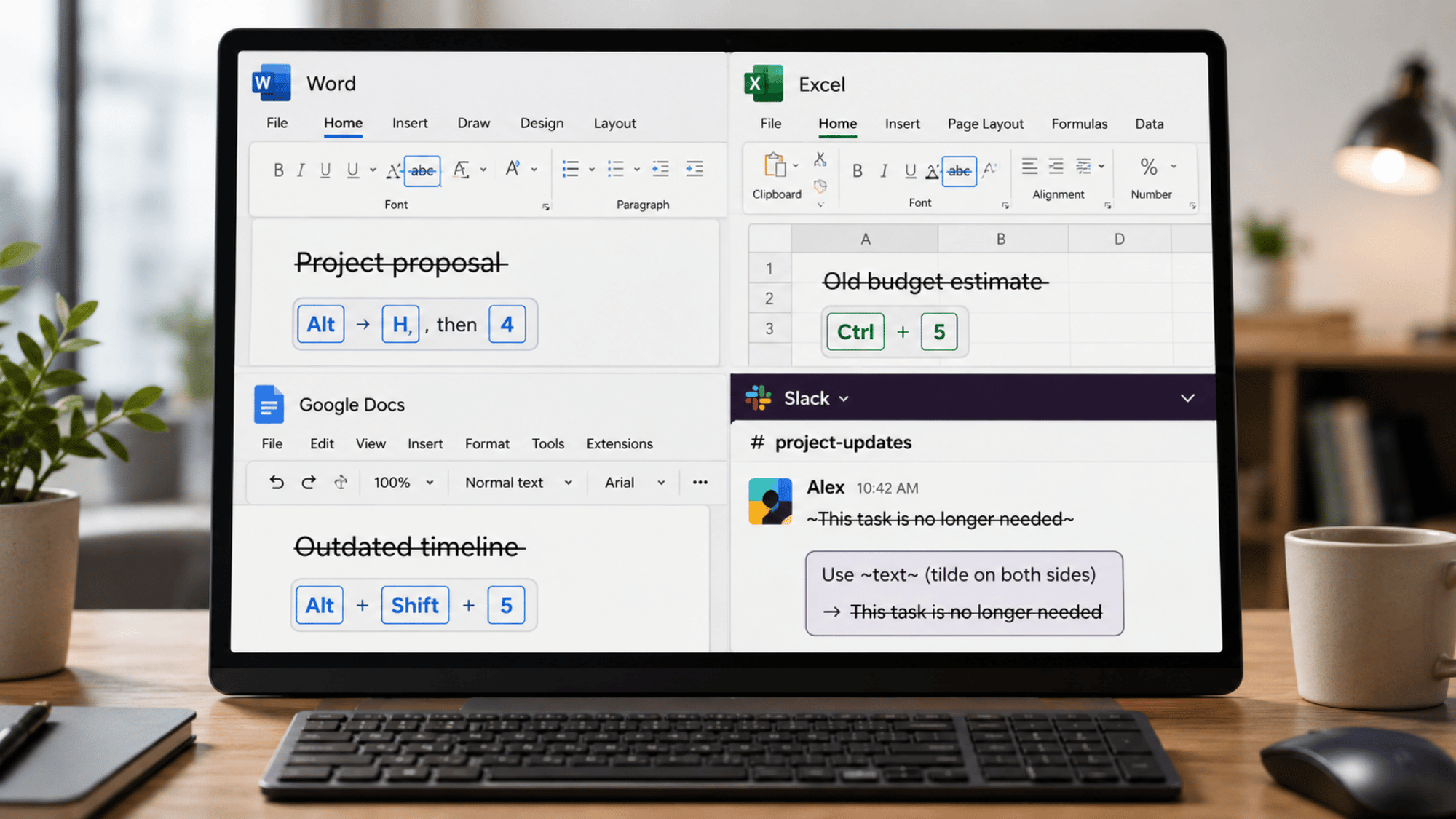
Strikethrough is not controlled by one universal command. Each program sets its own shortcut, so the right option depends on where the text is being typed.
| App or Tool | Windows Shortcut | Mac Shortcut |
|---|---|---|
| Google Docs | Alt + Shift + 5 | Command + Shift + X |
| Microsoft Word | Alt + H, then 4 | Command + Shift + X |
| Microsoft Excel | Ctrl + 5 | Command + Shift + X or Ctrl + 5 |
| PowerPoint | Alt + H, then 4 | Command + Shift + X was supported |
| Outlook | Alt + H, then 4 | Use the formatting toolbar if keys fail |
| Gmail | Alt + Shift + 5 where supported | Command + Shift + X was supported |
| Slack | ~text~ | ~text~ |
| Discord | ~text~ | ~text~ |
Strikethrough Shortcut Throughout Every App
Strikethrough works differently across apps, so a single shortcut won’t work in every tool. Here are the fastest ways to cross out text in documents, spreadsheets, emails, chats, and notes.
Strikethrough in Microsoft Word
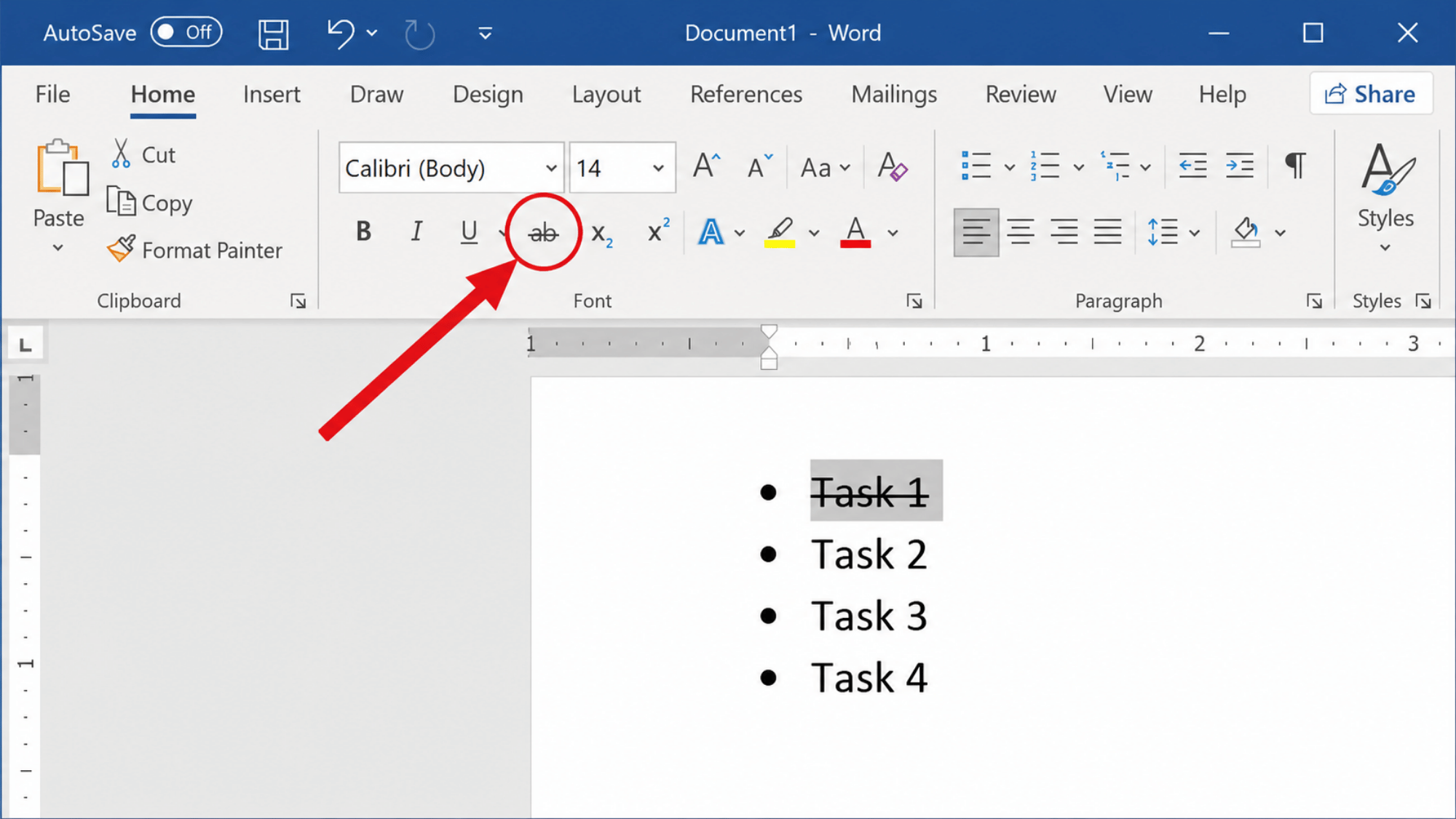
Word gives you two reliable shortcut paths depending on your device.
- On Windows, press Alt, then H, then 4. This routes through the ribbon and applies strikethrough instantly to selected text.
- On Mac, press Command + Shift + X to do the same thing.
- For double strikethrough, open the Font dialog box with Ctrl+D (Windows) or Command+D (Mac), then check the double strikethrough box under Effects.
Note: If the shortcut does not respond, check whether the document is protected or in restricted editing mode. Locked formatting permissions will block the command even if you press the correct keys.
Strikethrough in Microsoft Excel
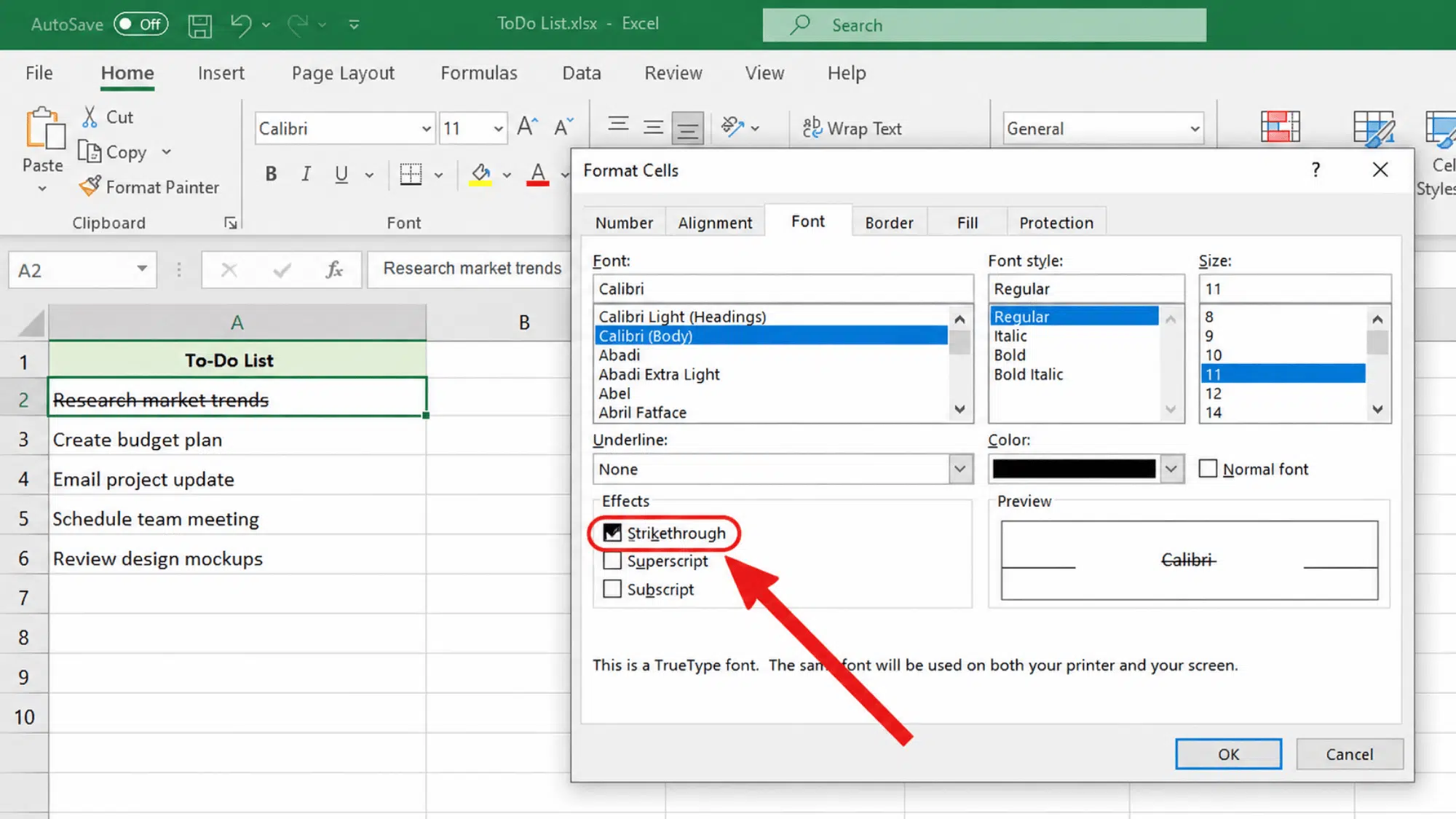
Excel keeps things simple with one shortcut that works the same way on both operating systems.
- Press Ctrl+5 on Windows or Command+5 on Mac to apply strikethrough to a selected cell or range.
- This formats the text inside the cell, not the cell border or fill, so your data stays intact.
- If Ctrl + 5 does not work, another program running in the background may have claimed that key combination. Closing other open apps usually resolves it.
Strikethrough in Google Docs
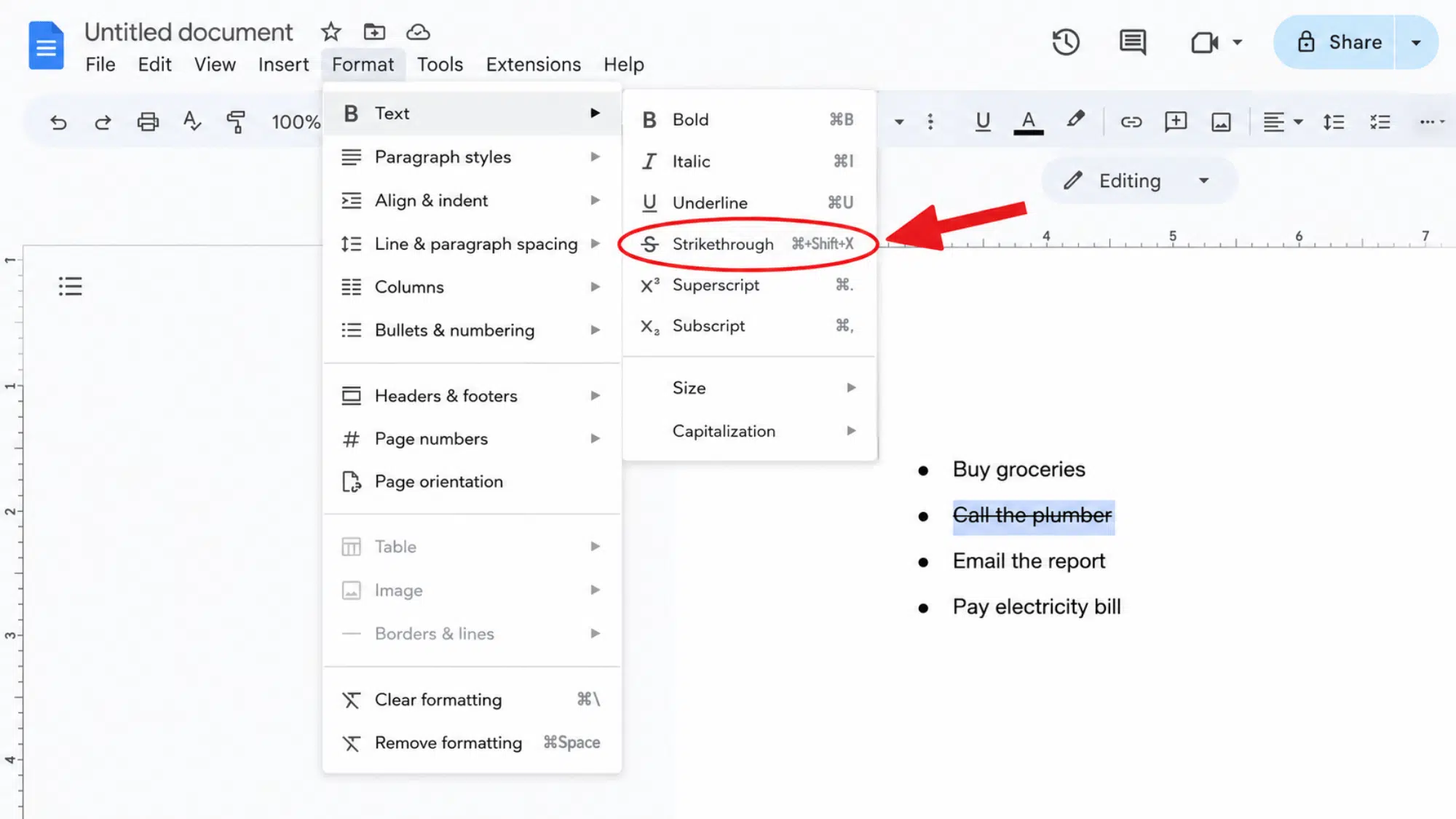
Google Docs has a dedicated shortcut built right into its menu system.
- On Windows or Chromebook, press Alt + Shift + 5.
- On Mac, press Command + Shift + X.
- If you are using the Google Docs mobile app, there is no built-in shortcut. Tap the Format icon, then Text, and manually select Strikethrough.
Strikethrough in PowerPoint and Outlook
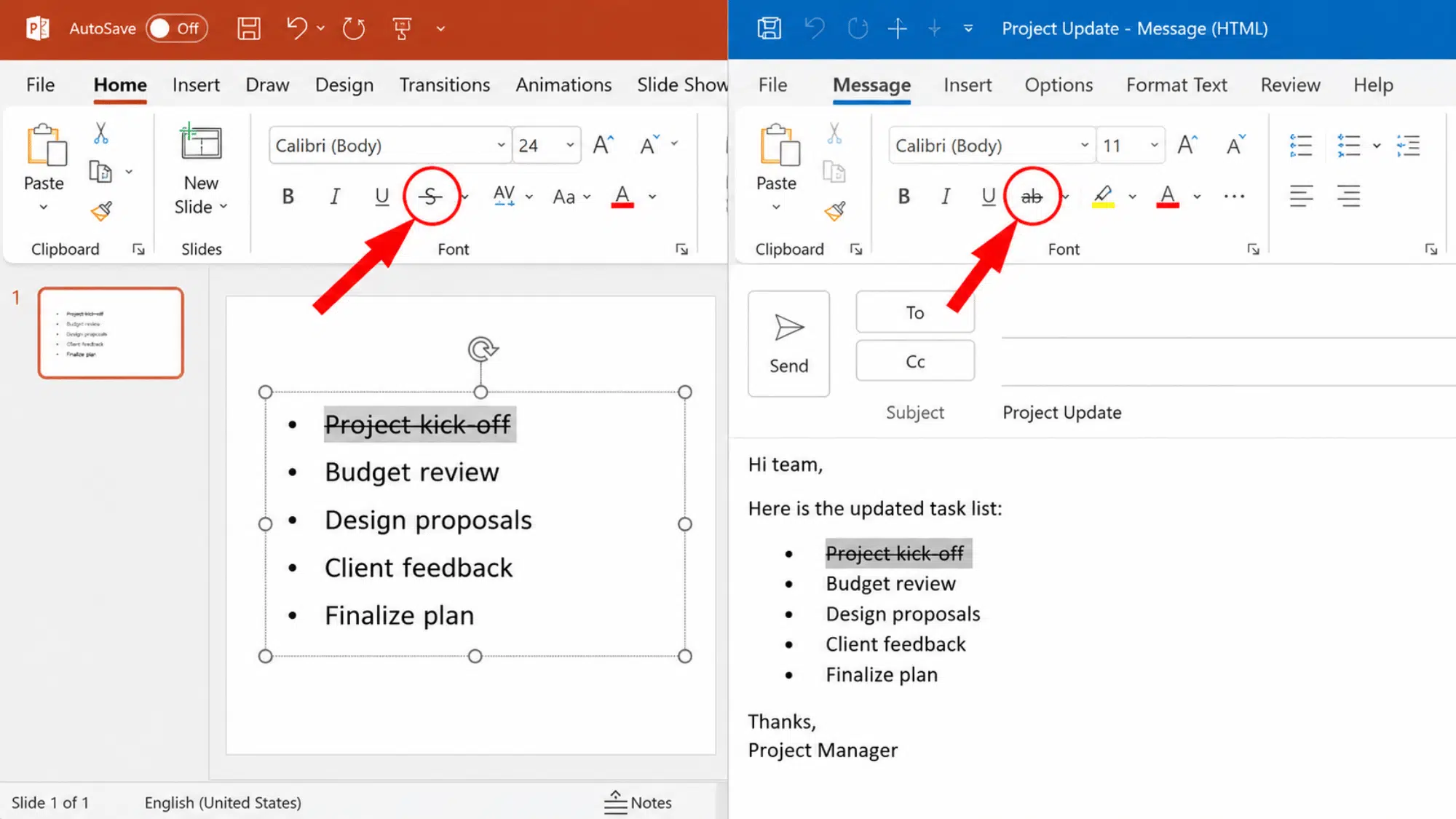
PowerPoint and Outlook share Word’s formatting engine, but their shortcut behavior is not identical.
- In PowerPoint, there is no default keyboard shortcut. Add strikethrough to your Quick Access Toolbar so it is one click away, or assign a custom shortcut via File > Options > Customize Ribbon.
- In Outlook, while composing an email, press Alt + H, then 4; the same shortcut works as in Word, since Outlook’s editor is built on the same framework.
Strikethrough in Slack and Discord
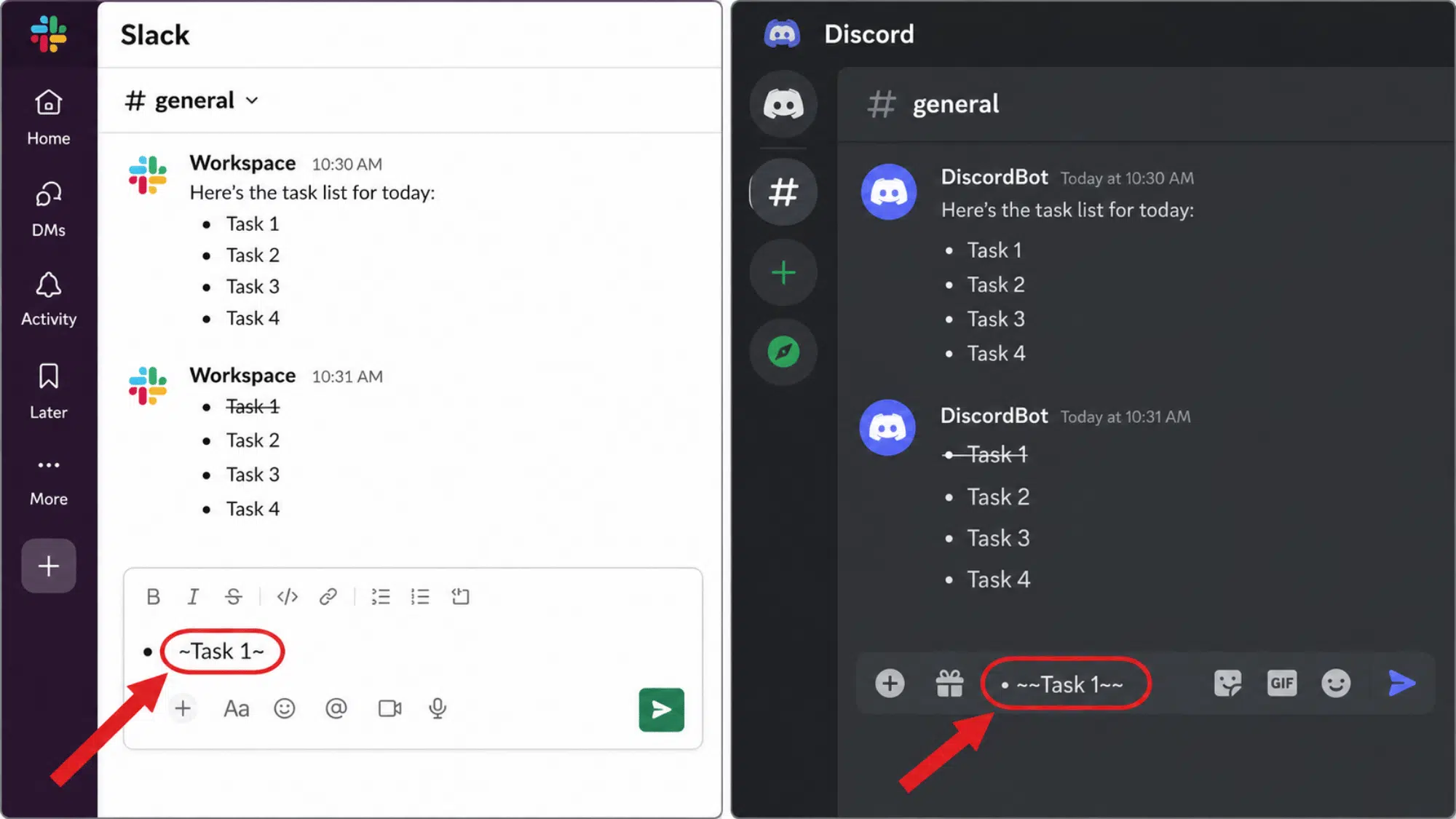
Chat apps use a typed symbol instead of a key combination.
- Wrap your text in tildes, like this: ~your text here~, then send the message.
- This works the same way in both Slack and Discord, on desktop and mobile.
- There is no shortcut key for this method since it relies on markdown formatting rather than a font command.
Strikethrough in Notion and Microsoft Teams
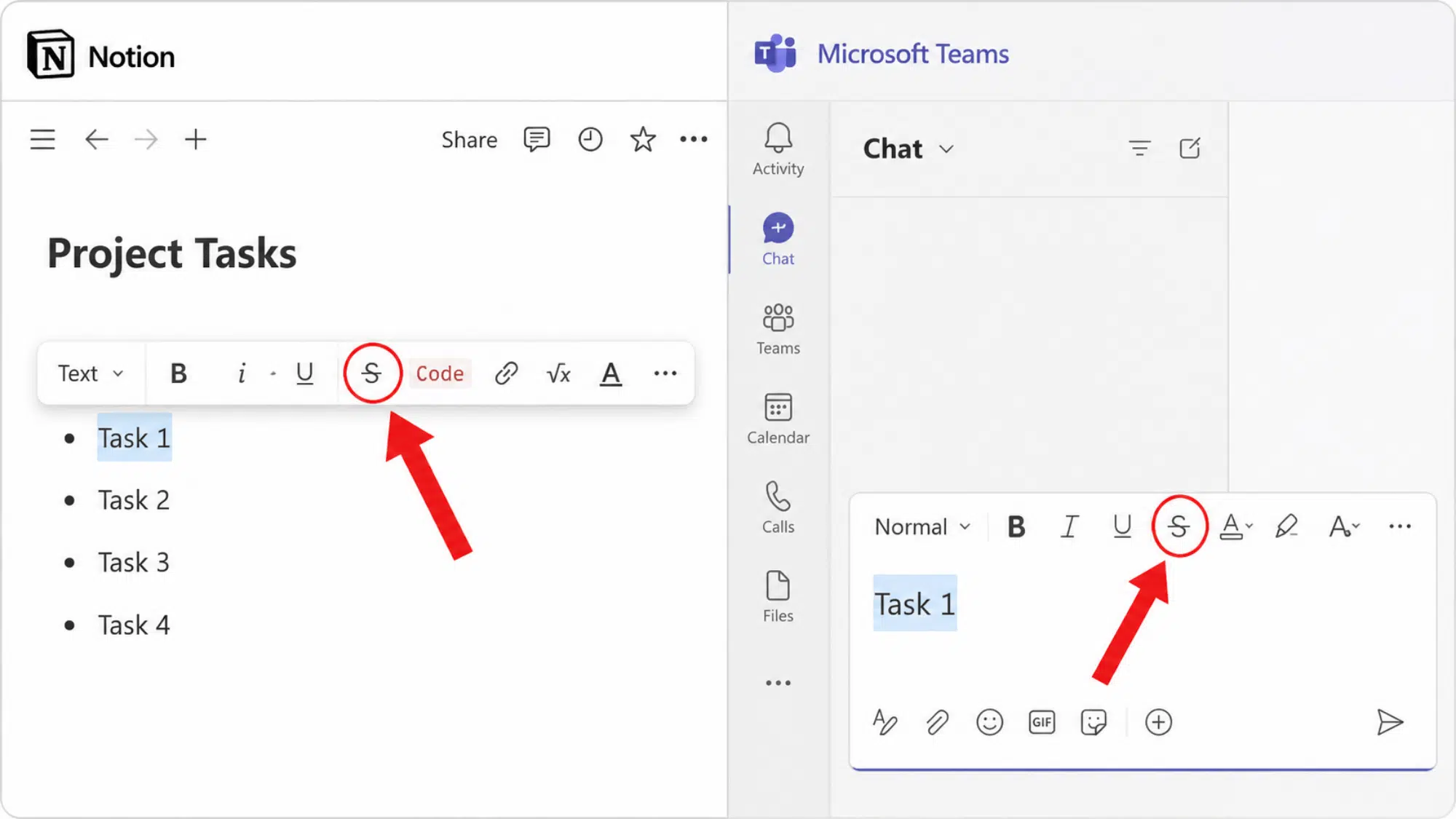
Newer collaboration tools adopt the Markdown approach while also offering manual options.
- In Notion, select your text and press Command + Shift + S (Mac) or Ctrl + Shift + S (Windows).
- You can also type
your textwith two tildes on each side for the same result. - In a Microsoft Teams chat, select your text in the message box, then choose the strikethrough icon from the formatting toolbar above the text field. There is currently no dedicated keyboard shortcut for this in Teams chat.
Strikethrough in Windows 11 Sticky Notes
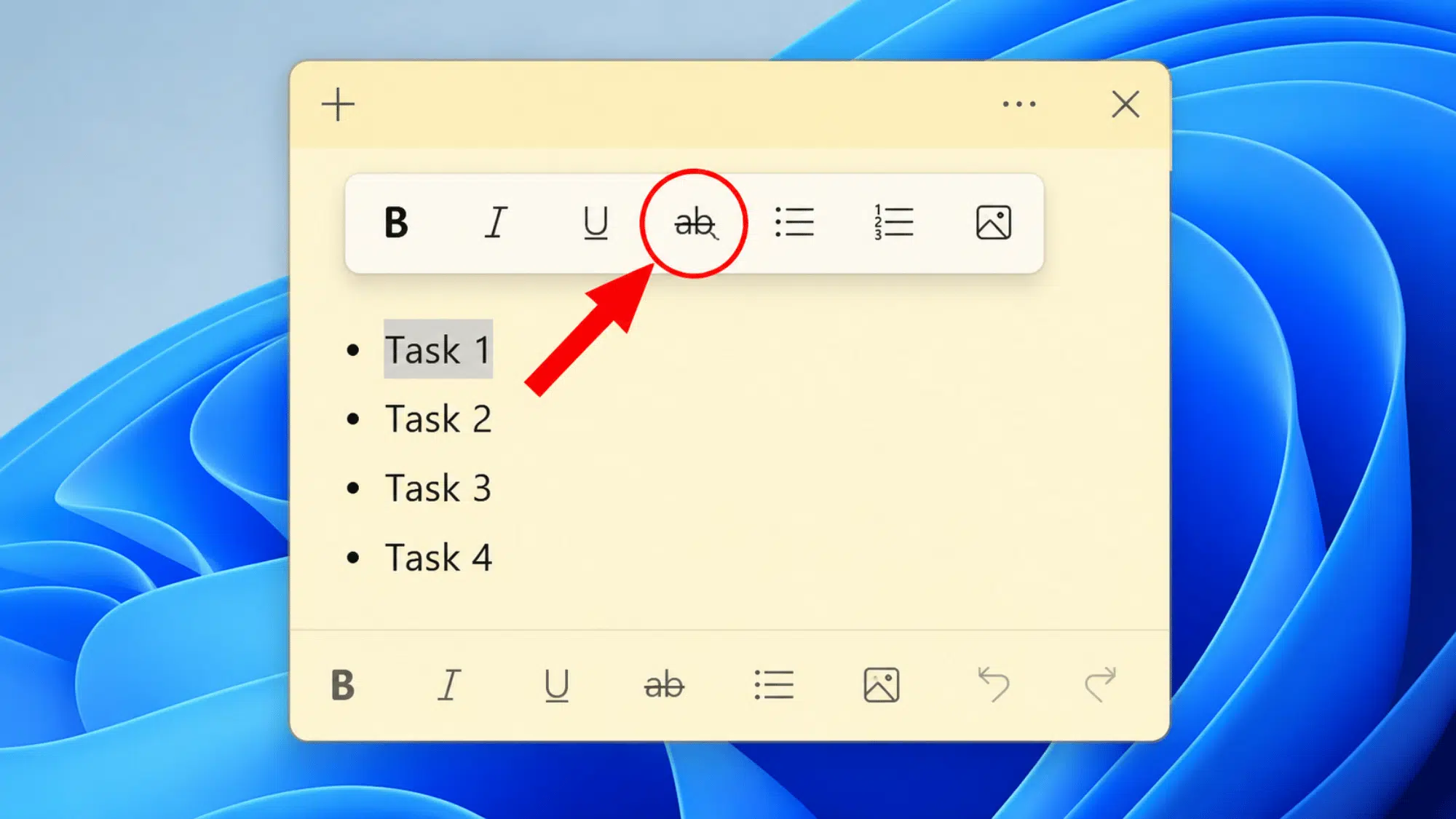
Sticky Notes skips a dedicated shortcut entirely, so crossing out text there means relying on a different built-in method.
- Highlight the text you want to cross out first.
- A small floating toolbar pops up right above your selection.
- Tap or click the strikethrough icon on that toolbar to apply it.
- This manual click is the only built-in way to do it inside the app.
- As a workaround, copy text that is already formatted with strikethrough from another program, such as Word, and paste it into a Sticky Note. The formatting carries over and stays intact.
How to Add Strikethrough on a Mac, Even Without a Shortcut
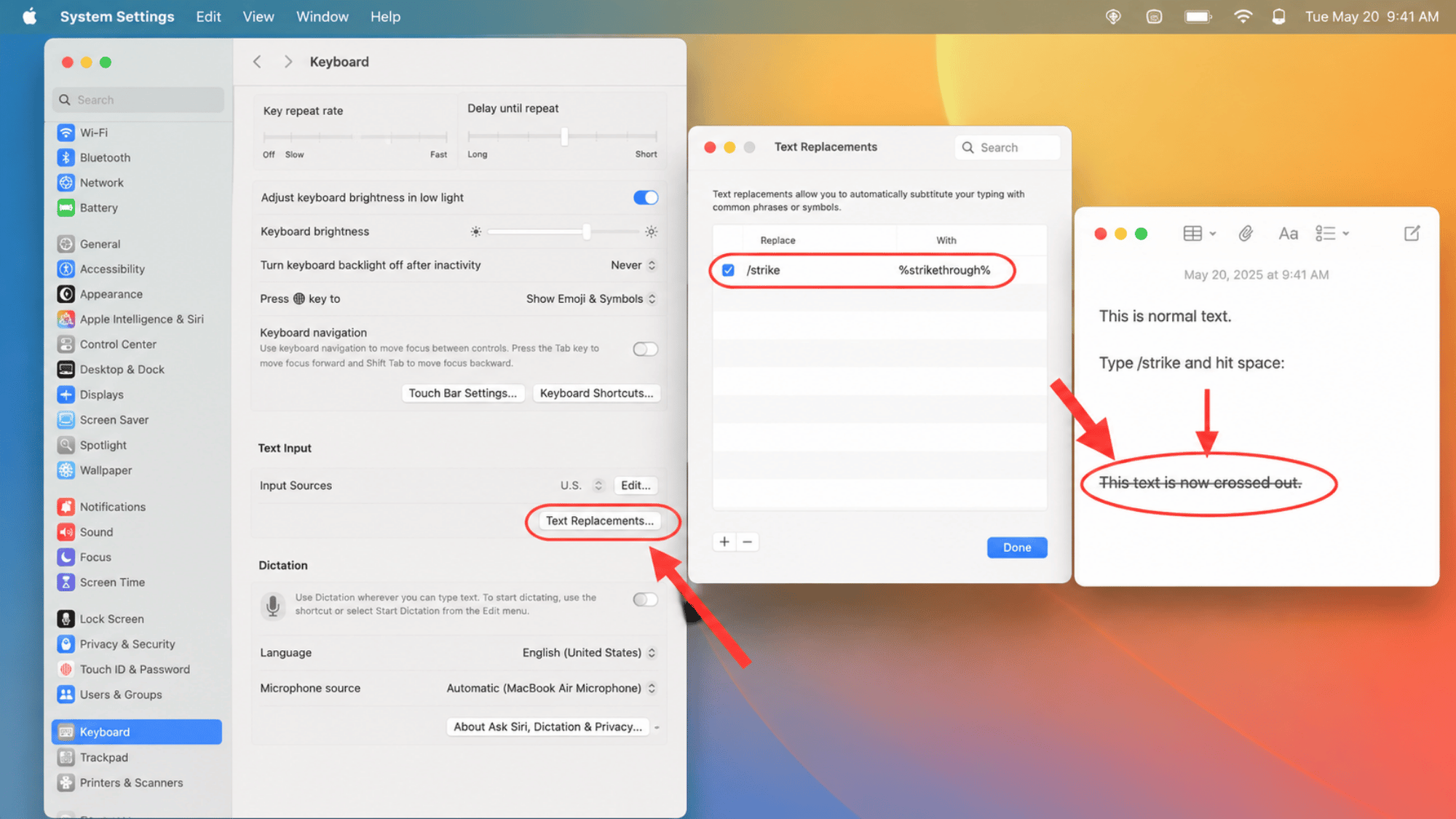
Not every application on a Mac supports strikethrough out of the box, which can be frustrating when you need it in a simple notes app or browser text field.
The fix is to build your own system-wide solution rather than waiting for the app to add one. Head into System Settings, then open Keyboard, and look for Text Replacements.
From there, create a custom snippet tied to a strikethrough Unicode character.
Once it is set up, typing that snippet will automatically convert to crossed-out text in nearly any app on your Mac that accepts typed input, even ones with no native formatting tools at all.
Why Strikethrough Shortcut May Not Work?
A shortcut may stop working because of app settings, keyboard layout, browser conflicts, or a text field that does not support formatting.
- Check your keyboard layout settings, since some regional layouts remap symbol and function keys.
- Close other open programs that might be using the same shortcut for a different function.
- Confirm you are working in an updated version of the app, since older versions sometimes use different key paths.
- Make sure your text is actually selected before pressing the shortcut, since most formatting commands require an active selection.
- Restart the app if a recent update changed shortcut mappings without notice.
Why Strikethrough Shortcuts Differ Across Apps
Strikethrough rarely works the same way twice, since each app builds its own shortcut system rather than following a single shared standard.
Word, Excel, Google Docs, and chat tools like Slack each treat formatting commands differently, which explains why a shortcut that works perfectly in one program does nothing in another.
Operating systems add another layer, since Windows and Mac often use entirely separate key combinations for the same action.
Knowing this upfront saves time, since it shifts the question from “what is the shortcut” to “what is the shortcut for this specific app.” The breakdown below covers each one individually.
Quick Tips for Using Strikethrough Well
Strikethrough is useful when it adds context, not clutter. Use it only where the crossed-out text still helps the reader understand the change.
- Use It for Small Edits: Apply strikethrough to completed tasks, removed items, or quick revisions where keeping the original text visible adds context.
- Avoid Long Blocks of Text: Crossing out entire paragraphs makes content harder to read and reduces overall clarity.
- Don’t Cross Out Important Information: Replace or update critical instructions instead of using strikethrough, so readers don’t miss essential details.
- Use It for Tracking Changes: In spreadsheets, documents, or project lists, strikethrough helps mark outdated or completed items while keeping the original information available for reference.
Wrapping Up
Learning just one or two of these shortcuts can speed up everyday tasks, since opening a menu each time starts to feel like wasted motion once your fingers already know the keys.
Every app treats this formatting a bit differently, so it helps to keep this breakdown close by rather than guessing which combination belongs to which tool.
If a shortcut suddenly stops working, the troubleshooting tips covered earlier should point you toward a quick fix. Small habits like this add up over a packed schedule.
Drop a comment below if your app used a shortcut different from the ones listed here.
Frequently Asked Questions
Is There a Strikethrough Shortcut in Apple Notes?
Apple Notes has no keyboard shortcut for strikethrough. Select your text, tap the formatting icon, then choose strikethrough from the style menu that appears.
Does Gmail Support Strikethrough Formatting?
Gmail does not offer a strikethrough shortcut. Open the formatting options toolbar while composing a message, then click the strikethrough icon to apply it manually.
Can You Use Strikethrough in WhatsApp messages?
Yes. Wrap your text with single tildes, like ~text~, before sending. WhatsApp converts this markdown automatically into visible strikethrough formatting on both ends.