


Most people never think about their Router until the Wi-Fi drops or a new device won’t connect.
That is usually the moment when one detail suddenly matters: the router IP address.
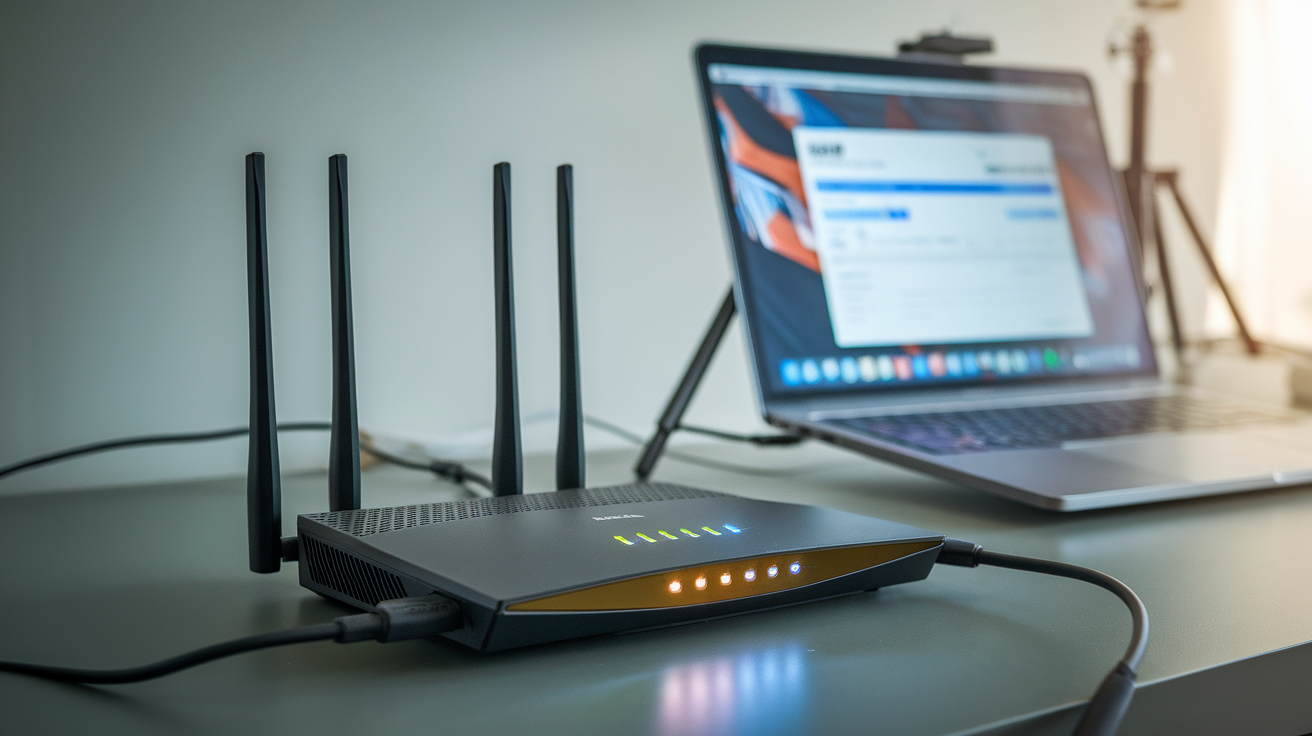
It sounds technical, but it really is not. The router IP address is simply the number you type into a browser to open your Router’s settings.
From there, you can log in, check what devices are connected, restart the Router, or troubleshoot a connection that has stopped working properly.
By the end, you will know where to look, what to type, and what to do once you are logged in.
What is a Router IP Address?
A router IP address is the private IP address your device uses to find and communicate with your Router on your home network.
It may appear as “Default Gateway,” “Gateway,” or “Router” in your device settings.
An IP address works like a digital address for a device. Your phone, laptop, smart TV, and Router all use IP addresses to send and receive data.
A router IP address is the local address of your Router, so your devices know where to send internet requests.
Common router IP addresses include 192.168.1.1, 192.168.0.1, and 10.0.0.1. This is different from your public IP address, which your internet provider uses online.
You may need your router IP address to change Wi Fi settings, check connected devices, or fix network issues.
It also helps to understand the difference between an access point vs router, since both devices handle network traffic but serve different purposes.
Private IP Address Vs. Public IP Address
A private IP address works only inside your home network, while a public IP address represents your whole network to the internet.
| Point | Private IP Address | Public IP Address |
|---|---|---|
| Used For | Devices inside your home network | Your network on the internet |
| Given By | Your Router | Your internet provider |
| Example | 192.168.1.1 | 203.0.113.10 |
| Visible Online | No | Yes |
| Common Use | Lets phones, laptops, and the router talk to each other | Lets websites and apps find your network |
| Can Be Shared By Many Homes | Yes | No, it is unique online |
Why You Need to Know Your Router’s IP Address
Whether you are setting up a router for the first time or troubleshooting a dead connection, this address is your entry point into the Router’s controls.
- Initial Setup: Lets you open the Router’s welcome or configuration screen the first time you plug it in.
- Login Access: Gives you the exact address to type in a browser to reach the admin login page.
- Device Monitoring: Allows you to see every device currently connected to your network.
- Troubleshooting: Helps you diagnose slow speeds, dropped connections, or a device that won’t join the network.
- Security Checks: Makes it easy to update the admin password or check for unfamiliar devices.
- Recovery: Gives you a way back in if you need to restart the Router or restore factory settings.
Understanding your Router’s IP address gives you better control over your network. It makes setup, troubleshooting, and security checks easier when problems appear.
How to Find the IP Address on Different Devices
The router IP address may appear under different labels, such as Default Gateway, Gateway, or Router, depending on the device you check.
1. On Windows
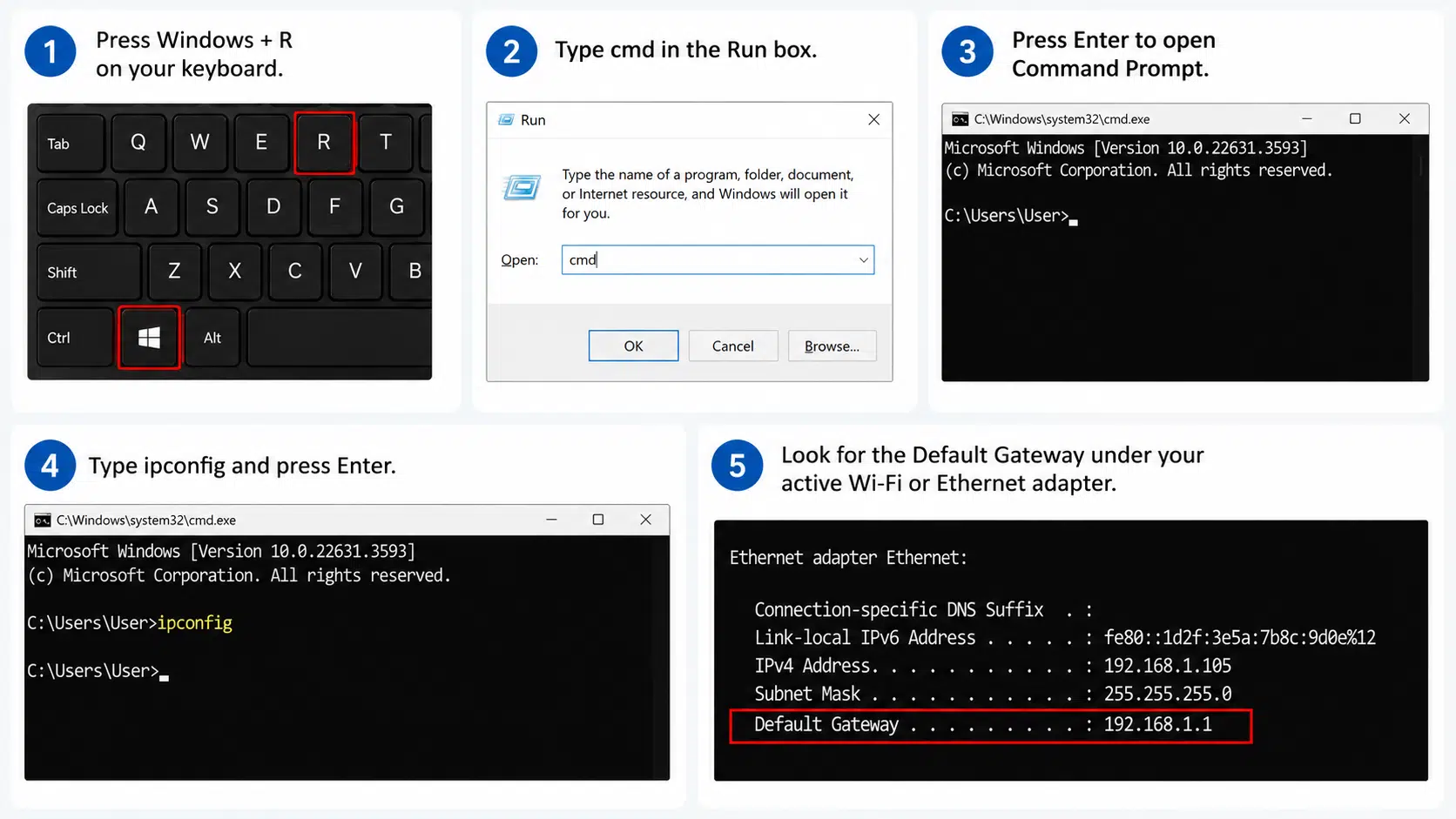
On Windows, the IP address shows up as the Default Gateway in your network details. The quickest way to see it is through Command Prompt.
This method is handy because it skips several settings menus and works whether you are on Wi-Fi or Ethernet. Microsoft’s own troubleshooting documentation confirms that these settings come straight from your device’s network configuration, which is exactly what ipconfig reads out.
Step 1: Press Windows + R on your keyboard.
Step 2: Type cmd in the Run box.
Step 3: Press Enter to open Command Prompt.
Step 4: Type ipconfig and press Enter.
Step 5: Look for the Default Gateway under your active Wi-Fi or Ethernet adapter.
| Pros | Cons |
|---|---|
| Fast to check. | Commands may confuse beginners. |
| Works for Wi-Fi and Ethernet. | Multiple adapters may appear. |
| No extra app needed. | The active connection must be identified correctly. |
2. On Mac
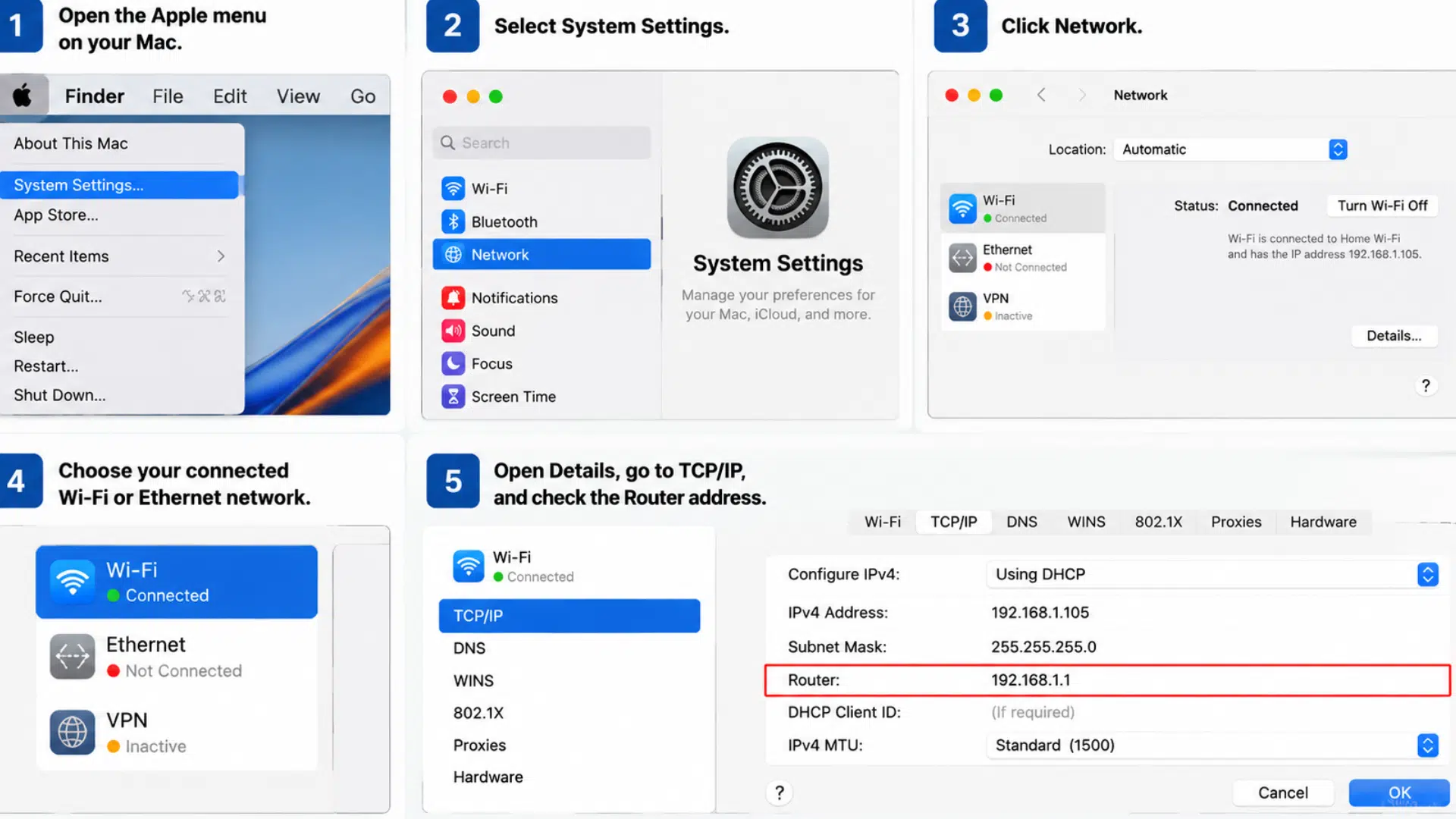
On a Mac, the IP address appears as Router inside your network details. You can find it through the details of your active Wi-Fi or Ethernet connection.
Apple’s own support documentation explains that once you open a network service and click Details, you can view or enter the IPv4 address, subnet mask, and router address under the TCP/IP tab.
Step 1: Open the Apple menu on your Mac.
Step 2: Select System Settings.
Step 3: Click Network.
Step 4: Choose your connected Wi-Fi or Ethernet network.
Step 5: Open Details, go to TCP/IP, and check the Router address.
| Pros | Cons |
|---|---|
| Clearly shown as Router. | Menu names vary by macOS version. |
| Easy for beginners. | Takes a few clicks. |
| Works for Wi-Fi and Ethernet. | The TCP/IP tab may be missed at first. |
3. On iPhone or iPad
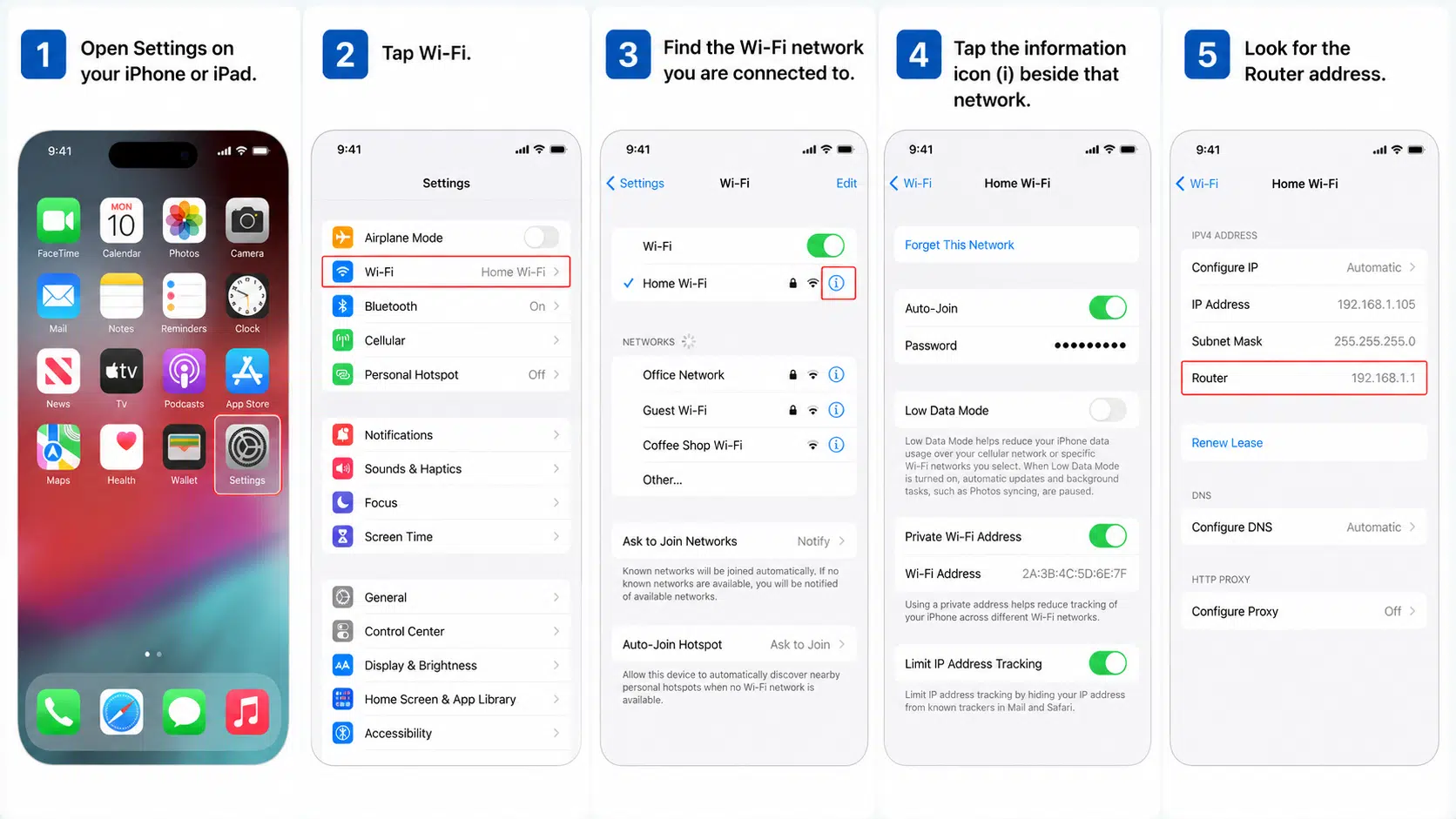
On an iPhone or iPad, the IP address is shown inside the details of the Wi-Fi network you are currently using. Tap the information icon beside your connected network to see it.
The address usually appears next to the word Router.
Step 1: Open Settings on your iPhone or iPad.
Step 2: Tap Wi-Fi.
Step 3: Find the Wi-Fi network you are connected to.
Step 4: Tap the information icon (i) beside that network.
Step 5: Look for the Router address.
| Pros | Cons |
|---|---|
| Easy to find. | Only shows the currently connected Wi-Fi. |
| No command needed. | The info icon can be missed. |
| Clearly labeled Router. | Older iOS versions may look different. |
4. On Android
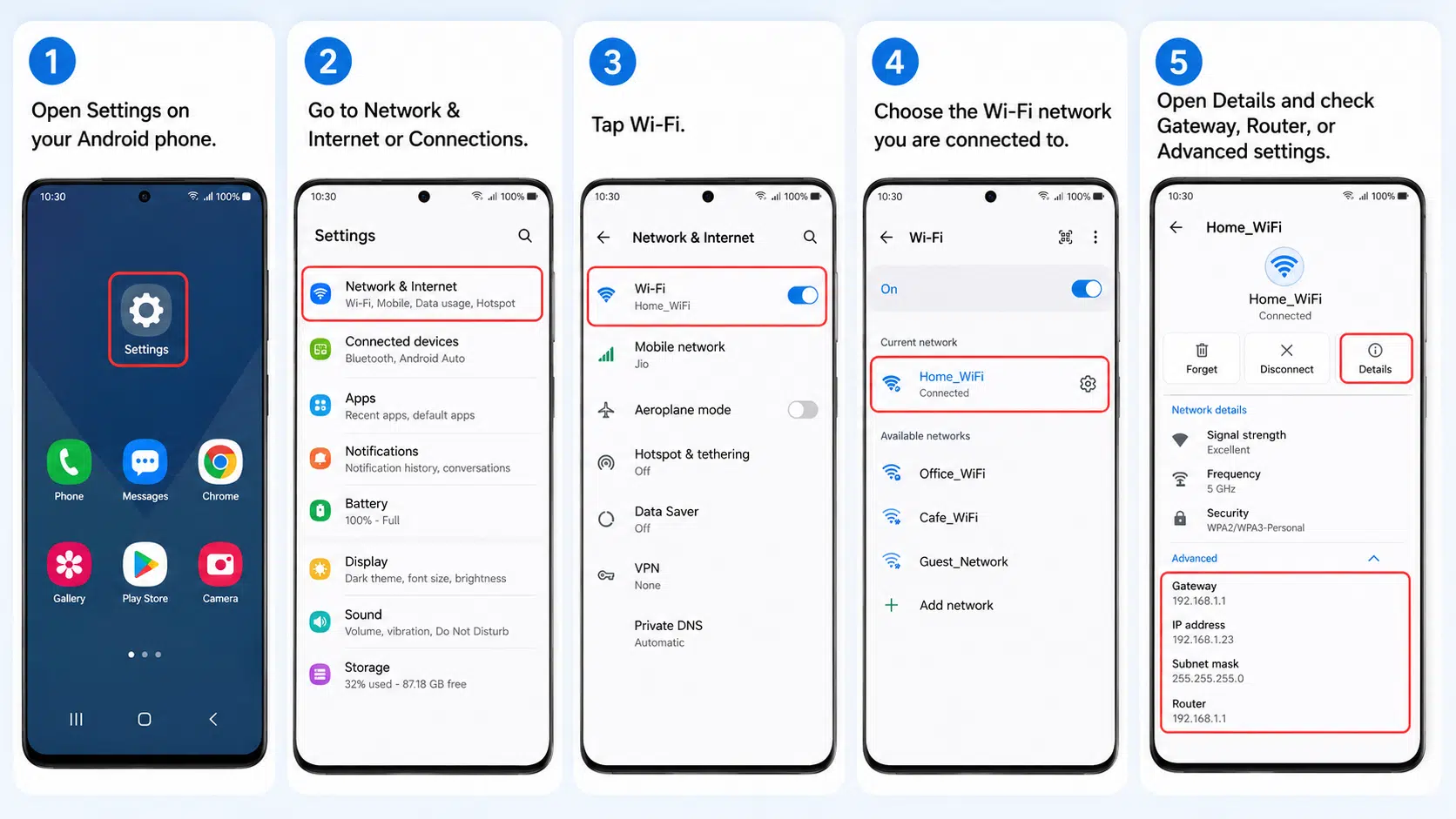
On Android, this address may appear as Gateway, Router, or under Advanced network information, depending on your phone’s brand.
Samsung, Pixel, OnePlus, and other phones place this detail in slightly different menus, but it is usually inside your connected Wi-Fi network’s details.
Step 1: Open Settings on your Android phone.
Step 2: Go to Network & Internet or Connections.
Step 3: Tap Wi-Fi.
Step 4: Choose the Wi-Fi network you are connected to.
Step 5: Open Details and check Gateway, Router, or Advanced settings.
| Pros | Cons |
|---|---|
| Found in Wi-Fi details. | Menus vary by brand. |
| No computer needed. | May be tucked under Advanced. |
| Works directly from your phone. | Sometimes labeled only as Gateway. |
5. On Linux
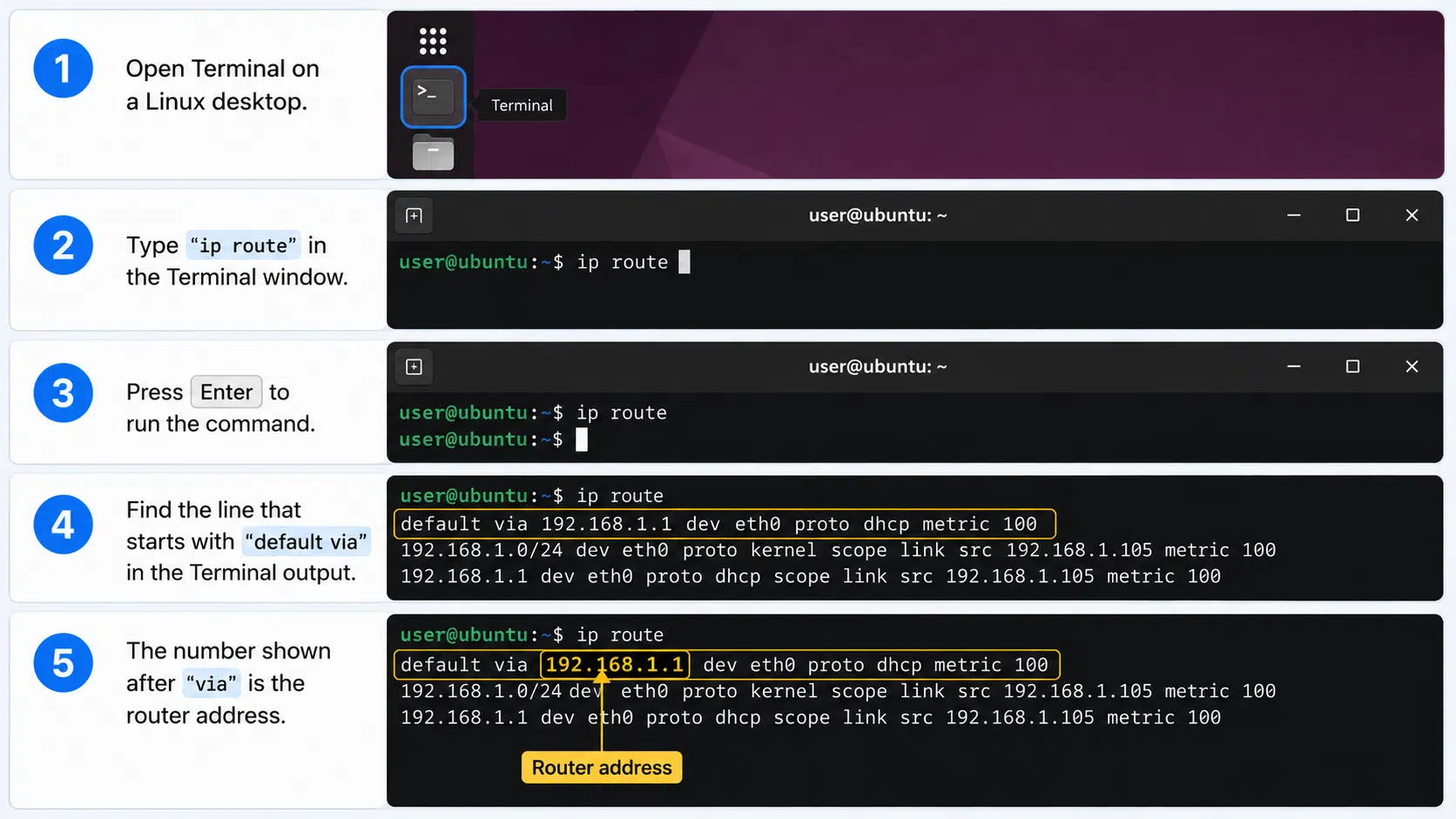
On Linux, this address is commonly found through the Terminal, usually shown in the default route line linked to your active connection.
This method is useful because it shows exactly where your device sends traffic when it needs to reach the internet through the Router.
Step 1: Open Terminal on your Linux device.
Step 2: Type ip route in the Terminal window.
Step 3: Press Enter to run the command.
Step 4: Find the line that starts with default via.
Step 5: The number shown after “via” is your Router’s address.
| Pros | Cons |
|---|---|
| Fast through Terminal. | Feels technical to beginners. |
| Command is direct. | Multiple routes may appear. |
| Works for active networks. | The correct route must be identified. |
When Do You Need This Address for Setup or Troubleshooting?
You need it any time you want to reach the Router’s admin page, whether that is during first-time setup or while fixing a connection problem.
I have used it myself to remove an unknown device, reset a forgotten Wi-Fi password, and get a slow connection back to normal.
You will likely need it when setting up a brand-new router, changing the Wi-Fi name or password, turning on parental controls, or checking which devices are online.
It is also the first thing to check when the internet feels slow, a device refuses to connect, or the Router needs a restart or a firmware update.
In almost every troubleshooting situation, this address is the key that gets you into the admin page so you can see what is actually happening instead of guessing.
What to Do When the Login Page Won’t Load?
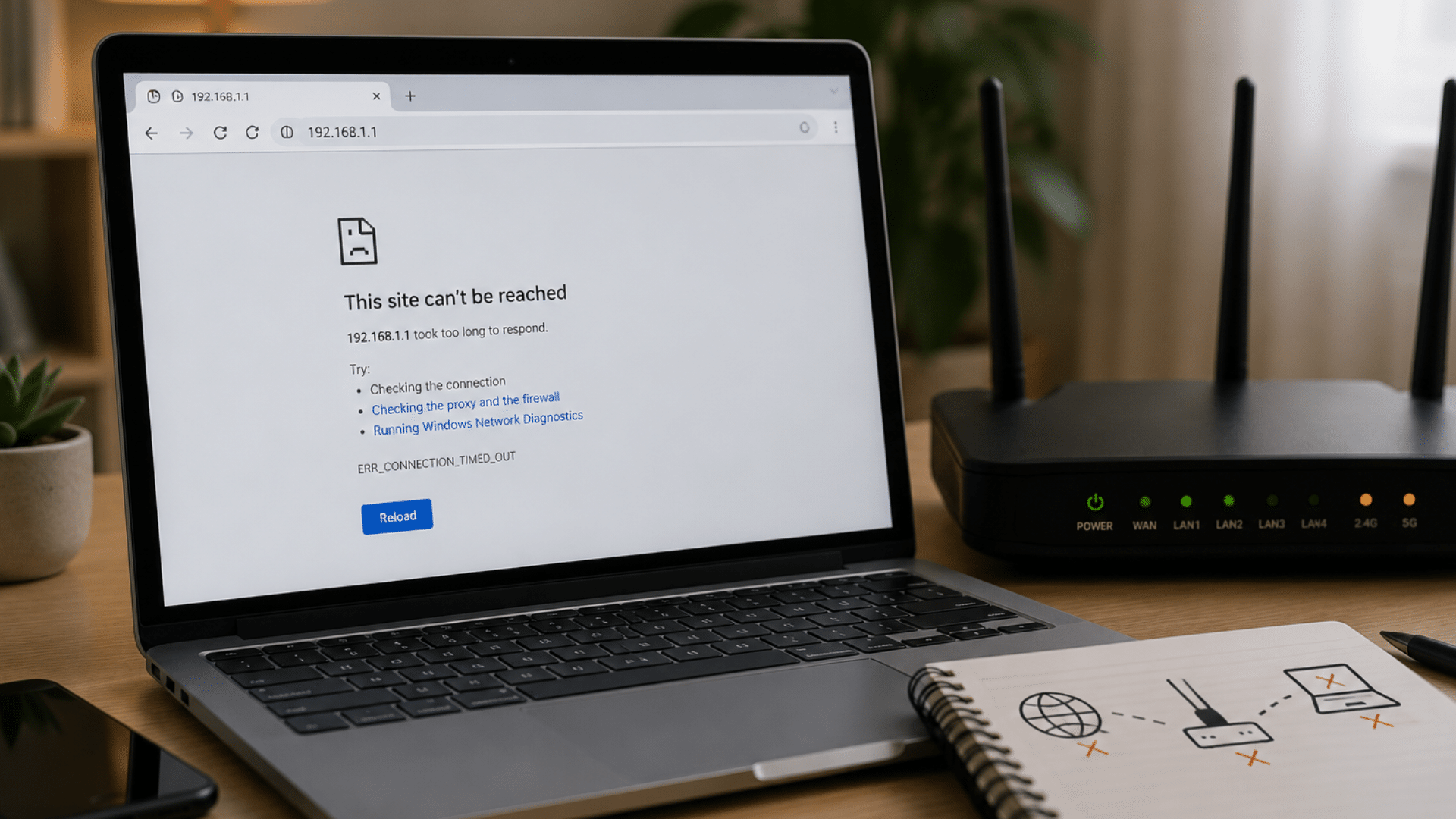
A login page that refuses to load can interrupt access when you need it most. Simple checks can help identify whether the issue comes from your browser, network, or Router.
- Check the Router Label: Look at the sticker on the back or bottom of the Router. Most brands print the default address, username, and password there.
- Use the Command Prompt: Open Command Prompt on Windows and type ipconfig. Check the “Default Gateway” line for the active address.
- Try Common Addresses: Many routers use 192.168.0.1, 192.168.1.1, or 10.0.0.1. Enter them one at a time in your browser.
- Restart the Router and Device: Turn off the Router for about 30 seconds and restart your computer or phone.
- Disable VPN or Proxy Settings: VPNs and proxies can block local network access, so turn them off briefly and try again.
- Clear Browser Cache: Old browser data can stop the login page from loading correctly. Clear Cache and cookies, or try another browser.
- Reset the Router: Press and hold the reset button for about 10–15 seconds to restore factory settings.
- Update Network Drivers: Outdated network drivers can cause connection issues, and updating them can restore access.
When a login page stops responding, small fixes often solve the problem. Checking connections, clearing errors, and reviewing settings can restore access without unnecessary complications.
From Setup To Fixes: Managing Your Router Settings
Setting up an address and fixing address-related issues may seem like separate tasks, but both focus on creating a smooth connection between devices and networks.
| Situation | What You’re Usually Doing | Typical Next Step |
|---|---|---|
| First-Time Setup | Naming your network and setting a password | Follow the Router’s on-screen setup wizard |
| Slow or Dropped Connection | Checking connected devices and signal settings | Restart the Router or move it to a better spot |
| Forgotten Wi-Fi Password | Resetting the network password from the admin page | Reconnect all devices with the new password |
| Suspicious Device on Network | Reviewing the connected devices list | Remove the device and change the admin password |
Whether you are configuring settings or solving connection problems, understanding both sides of an address makes network management simpler and helps prevent future issues.
If you are reconnecting devices after changing your password, you may also need to locate the network security key on your router.
Router Security Tips
Your Router is the Gateway to your home network, making security settings important. Simple steps like strong passwords and updates can help protect your connected devices.
- Change the Default Admin Password: Default router passwords are easy to guess, so set a strong one that only trusted people at home know.
- Use Strong Wi-Fi Security: Choose WPA2 or WPA3 encryption when available, since older options are much easier to break into.
- Avoid Sharing Admin Login Details: Do not share the admin login with guests, neighbors, or unexpected “support” callers.
- Disable Remote Management: The CISA guide on securing home Wi-Fi recommends turning this feature off so no one can log in to the Router over the internet without connecting to your network first.
Router security is not a one-time task. Updating settings, monitoring connections, and using safer practices can help keep your home network reliable and protected.
Conclusion
Knowing your router IP address makes setup and troubleshooting far less stressful.
Once you know where to look, you can log into the Router’s admin page, name your network, set a strong password, check who is connected, and fix basic connection problems with confidence.
You do not need to be a tech expert to use it.
Your device usually shows it as Router, Gateway, or Default Gateway, and the steps are simple once you know where to check.
Have you ever had to look up your router IP address to finish a setup or fix a connection problem?
Share your experience in the comments below.
Frequently Asked Questions
What Should I Do If I Forgot My RRouter’sAdmin Password?
Check the sticker on the Router for the default login. If it was changed and forgotten, you will usually need to reset the Router to factory settings.
Why Does My Router Show More Than One Default Gateway?
This can happen if you are connected to more than one network adapter at once. Use the Gateway tied to the network you are actively using.
Is It Safe to Leave Remote Management Turned On?
It is safer to turn it off unless you specifically need to manage your Router while away from home, since it reduces the ways an attacker could reach your login page.
Can Two Devices on Different Networks Share the Same Address?
Yes. Private addresses like 192.168.1.1 are reused across countless home networks because they never appear on the public internet.