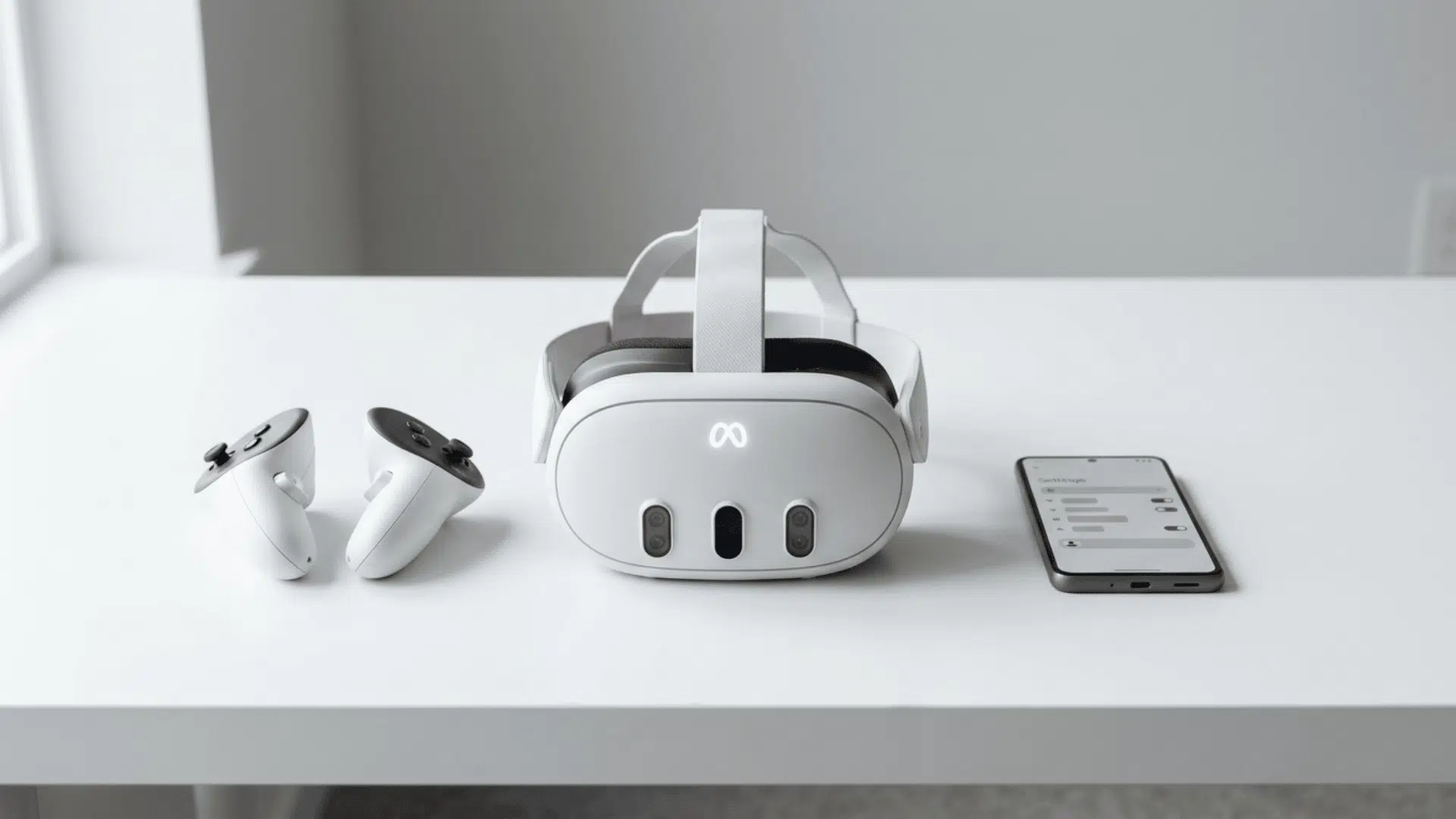



You may need to reset your Meta Quest 3 before selling it, giving it away, or fixing an ongoing issue. A factory reset removes local data and restores the original settings.
You can complete the process in two ways: by using the physical buttons on the headset or the Meta Horizon app on your phone.
Each method takes a few minutes, but both remove downloaded apps, saved settings, and locally stored information.
Make sure you back up anything important before starting. Read on to learn how to reset Meta Quest 3 using the method that suits you.
What Actually Gets Deleted During a Factory Reset?
A factory reset wipes all downloaded apps, local game saves, Wi-Fi passwords, and personal settings from the headset.
It returns the device to the same setup screen you saw on day one. Your purchased apps and games are safe, though.
They stay linked to your Meta account and can be re-downloaded for free after you log back in. Reset does not delete your Meta account itself. It just disconnects the account from that headset.
If you are handing the device to someone else, you will also need to remove it from your account through the app.
Two Ways to Factory Reset Your Meta Quest 3
You can reset using the physical buttons on the headset or through the phone app. This is how they both work.
Method 1: Using The Headset Buttons

This works even when the device is frozen, black-screened, or will not boot normally.
- Turn off the headset completely. Press and hold the power button for a few seconds, then select “Power Off” from the menu.
- Press and hold the Power and Volume Down (−) buttons at the same time. Keep holding until the boot screen shows up.
- Use the Volume buttons to scroll through the boot menu. Highlight Factory Reset and press the Power button to select it.
- Scroll down to Yes, erase and factory reset using the Volume buttons. Press the Power button one more time to confirm.
- The headset will start erasing all local data and reboot on its own. This takes roughly 30 to 60 seconds to finish.
- Do not touch any buttons or disconnect the headset from its charger while the wipe is running. Let it finish on its own.
Method 2: Using The Phone App

This is easier but requires the headset to be on and paired over Bluetooth.
- Open the Meta Horizon app on your phone. Tap Menu at the bottom of the screen, then tap Devices.
- Find your Meta Quest 3 in the device list and tap on it. The headset needs to be turned on and nearby.
- Tap Headset Settings inside the device page. From there, scroll down and tap Advanced Settings to open more options.
- Tap Factory Reset and follow the on-screen prompt to confirm. The headset will begin wiping all data after you approve.
- Keep the headset powered on and within Bluetooth range of your phone. The wipe runs automatically and finishes in under a minute.
If the device is completely frozen or stuck on a black screen, use Method 1 instead.
Restart vs. Soft Reset vs. Factory Reset: Which One Do You Actually Need?
Not every problem calls for a full wipe. This is a quick look at your three options side by side.
| Type | How to Do It | What It Fixes | Data Lost? |
|---|---|---|---|
| Restart | Hold the power button for 3 seconds, then select Restart | Minor lag, app glitches, tracking hiccups | No |
| Soft reset (force restart) | Hold the power button for 10 to 15 seconds until the headset shuts off, then power it back on | Frozen screens, unresponsive menus | No |
| Factory reset | Use the button or app method covered above | Persistent bugs, pre-sale prep, starting fresh | Yes, all local data |
Always try a restart first, then a force restart. Save the factory reset for when nothing else works, or you are passing the headset along.
How to Prep Your Quest 3 Before Selling or Giving it Away
A factory reset may not fully prepare the headset for a new owner. Remove the device from your account and complete these steps before handing it over.
- Connect the headset to Wi-Fi and let any cloud-saved game data finish syncing.
- Open the Meta Horizon app on your phone and go toSettings, then Payment. Remove your payment method.
- Run a factory reset using either method covered above.
- After the reset completes, go back to the Meta Horizon app. Tap Devices, find the Quest 3, and select Remove Headset.
- Unpair the headset from the app entirely.
How to Reset a Meta Quest 3 Controller
If a controller is drifting, lagging, or refusing to pair, start by pulling the battery out, waiting about 30 seconds, and putting it back in.
Turn the headset on, and the controller should reconnect on its own within a few seconds.
When the drift or lag sticks around even after re-pairing, the problem is likely hardware rather than software.
A blast of compressed air around the joystick can help in some cases, but ongoing drift usually means the controller needs replacing.
Tip: If it does not, head to Settings > Devices > Pair New Controller on the headset and follow the prompts to re-pair manually.
What to Expect After The Reset is Done

After the factory reset finishes, the Quest 3 returns to its initial setup screen. You will need to pair it with the Meta Horizon app and sign in to your Meta account again.
Previously purchased apps and games remain linked to your account, so you can download them again from your Library without purchasing them again.
Supported game saves backed up to the cloud may be restored after setup, while local-only saves are permanently removed during the reset.
You will also need to set up your Guardian boundary, adjust the IPD, reconnect to Wi-Fi, and configure your casting or streaming preferences again.
Factory Reset Not Working? Common Fixes
Sometimes the reset process does not go as planned. These are the most common problems and what to do about each one.
- “No Command” Screen Shows Up: Try holding the Power button and Volume Up (not Down) for a few seconds. If that does not work, hold Power and Volume Down together for a full 30 seconds without letting go early.
- The Headset Will Not Turn Off to Start The Reset: Plug it into a charger and wait at least 30 minutes. A dead or very low battery can block the boot menu from loading.
- Black Screen After the Reset: Hold the power button for 30 or more seconds to force a hard shutdown, then power it back on.
- The App Says the Headset Is Not Found: Make sure Bluetooth is on, the headset is powered on, and both the app and headset firmware are up to date.
Wrapping Up
These are the main ways to reset Meta Quest 3, using either the headset buttons or the Meta Horizon app.
The button method is useful when the headset is frozen or unresponsive, while the app works well when the device is still connected and operating normally.
Before selling or giving away the headset, confirm that the reset is complete and your account details are no longer available on the device.
For minor performance issues, try restarting the headset first, as a full reset may not be needed.
If you faced any problems during the process, share your experience or solution in the comments below.
Frequently Asked Questions
Are Payment Methods Deleted From the Account?
No. A factory reset removes payment access from the headset, but saved cards stay in your Meta account until you delete them through payment settings.
Do Extra Profiles Return Automatically?
No. All secondary profiles must be added again after setup. The owner may also need to turn app sharing back on.
Is Developer Mode Still Active Afterward?
No. The reset clears developer mode from the headset. Turn it on again after setup if the Meta account remains eligible.