


A low controller battery can interrupt a VR session faster than expected, especially if you are unsure how Meta Quest 3 controller charging actually works.
Understanding the available battery options makes it easier to avoid sudden shutdowns and choose a setup that fits how often you play.
You will learn how to check battery levels, recharge compatible AA batteries, use a charging dock, and avoid common charging mistakes.
Keep reading to learn the simplest ways to keep your Meta Quest 3 controllers powered and ready to use.
Can Meta Quest 3 Controllers Be Charged?
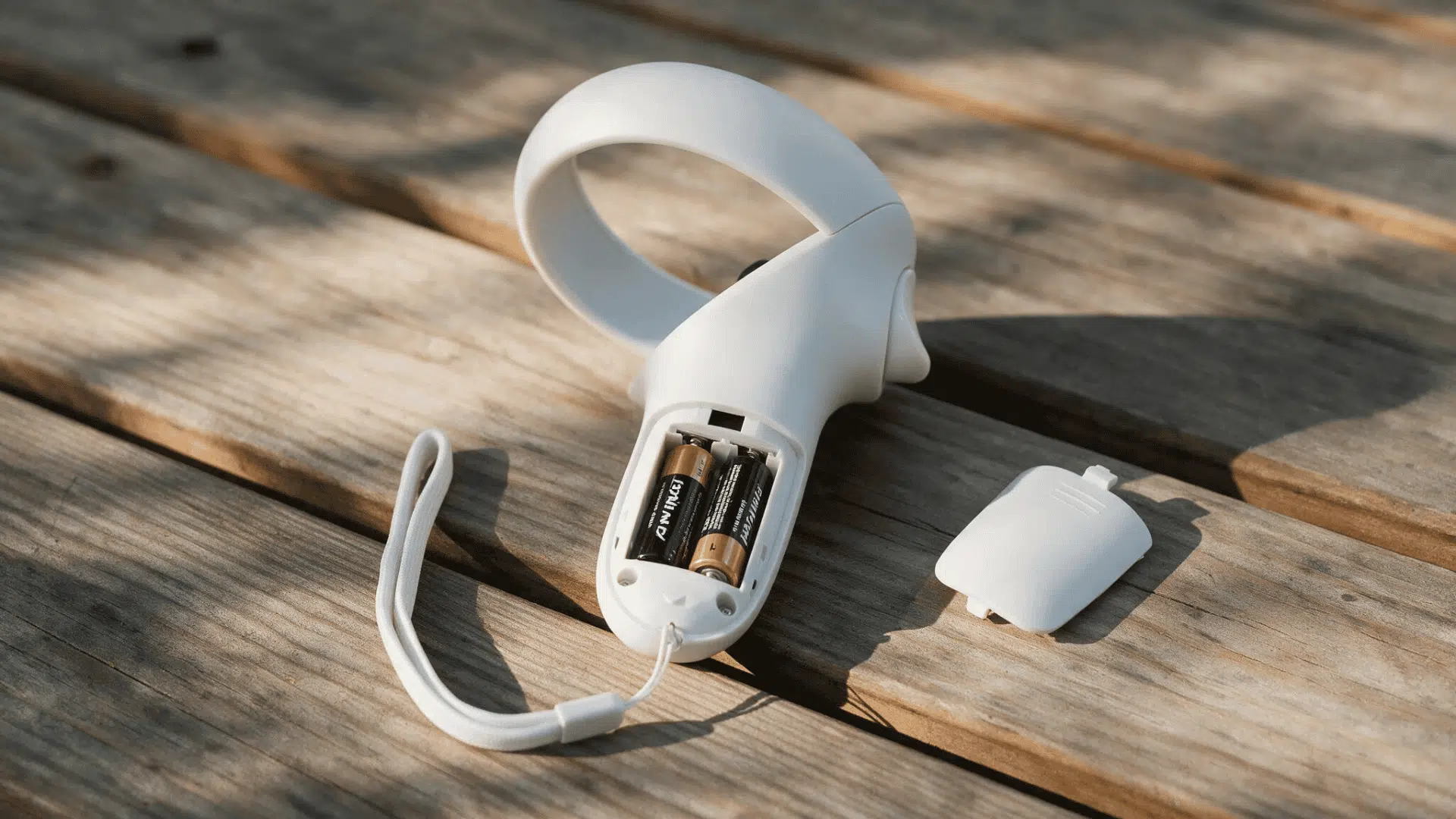
Meta Quest 3 Touch Plus controllers cannot be charged directly in their standard setup because each controller uses one removable AA battery.
Standard disposable AA batteries are replaced when depleted rather than recharged inside the controller.
If you want a reusable option, you can use compatible rechargeable AA batteries and charge them separately in an external charger.
You can also use dock-compatible rechargeable batteries with a supported Quest 3 charging dock. These batteries remain inside the controllers while charging on the dock.
So, the controllers support rechargeable battery options, but the charging method depends on the battery type installed.
How to Charge Meta Quest 3 Controller Batteries
Remove the rechargeable AA batteries from the Touch Plus controllers, charge them externally, then reinstall them correctly.
1. Open The Battery Compartment

Carefully open the battery compartment so you can remove the rechargeable AA battery safely.
- Turn The Controller Over: Position the controller so the battery cover and release area are easy to reach.
- Open The Cover: Slide or release the battery cover gently without forcing the plastic.
- Remove The Battery: Take the rechargeable AA battery out of the compartment and set it aside.
- Check The Compartment: Look for visible dust or debris and remove it carefully before installing a charged battery.
2. Charge and Reinsert The Battery

Use a compatible external charger to recharge the AA battery before placing it back inside the controller.
- Choose The Correct Charger: Make sure the charger supports the type of rechargeable AA battery you are using.
- Insert The Battery: Match the positive and negative ends with the markings inside the charger.
- Wait Until Charged: Follow the charger indicator or manufacturer instructions to confirm the battery is fully charged.
- Reinstall The Battery: Place it back into the controller while matching the polarity markings inside the compartment.
3. Secure The Cover and Test

Finish the process by closing the battery compartment properly and confirming that the controller powers on normally.
- Replace The Cover: Align the battery cover with the controller and slide or press it securely into position.
- Check The Fit: Make sure the cover sits evenly and does not feel loose during use.
- Reconnect The Controller: Turn on the headset and allow the controller to connect normally.
- Check for Power: If it does not respond, confirm the battery is charged and installed with the correct polarity.
Tip: If you own other Meta devices, it helps to know that battery habits vary by product, so it’s worth checking how charging works on Meta’s smart glasses before assuming the same routine applies.
How to Charge Meta Quest 3 Controllers with a Charging Dock
A compatible Quest 3 charging dock allows supported controller batteries to recharge while they remain installed.
1. Install Compatible Batteries: Remove the standard AA batteries and install the rechargeable batteries designed for the Quest 3 charging dock.
2. Connect the Dock to Power: Plug the charging dock into its recommended power source and place it on a stable, dry surface.
3. Position the Controllers: Place each Touch Plus controller in its correct slot and make sure the charging contacts align properly.
4. Confirm Charging: Check the dock indicator to verify that both controllers have started charging.
5. Wait Until Charging Is Complete: Leave the controllers seated on the dock until they are fully charged, then remove them when you are ready to use them.
Which Meta Quest 3 Controller Battery Method is Best?
Each Touch Plus controller uses one AA battery. Compare the main options based on charging method, convenience, and typical use.
| Battery Method | How It Works | Best For |
|---|---|---|
| Disposable AA Batteries | Replace depleted batteries with fresh compatible AA batteries. No charging equipment is required. | Occasional users who want simple battery swaps |
| Rechargeable AA Batteries | Remove the batteries and recharge them separately using a compatible external charger. | Regular users who want a reusable, lower-waste option |
| Dock-Compatible Batteries | Keep compatible rechargeable batteries inside the controllers and recharge them on a supported charging dock. | Frequent users who want convenient drop-in charging |
How to Check Meta Quest 3 Controller Battery Level
Checking the controller battery level before playing can help prevent unexpected interruptions during a VR session. Turn on the Meta Quest 3 and wait for both Touch Plus controllers to connect.
Press the Meta button on the right controller to open the Universal Menu, then check the displayed controller indicators for their remaining battery levels.
Review both controllers before longer sessions because one battery may drain faster than the other.
If either controller is running low, replace its disposable AA battery or recharge the compatible rechargeable battery before starting.
How to Make Meta Quest 3 Controller Batteries Last Longer
A few simple habits can help maintain reliable controller power and reduce unnecessary battery replacements.
- Check Battery Levels Regularly: Review the remaining controller battery level before longer VR sessions so you can recharge or replace batteries before they run out.
- Store Batteries Properly: Keep spare batteries in a cool, dry place and avoid loose storage where battery terminals may touch metal objects.
- Keep Spare Batteries Ready: Store an extra charged pair of rechargeable AAs or fresh disposable batteries nearby for quick replacement.
- Use Compatible Equipment: Charge rechargeable batteries only with a charger designed for their type and follow the manufacturer’s instructions.
- Replace Damaged Batteries: Stop using batteries that are leaking, swollen, corroded, or otherwise damaged.
Can You Charge Meta Quest 3 Controllers with USB-C?
No, Meta Quest 3 Touch Plus controllers cannot be charged directly with a USB-C cable because they do not have USB-C charging ports.
The USB-C connection on the Meta Quest 3 is for charging the headset, not the controllers. Controller power is handled separately through removable batteries.
If the controller battery runs low, you need to replace a standard AA battery or use the charging method required by the rechargeable battery system you have installed.
USB-C charging applies only to the headset, not the Touch Plus controllers. That is why you can’t plug the headset charging cable into a controller.
Conclusion
Keeping Meta Quest 3 controllers powered is straightforward once you understand how their removable battery system works.
The controllers cannot charge directly through USB-C, so disposable AA batteries must be replaced when empty, while rechargeable AAs require a compatible external charger.
Check battery levels regularly, keep backup power ready, and share your preferred charging method in the comments.
Choose the charging method that works best for your VR routine, and share your preferred Meta Quest 3 battery setup in the comments below.
Frequently Asked Questions
Do Meta Quest 3 Controllers Turn Off Automatically?
They enter a low-power state after inactivity, helping conserve battery life efficiently and extending the device’s usable time.
Can Low Batteries Affect Controller Tracking?
Yes. Weak batteries may cause delayed responses, disconnections, or inconsistent tracking during gameplay.
Can Lithium AA Batteries Be Used?
Compatible lithium AA batteries may work, but users should follow Meta’s battery recommendations and avoid damaged or mismatched cells.