



A child’s first smartphone opens the door to learning, creativity, and connection, but it also brings new challenges for parents.
Apple provides built-in tools to manage screen time, app access, online content, and privacy settings without extra apps.
Learning how to put parental controls on iPhone makes it easier to create healthy digital habits while keeping important features available.
This article breaks down the setup process, key restrictions, and customization options. Keep reading to set up your child’s iPhone with smarter controls and better balance.
What are Parental Controls on iPhone?
iPhone parental controls are settings that allow parents or guardians to manage how a child uses their device.
Most controls are located inside Screen Time, which can track app and website activity and place limits on selected features.
Parents can schedule Downtime, create App Limits, restrict websites, control App Store purchases, manage communication, and stop changes to certain privacy settings.
Family Sharing also allows eligible parents or guardians to manage many Screen Time settings from their own Apple device.
These controls can be adjusted rather than treated as permanent restrictions. This makes it easier to update access as routines, responsibilities, and age change.
Before You Put Parental Controls on an iPhone
Before setting restrictions, prepare the iPhone so parental controls are easier to manage and less likely to be changed.
- Use a Separate Apple Account: Make sure the child has their own account instead of sharing a parent’s Apple Account.
- Set Up Family Sharing: Add the child to the family group so controls can be managed from a parent or guardian’s device.
- Update family Devices: Keep iPhones and other Apple devices updated so Screen Time settings sync correctly.
- Create a Private Passcode: Use a unique Screen Time passcode that differs from the device unlock code.
Note: iPhone parental controls use built-in Screen Time tools to manage apps, screen use, purchases, and online content for children.
How to Put Parental Controls on iPhone
iPhone parental controls use built-in Screen Time tools to manage apps, screen use, purchases, and online content for children.
1. Turn On Screen Time
Open Settings > Screen Time and enable App & Website Activity.
If Family Sharing is active, select your child’s name. Create a separate Screen Time passcode to prevent unauthorized changes to the controls.
2. Set Downtime and App Limits
Use Downtime to restrict most apps during selected hours, such as bedtime or homework.
Open App Limits to set daily time allowances for specific apps or categories based on your child’s routine.
3. Enable Content and Privacy Restrictions
Go to Screen Time > Content & Privacy Restrictions and turn the setting on.
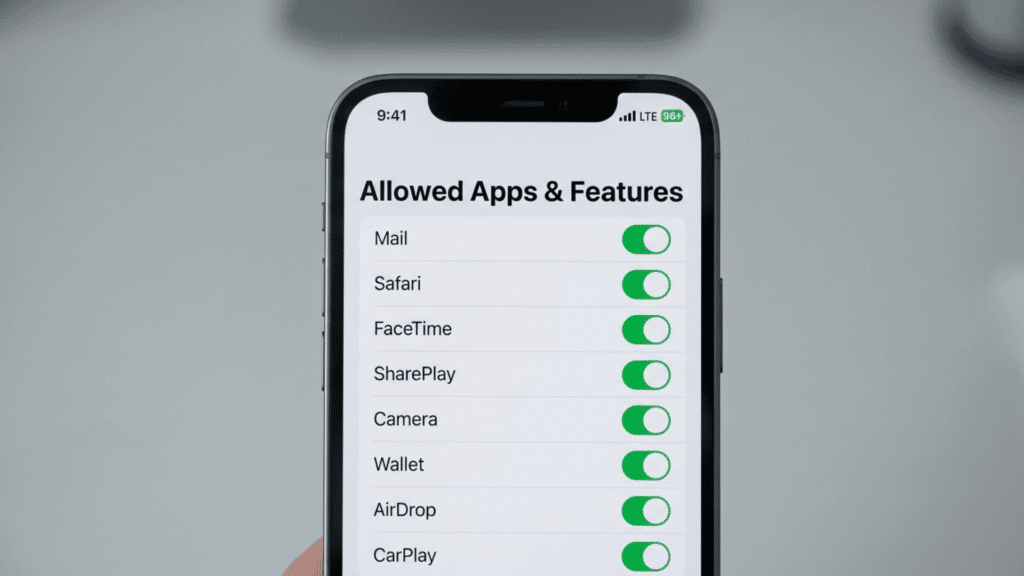
From here, you can control allowed apps, purchases, web content, privacy settings, and other changes available on the iPhone.
4. Restrict Websites and Purchases
Limit adult websites or allow only approved sites, and restrict App Store purchases, downloads, deletions, and in-app spending.
Parents who need more control over browsing can also learn how to block websites on an iPhone individually or limit access to approved sites.
5. Set Communication Controls
Open Communication Limits to manage who your child can contact during regular Screen Time and Downtime.
Review Communication Safety settings as well to provide additional protections when sensitive images or videos are detected.
6. Choose Always Allowed Apps
Use Always Allowed to keep essential apps available when Downtime or other limits are active.
Choose communication, safety, or everyday utility apps your child may still need while entertainment and other restricted apps remain unavailable.
How to Set Up Parental Controls with Family Sharing
Family Sharing lets parents manage a child’s Screen Time settings and restrictions from their own Apple device.
- Step 1: Open Family Settings: Go to Settings, tap your name, then select Family to view or manage the family group.
- Step 2: Add Your Child: Add the child to Family Sharing if their Apple Account is not already included in the group.
- Step 3: Open Screen Time: Return to Settings > Screen Time and select the child’s name under the Family section.
- Step 4: Set Parental Controls: Configure Downtime, App Limits, content restrictions, communication settings, and other available Screen Time controls.
- Step 5: Manage Requests Remotely: Review supported app downloads, purchase requests, and Screen Time changes directly from the parent or guardian’s device.
Which iPhone Restrictions Should Parents Consider?
The most useful iPhone restrictions are those that match your child’s age, routine, and level of independence.
| Restriction | What It Helps Control |
|---|---|
| App Limits | Daily time spent on selected apps |
| Downtime | Device use during scheduled hours |
| Web Content | Access to adult or unsuitable websites |
| Purchases | App downloads and in-app spending |
| Communication Limits | Who the child can contact |
| Privacy Changes | Changes to selected privacy settings |
Tips for Using iPhone Parental Controls Effectively
Parental controls work best when they are reviewed regularly and matched to your child’s age and daily needs.
1. Set Age-Appropriate Limits: Restrict only the apps, content, and features that need control while keeping useful tools available for study, communication, and daily tasks.
2. Protect The Screen Time Passcode: Keep the passcode private so your child cannot change limits, disable restrictions, or extend app usage without permission.
3. Explain The Rules Clearly: Tell your child why certain limits exist and discuss responsible iPhone use instead of relying only on restrictions.
4. Keep iOS Updated: Install software updates regularly and learn how to clear the app cache on an iPhone to keep the device running smoothly.
5. Use Family Sharing: Manage Screen Time and supported restrictions for multiple children directly from your own iPhone.
Conclusion
A safer digital experience starts with smarter choices, and iPhone parental controls give parents the tools to create healthy boundaries without limiting learning and creativity.
From managing screen time to controlling apps, purchases, and privacy settings, these features can adapt as children grow.
Small adjustments today can help build better technology habits for the future.
Take a few minutes to review your iPhone settings, customize controls based on your child’s needs, and share your own tips or experiences in the comments.
Frequently Asked Questions
Can Parental Controls Work on Older iPhone Models?
Yes, most iPhone models running supported iOS versions include Screen Time and parental control features.
Do iPhone Parental Controls Block All Inappropriate Content Automatically?
No, parents need to customize content filters and restrictions based on their child’s age and requirements.
Can Parental Controls Limit Who My Child Can Communicate with?
Yes, Communication Limits in Screen Time can control contacts allowed during normal hours and downtime.