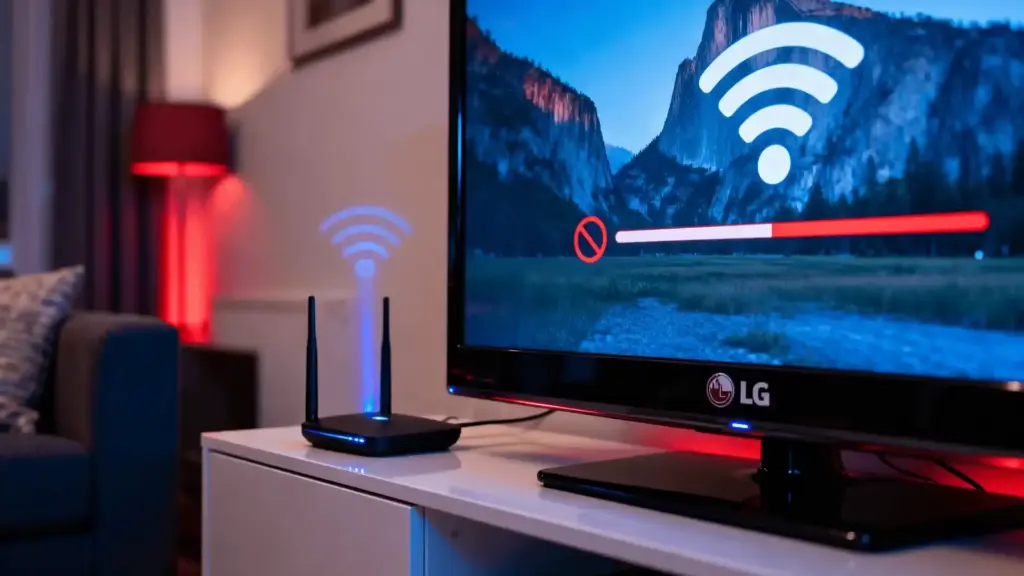
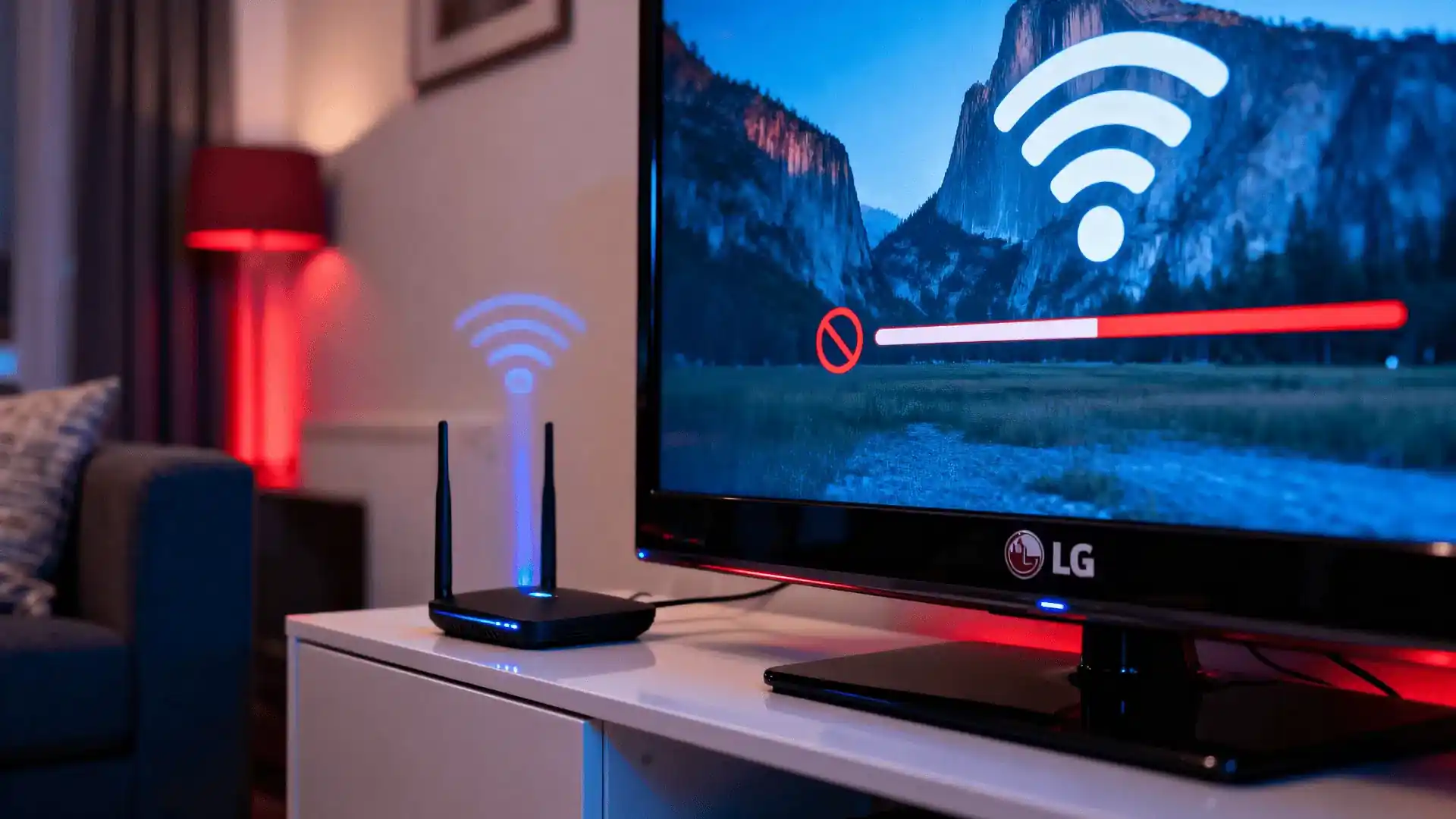



If your LG TV keeps disconnecting from WiFi, you are not dealing with a random glitch; there is almost always a specific reason hiding beneath the surface.
The fix could be one setting change away, or it could be a sign of something deeper in your TV or network.
Either way, this guide covers every known cause and solution, so you can stop the disconnections for good and get back to uninterrupted streaming.
Why Does My LG TV Keep Disconnecting from WiFi?
If your LG TV keeps dropping its Wi-Fi connection, you’re not the only one; the cause can range from a buried software setting to a hardware fault inside the TV.
- Quick Start+ Feature: LG’s Quick Start+ standby mode has been known to interfere with the TV’s Wi-Fi reconnection after waking from sleep.
- Router Incompatibility (WiFi 6 & Mesh Networks): Many LG TVs struggle with newer WiFi 6 routers or mesh systems, as the TV’s wireless chip may not fully support their protocols.
- Automatic LG Services Country Setting: When set to “Automatic,” this hidden setting can silently reset network configurations in the background, dropping your WiFi without any error message.
- Outdated Firmware & Software Bugs: Running older firmware may leave your TV missing stability patches that LG has already released to fix known disconnection issues.
- Weak Signal & DNS Conflicts: A fluctuating WiFi signal combined with incorrect DNS settings can cause the TV to lose network communication even when a connection appears active.
- WiFi Module Ribbon Cable (Hardware): In some LG models, a loose or degraded internal ribbon cable causes intermittent disconnections that no software update can permanently fix.
Quick Fixes You Can Try in 5 Minutes
If your LG TV just started dropping WiFi, run through this checklist before changing any settings. Most users fix the issue here without going any further.
- Restart your LG TV using the unplug method (hold power off, unplug for 60 seconds)
- Restart your router and modem by unplugging both for at least 2 minutes
- Turn WiFi off on your TV and reconnect to your network manually
- Move your router closer to the TV or remove obstacles blocking the signal
- Disable Quick Start+ in your LG TV’s general settings
- Check for and install any pending LG TV software updates
Step-by-Step Guide On How to Fix LG TV WiFi Issues

If the quick fixes above didn’t work, this guide walks you through every proven solution in the right order, from diagnosing the root cause to advanced fixes for persistent disconnections.
Step 1: Check If the Problem Is Your Network or TV
Before changing any settings, test your TV with your phone’s mobile hotspot. If it connects successfully, your router is the problem.
If it still drops, it’s likely an issue with the TV itself. In that case, you can go directly to Step 3.
Step 2: Fix Network-Related Issues
Move your router closer to the TV, then switch between the 2.4 GHz and 5 GHz bands to find the stronger, more stable signal.
You should also reduce interference from nearby electronics and change your router’s WiFi channel to avoid congestion from neighboring networks sharing the same frequency.
Step 3: Fix LG TV Software and Settings Issues
Disable Quick Start+ in your TV’s general settings, then check for and install any available firmware updates through the support menu.
If disconnections persist, reset your network settings entirely and verify that your TV’s date and time are correctly configured, as incorrect values can quietly disrupt network authentication.
Step 4: Fix Connectivity Stability Issues
Navigate to your TV’s network settings and manually enter a public DNS address such as Google’s 8.8.8.8 or Cloudflare’s 1.1.1.1.
Disconnecting unused devices from your network and scheduling heavy downloads outside peak hours can also significantly reduce congestion-related dropouts affecting your TV.
Step 5: Reset and Advanced Fixes
If nothing above has worked, perform a factory reset on your LG TV to clear any deep software conflicts that settings changes alone cannot fix.
Follow this by resetting your router to its default settings and fully reconfiguring your network connection from scratch to rule out any lingering configuration issues.
Step 6: Check for Hardware Problems
If your WiFi keeps turning off automatically or the TV refuses to detect any networks, these are strong signs of a failing internal WiFi module.
At this stage, contacting LG support or a certified repair technician is the most practical and recommended next step to avoid further damage.
Advanced LG TV WiFi Fixes When Basic Troubleshooting Fails
If your LG TV still won’t connect, these deeper fixes target hidden network conflicts and hardware quirks that basic troubleshooting often misses.
| FIX | WHAT TO DO | WHY IT HELPS |
|---|---|---|
| Change DNS Settings | Use Google DNS (8.8.8.8) | Improves connection stability and faster resolution |
| Switch WiFi Band | Try 2.4GHz or 5GHz | Balances range vs speed issues |
| Check Date & Time | Set automatic sync | Prevents IP conflicts and login errors |
| Disconnect Devices | Remove USB/HDMI | Reduces signal interference |
| Factory Reset | Reset the TV fully | Clears deep system/network bugs |
Router-Related Fixes Most People Ignore
Most LG TV WiFi guides focus entirely on the TV itself, but your router’s configuration is just as often the real source of persistent disconnection issues.
- Update Router Firmware: Log in to your router’s admin panel and check for pending firmware updates, as outdated router software can frequently cause dropped connections with smart TVs.
- Change WiFi Channel: Neighboring networks using your channel create congestion, destabilizing your LG TV’s connection. Switching to channel 1, 6, or 11 on 2.4GHz often resolves this instantly.
- Disable MAC Filtering: If your router has MAC address filtering enabled, it can intermittently block your TV’s network access without displaying any error on screen.
- Upgrade to Mesh WiFi or an Extender: If your TV sits far from the router, a mesh system or extender eliminates the coverage gaps that no software fix can address.
Note: If no software fix works and your TV detects no networks, the WiFi module may be faulty. Contact LG support if under warranty, or visit an authorized service center.
Best Alternative Fix: Use Ethernet Instead

If WiFi disconnections keep coming back no matter what you try, switching to a wired Ethernet connection is the most reliable solution.
Ethernet gives your LG TV a direct, stable link to your router with no signal drops, no interference, and no range limitations.
It is worth making the switch permanently if your router is nearby, especially for streaming 4K content, where a weak WiFi signal causes the most noticeable problems.
Model-Specific Issues
Some LG TV models show different WiFi behavior due to hardware and firmware differences, so fixes may vary slightly by series.
| MODEL / SERIES | WIFI BEHAVIOR | RECOMMENDATION |
|---|---|---|
| LG C2, G2 (2022) | Higher disconnection rates | Use DNS change + disable Quick Start+ |
| NanoCell Models | Unstable connectivity | Prefer 2.4GHz for better stability |
| LG C3, C4 | Improved stability | Still disable Quick Start+ for best results |
When to Contact LG Support
If you have tried every fix in this guide and your LG TV still keeps disconnecting, it is time to reach out to LG directly.
LG has addressed WiFi connectivity problems through official software updates in the past, so reporting your issue may speed up a fix.
If your TV is still under warranty, contact LG support before attempting any hardware repairs. Visit the official LG US Support page for service requests and warranty claims.
How to Prevent LG TV WiFi Issues in the Future
Fixing the problem once is only half the job; these simple habits will keep your LG TV reliably connected and prevent disconnection issues from recurring.
- Keep Firmware Updated: Regularly check for software updates under your TV’s support settings, as LG frequently releases patches that fix known WiFi stability bugs.
- Optimize Router Placement: Keep your router in an open, central location within 30 feet of your TV, away from walls and electronics that degrade signal quality.
- Avoid Network Overload: Limit the number of devices actively streaming at the same time, as too many devices competing for bandwidth is a common cause of smart TV dropouts.
- Use Quality Router Hardware: An outdated budget router struggling with multiple devices is a long-term liability, and upgrading to a modern dual-band or mesh router significantly reduces recurring WiFi issues.
Wrapping It Up
Dealing with an LG TV that keeps disconnecting from WiFi can feel frustrating, but every cause covered in this guide has a working solution.
Work through the steps in order, most users fix the issue before reaching advanced troubleshooting.
If this guide helped you fix the issue, share it with someone who is dealing with the same problem at home.