


Have you ever moved your mouse expecting the cursor to respond, only to find nothing happens?
A wireless mouse can suddenly stop working due to simple issues like drained batteries, a loose receiver connection, Bluetooth pairing failures, wireless interference, or system errors.
The right solution depends on what you are experiencing, whether the mouse is completely unresponsive, disconnecting frequently, detected by the computer but not responding, or showing a light without moving the cursor.
This troubleshooting guide starts with quick power and connection checks before moving into deeper fixes for drivers, settings, and hardware-related problems.
Why Is My Wireless Mouse Not Working?
A wireless mouse can stop responding because of simple issues like a dead battery, a switched-off device, a loose USB receiver, Bluetooth pairing failure, or wireless interference.
Software problems, including outdated drivers, can also prevent the computer from recognizing the mouse. In some cases, a damaged sensor or hardware fault may be the reason, which lines up with several common hardware issues computers run into over time. The symptom you notice can help identify the cause faster.
| Problem you notice | Possible cause |
|---|---|
| Mouse light does not turn on | Battery or power issue |
| Light turns on, but cursor does not move | Connection or sensor problem |
| Mouse keeps disconnecting | Interference or pairing issue |
| Computer does not detect mouse | Receiver, Bluetooth, or driver issue |
Finding the exact cause makes it easier to apply the right fix instead of testing unnecessary solutions.
Start With These Quick Wireless Mouse Checks
Before trying advanced fixes, start with basic checks that can quickly solve common wireless mouse problems. These steps help identify power, connection, and surface-related issues without changing computer settings.
- Check the power switch: Make sure the mouse is turned on. Some models have a switch on the bottom that can be accidentally moved to the off position.
- Replace or recharge the battery: A weak battery can cause sudden disconnections or complete failure. Replace old batteries or fully charge rechargeable models before testing again.
- Reconnect the USB receiver: Remove the wireless receiver, wait a few seconds, and plug it back in firmly to restore the connection.
- Try another USB port: A faulty or inactive USB port can prevent the receiver from working. Test another port, preferably one directly connected to the computer.
- Restart the computer: A simple restart can clear temporary system errors that stop the mouse from responding correctly.
- Test a different surface: Dusty, uneven, or reflective surfaces can affect sensor tracking. Try using the mouse on a clean mouse pad or plain surface, and while you’re at it, confirming the sensor’s DPI setting can help rule out tracking-related quirks.
These quick checks fix many temporary power and connection issues. If the mouse still does not respond, continue with deeper troubleshooting steps.
Fix Wireless Mouse Receiver and USB Connection Problems
A wireless mouse that uses a USB receiver depends on a stable connection between the dongle and computer. Checking the receiver, USB port, and nearby interference can often restore normal operation.
1. Reconnect the USB Receiver Correctly
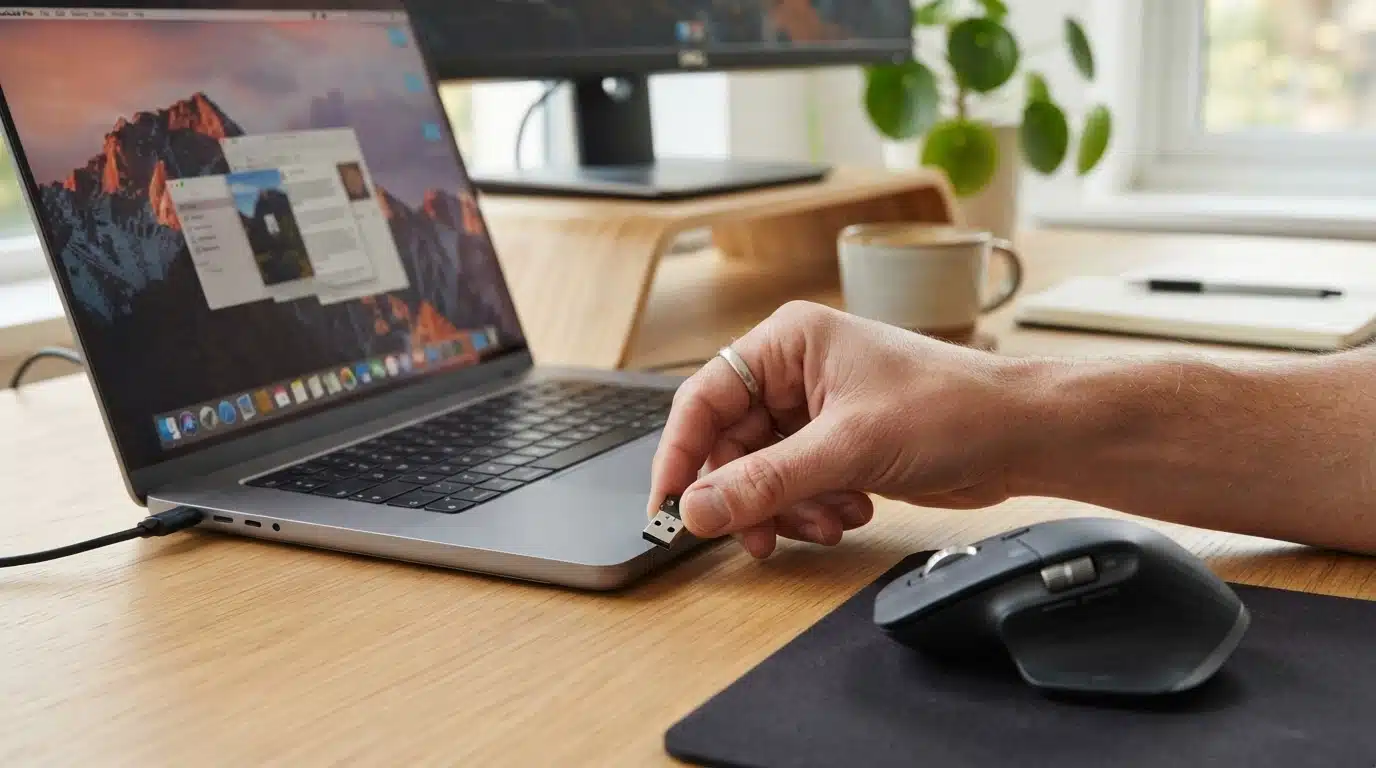
Remove the wireless dongle from the USB port and wait a few seconds before reconnecting it. Plug the receiver directly into the computer instead of using a USB hub or adapter.
A loose connection or hub-related issue can prevent the system from recognizing the mouse properly. After reconnecting, move the mouse and check if the cursor responds.
2. Try Another USB Port or Computer
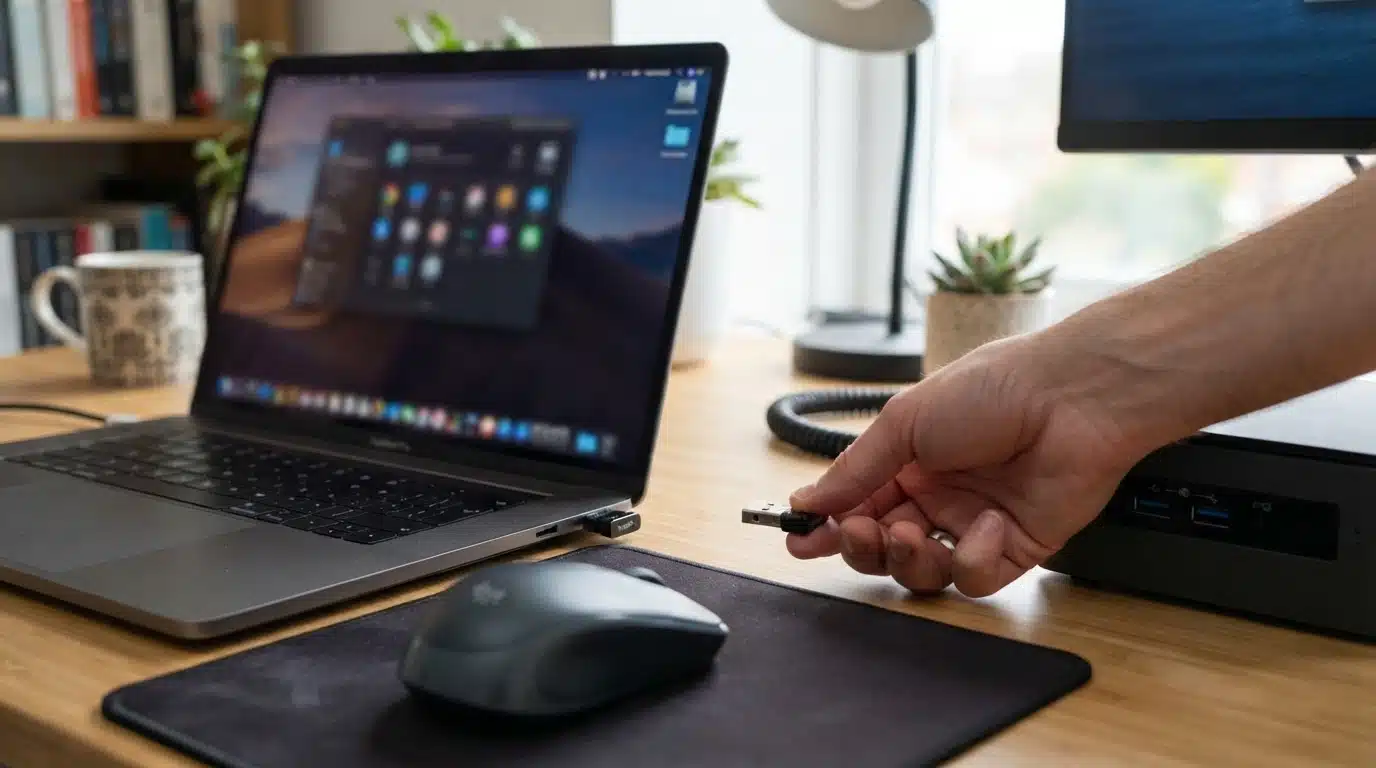
Switch the receiver to a different USB port to rule out a damaged or inactive port. Wait for the computer to detect the device, then test the mouse again. If possible, connect the receiver to another computer.
If the mouse works elsewhere, the issue may be with the original computer rather than the mouse or receiver.
3. Reduce Wireless Signal Interference
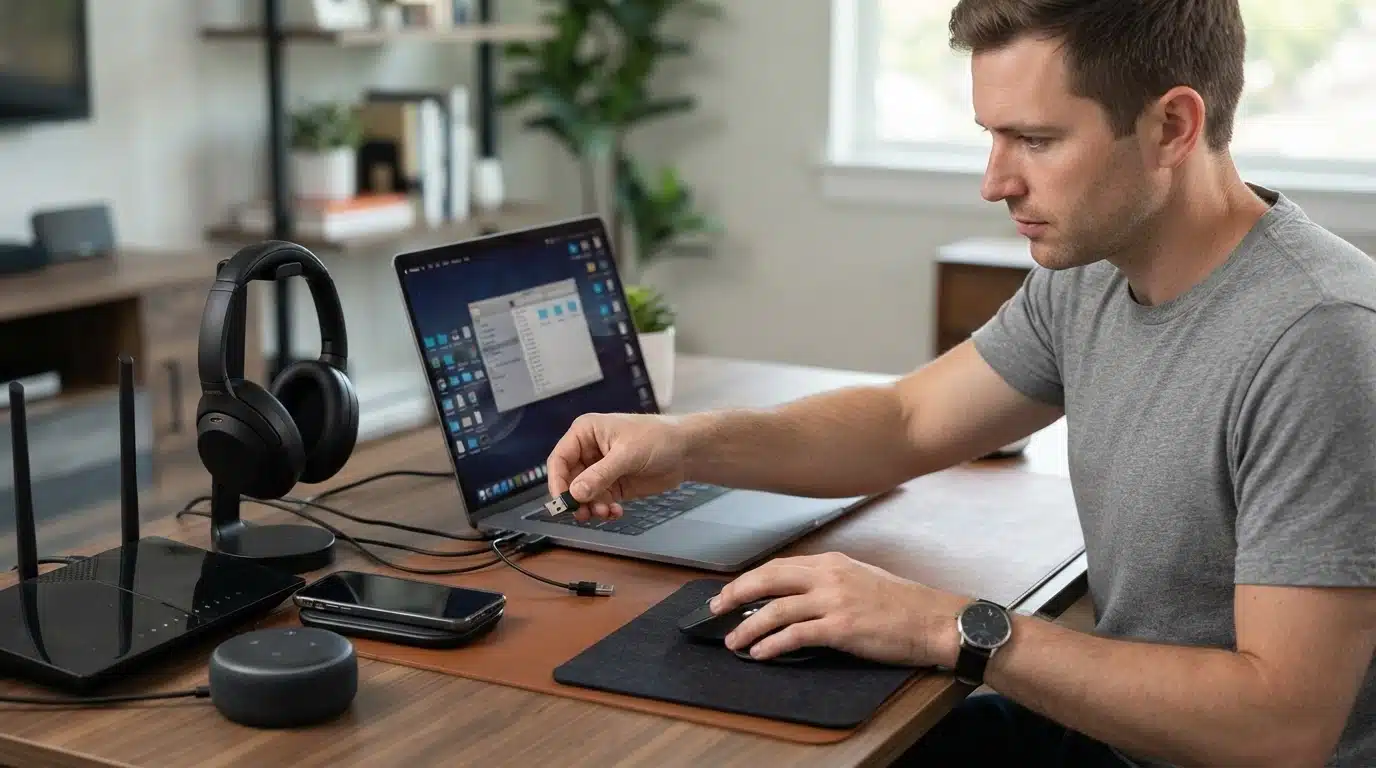
Wireless interference from nearby devices can interrupt communication between the mouse and receiver. Keep the receiver away from routers, Bluetooth devices, and other wireless accessories during testing.
Avoid connecting multiple devices near the receiver and move it closer to the mouse for a stronger signal. A clearer connection can prevent random disconnections and delays, the same kind of interference that causes a wifi connection to drop in other parts of the house.
4. Check If the Receiver Is Damaged or Missing
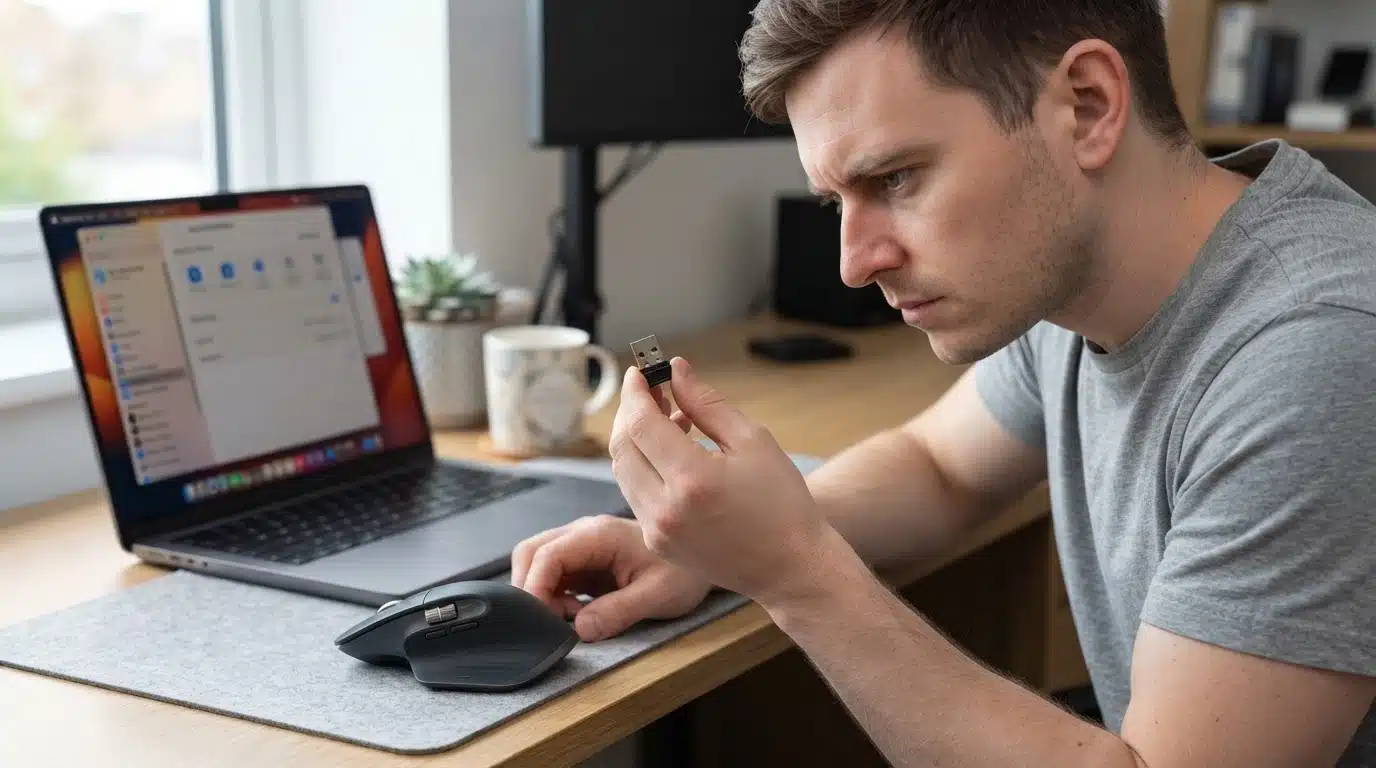
Some wireless mice only work with their original receiver because the dongle is paired specifically with that device.
If the receiver is damaged or lost, check whether the manufacturer offers replacement options. Supported brands may provide replacement receivers or pairing tools to reconnect compatible mice.
These receiver and USB checks can resolve many connection failures before moving to software troubleshooting. If the mouse still does not respond, the next steps focus on Bluetooth pairing and system settings.
Fix a Bluetooth Wireless Mouse That Is Not Connecting
Bluetooth mice connect directly through your computer’s Bluetooth settings, so connection failures usually involve pairing, settings, or power issues instead of a USB receiver. Follow these steps to restore the connection.
Step 1: Confirm Bluetooth Is Enabled: Open your computer’s Bluetooth settings and make sure Bluetooth is turned on. Check that airplane mode is disabled and your system can detect Bluetooth devices. If Bluetooth isn’t responding, restart the computer before trying to reconnect the mouse.
Step 2: Remove the Mouse from Saved Devices: Go to the Bluetooth device list and remove the mouse from previously saved connections. An old or corrupted pairing record can prevent the mouse from connecting properly. Removing the existing entry lets your computer create a new connection with the device.
Step 3: Put the Mouse into Pairing Mode: Turn on the mouse and press or hold the pairing button until the indicator light begins flashing. This makes the mouse discoverable so your computer can find it. If you cannot locate the pairing button, check the manufacturer’s instructions for the exact method.
Step 4: Connect It Again Through Bluetooth Settings: Open Bluetooth settings again and select the mouse from the available devices. Wait for the pairing process to complete before testing movement and clicks. A successful connection should allow the cursor to respond normally without repeated disconnects.
Step 5: Restart Bluetooth If Connection Fails: If the mouse does not appear or refuses to connect, turn Bluetooth off and back on from your computer settings. This refreshes the wireless connection and can fix temporary detection issues without affecting other paired devices.
Tip: Before pairing again, check the mouse battery level. A weak battery can interrupt the Bluetooth signal and cause failed connections even when the mouse appears powered on.
These steps fix most Bluetooth mouse connection issues. If the problem continues, check for driver problems, compatibility issues, or possible hardware failure affecting the mouse or computer.
What to Do When Your Wireless Mouse Light is on but It Still Does Not Work
A working mouse light only confirms power is available. It does not mean the mouse is connected or responding correctly.
- Confirm computer detection: Check Bluetooth settings or USB devices to see if the mouse is recognized.
- Test another surface: Move the mouse on a clean, flat surface to rule out tracking issues.
- Clean the sensor: Remove dust or debris from the optical sensor underneath the mouse.
- Reconnect the connection: Replug the receiver or re-pair the Bluetooth connection.
- Test another mouse: Check if another mouse works on the same computer to isolate the issue.
If these checks fail, the problem may be related to hardware damage, drivers, or device compatibility.
Fix Wireless Mouse Driver and Windows Settings Issues
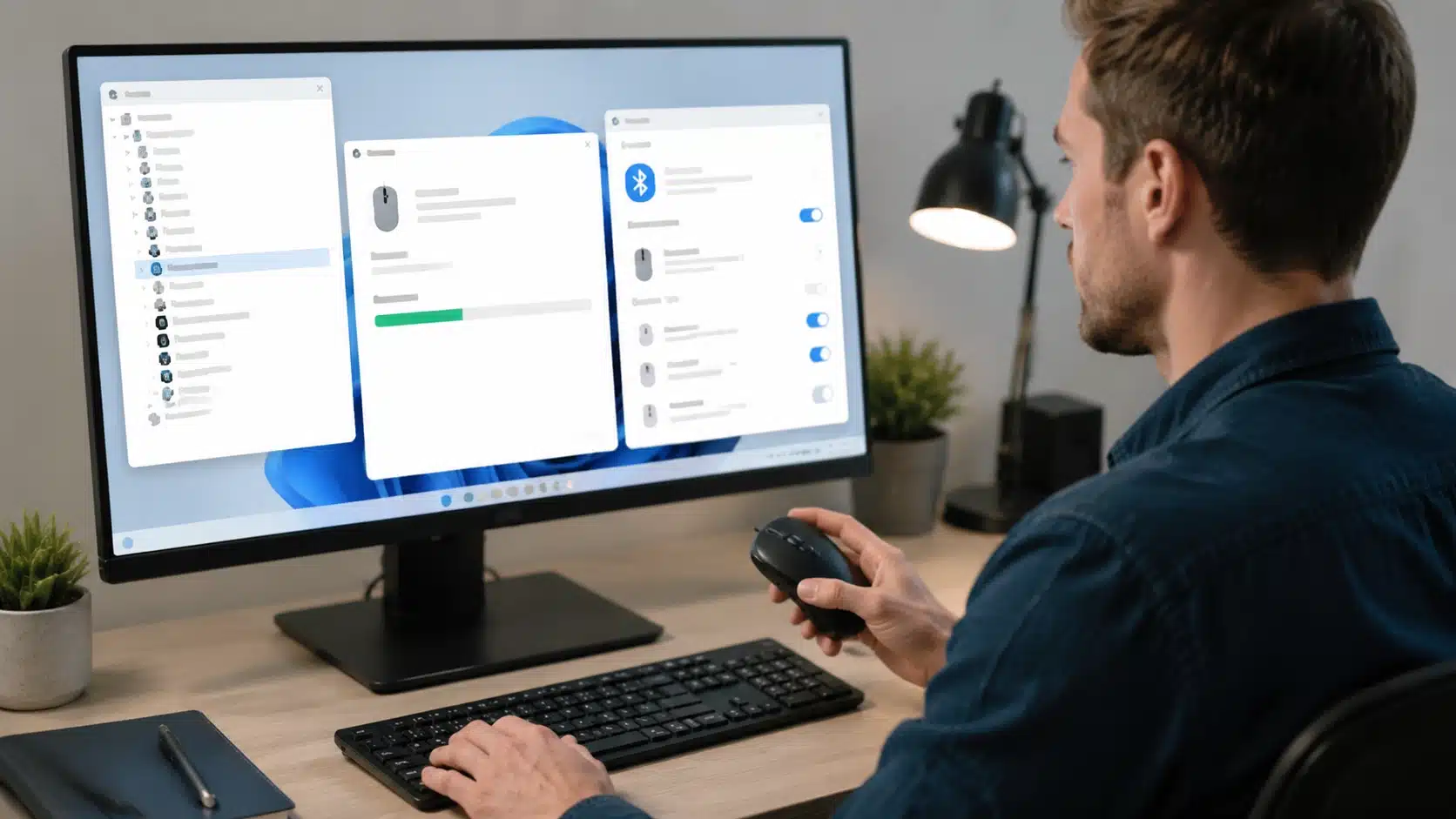
Driver problems or incorrect system settings can prevent a wireless mouse from connecting or responding properly.
Start by opening Device Manager and checking the Mouse and other pointing devices section to confirm that Windows detects the device. If the driver is outdated, corrupted, or showing an error, update or reinstall it to restore proper communication between the mouse and computer.
Installing pending Windows updates can also resolve compatibility issues affecting USB, Bluetooth, or wireless devices.
Check your computer’s Bluetooth and connected device settings to ensure the mouse is paired correctly and recognized by the system.
If the mouse appears but does not respond, removing and reconnecting it through device settings can refresh the connection and fix temporary software-related problems.
How to Tell If Your Wireless Mouse Has a Hardware Problem
Some wireless mouse problems come from damaged components rather than connection or software issues. Check these signs to determine if the mouse itself may be failing:
- Test on another computer: Connect the mouse elsewhere to see if the same problem appears again.
- Replace batteries: Install fresh batteries or recharge fully to rule out power-related failures.
- Check buttons: Confirm if clicks, scrolling, or other controls have stopped responding properly.
- Test sensor tracking: Try different surfaces to check if the cursor movement remains inaccurate.
- Inspect receiver damage: Look for cracks, physical damage, or missing wireless receiver parts.
Quick Decision Guide: Test the mouse on another computer. If it fails there too, the issue is likely hardware related. If it works, check your computer settings, drivers, or connection.
A wireless mouse problem is not always caused by a damaged device. Checking power, connections, settings, and hardware condition in order can help identify the cause faster and find the right fix.
Brand-Specific Fixes for Common Wireless Mouse Problems
Different wireless mouse brands may use slightly different connection methods, pairing tools, or replacement options. Checking brand-specific issues can help resolve connection failures faster.
| Brand | Common issue to check |
|---|---|
| Logitech | Check receiver pairing, battery status, and whether the mouse needs to be reconnected through Logitech pairing software for supported models |
| Dell | Check Bluetooth settings, USB receiver connection, and whether the receiver is properly detected by the computer |
| HP | Check driver updates, connection settings, and whether the wireless receiver or Bluetooth pairing needs to be reset |
| Microsoft | Check Bluetooth pairing, device removal and re-addition, and confirm the mouse is connected correctly through Windows settings |
Some brands require dedicated pairing software or a compatible replacement receiver when the original connection device is lost or damaged.
Checking the brand-specific setup can prevent unnecessary troubleshooting steps and helps identify fixes that match the mouse hardware and connection type.
When Should You Replace a Wireless Mouse?
Replacing a wireless mouse may be a better option when basic troubleshooting no longer resolves the problem.
Firstly, consider replacement if the mouse continues failing after trying different batteries, reconnection methods, and computer settings. Secondly, physical damage to buttons, the sensor, or internal components can make repairs impractical.
Thirdly, a lost or damaged receiver may leave the mouse unusable if a compatible replacement is unavailable. Fourthly, a faulty battery compartment that cannot hold power properly is often a sign of hardware wear.
Finally, if repair costs approach or exceeds the price of a new mouse, replacing it is usually the more practical choice. A new model can also provide better battery life and reliability.
Final Troubleshooting Tips
A wireless mouse issue can usually be resolved by checking the power source, reconnecting the receiver or Bluetooth connection, updating drivers, and testing for possible hardware failures.
Following the right troubleshooting order helps identify the cause quickly without unnecessary replacements.
If your wireless mouse not working, begin with basic checks such as battery status, connection settings, and receiver placement before moving to advanced fixes. These steps can solve many common problems and restore normal operation.
Have you experienced a similar mouse issue? Comment below with the fix that worked for you or share your troubleshooting experience with others.
Frequently Asked Questions
Can a wireless mouse stop working because of USB interference?
Yes, USB interference can affect some wireless mice, especially models using 2.4GHz receivers. USB 3.0 ports, hubs, and nearby wireless devices may reduce connection stability and cause lag or random disconnects.
Why does my wireless mouse keep freezing even with new batteries?
New batteries only solve power problems. Freezing can also happen because of signal interference, a blocked sensor, a poor tracking surface, outdated drivers, or a receiver placed too far from the mouse.
How do I know if my wireless mouse receiver is damaged?
Test the mouse on another computer first. If the mouse still does not connect and another receiver or device works normally, the receiver may be damaged and may need to be replaced.