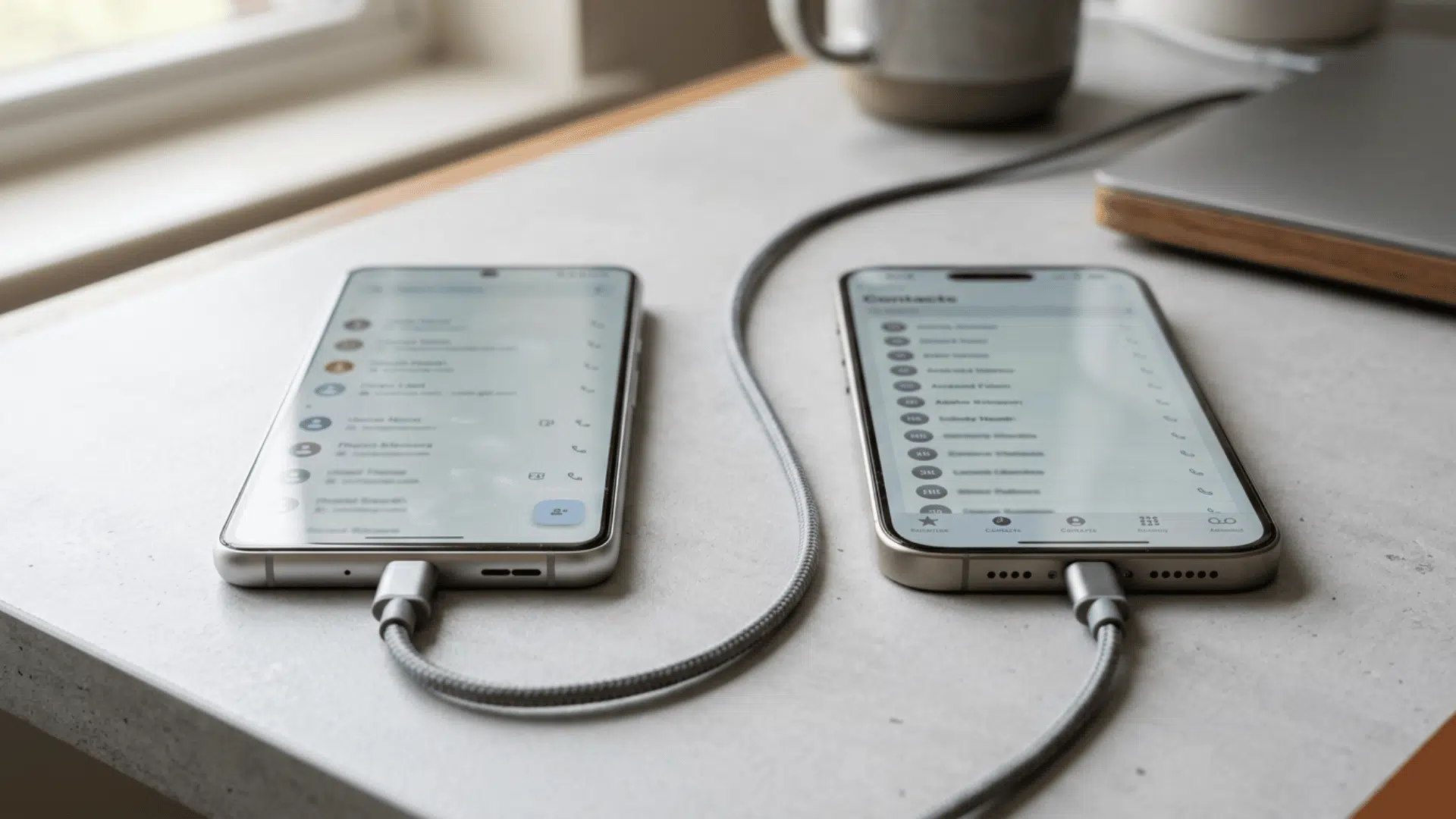



Switching from Android to iPhone is exciting, but leaving important contacts behind can make the move stressful.
Fortunately, contacts can be transferred without manually copying every name, phone number, and email address.
Apple’s Move to iOS, Google syncing, SIM cards, VCF files, and other methods provide options for both new and already-set-up iPhones.
Keep reading to find the easiest way to transfer contacts from Android to iPhone without losing important details.
Where are Your Android Contacts Actually Stored?
Android contacts are commonly stored in a Google account, device storage, or SIM card, although other synced accounts may also contain contacts.
Where yours are stored determines which transfer method will work best.
To check, open the Contacts app on your Android, tap any name, and look for a label like “Google,” “Phone,” or “SIM” near the top.
If most say Google, syncing your account to your iPhone is the fastest route. If you see a mix, you might need to use more than one method to grab everything.
None of these options delete anything from your Android, so your original list stays safe.
Ways to Transfer Contacts From Android to iPhone
These are six methods that work depending on whether your iPhone is new, already set up, or connected to Wi-Fi.
Method 1: Use Move to iOS

Apple’s free Move to iOS app transfers contacts over Wi-Fi while you’re going through the initial iPhone setup screens.
- Download Move to iOS from the Google Play Store onto your Android phone before starting.
- Turn on your new iPhone and follow the setup screens until you reach the Transfer Your Apps and Data page.
- Tap From Android on the iPhone. A numeric code will appear on the screen for you to enter.
- Open the app on your Android, type in that code, and select Contacts from the data list.
- Wait for the transfer to finish. Keep both phones nearby and connected to power while using the temporary Wi-Fi network or USB-C connection.
Method 2: Sync Your Google Account

Most Android contacts are tied to Gmail, so adding that same Google account on your iPhone syncs them automatically.
- On your Android, open Settings, tap Google, then tap Settings for Google apps and turn on Contact sync.
- On your iPhone, go to Settings, then Contacts, then Add Account, or Settings, then Contacts, then Accounts.
- Tap Add Account, choose Google, and sign in with the same Gmail address you use on Android.
- Turn on the Contacts toggle and wait a few minutes for your names and numbers to appear.
Method 3: Move Contacts With a SIM Card

This method copies contacts directly through the SIM card, with no internet connection or extra apps needed at all.
- On your Android, open the Contacts app and go to Settings or tap Manage contacts in the menu.
- Choose Export contacts and select SIM card as the save destination for your contact list.
- Power off your Android, remove the SIM card, and insert it into your iPhone’s SIM tray.
- On your iPhone, go to Settings, tap Contacts, then tap Import SIM Contacts to pull them in.
Tip: Use this method only if your Android phone supports saving contacts to a physical SIM and your iPhone can accept that SIM.
Method 4: Export a VCF File and Email It to Yourself

A VCF file is a standard contact format both phones recognize, and it works without linking any accounts together.
- On your Android, open the Contacts app, tap the three-dot menu, and select Export or Share.
- Choose to export all contacts as a .vcf file and save it or email it to yourself.
- Open that email on your iPhone and tap the .vcf attachment when it loads in the message.
- Tap Add All Contacts when prompted, and every entry from the file will appear on your iPhone.
Method 5: Use Google Contacts on the Web

This method lets you export from Google and import into iCloud using a computer, which is great for cleaning duplicates.
- Go to contacts.google.com on your computer and sign in with the Google account linked to your Android.
- Click Export in the left sidebar, choose vCard for iOS Contacts, and download the file to your computer.
- Open icloud.com/contacts in another tab and sign in with the Apple ID tied to your iPhone.
- Click the gear icon, choose Import vCard, and upload the file you just downloaded from Google Contacts.
- Contacts will sync to your iPhone through iCloud within minutes if iCloud Contacts is turned on in settings.
Method 6: Use a Third-Party Transfer App

Third-party apps like SyncGene, AnyTrans, or MobileTrans are useful when built-in options don’t fit your specific situation.
- Install the app on both your Android and your iPhone, or connect both phones to your computer instead.
- Follow the on-screen prompts to pair the two devices, usually through Wi-Fi or by scanning a QR code.
- Select contacts from the data list and start the transfer. Check app permissions and recent reviews before trusting it.
What to Check After Transferring Your Contacts
A few quick checks after the transfer will keep your contact list clean and save you from problems later on.
- Check your contact count. Open the Contacts app on both phones and compare totals. If numbers don’t match, some may still be on Android.
- Merge duplicates. Go to Settings, tap Contacts, and look for Merge Found Duplicates. This combines matching entries into one clean listing.
- Set a default account. Go to Settings, tap Contacts, then Default Account. Pick iCloud or Gmail so new contacts save where you want.
- Turn off Google sync if unneeded. Go to Settings, then Mail, then Accounts, then Gmail. Switch off the Contacts toggle to stop two-way syncing.
Use Contact Transfer Software Only When Needed
Apple, Google, VCF, and SIM methods usually move contacts without charging a fee.
Third-party apps or desktop software may help when contact records are spread across several accounts or saved in a format the iPhone cannot open.
Before allowing access, check the developer’s name, privacy policy, current user reviews, price, requested permissions, and data deletion process.
Reject any app seeking access to unrelated photos, messages, location, or payment information.
If you want an offline backup, pick software that exports standard VCF or CSV files.
Built-in tools share your address book with fewer providers, so use outside software only when necessary.
Fixing Common Transfer Problems
Sometimes the transfer doesn’t go as planned. These are the most frequent issues people run into and how to fix them.
- Contacts Not Appearing After Google Sync: Check that the Contacts toggle is on under your Google account in iPhone settings, then pull down to refresh.
- Move to I Os Stuck or Failing: Keep both phones plugged in, turn off mobile data on Android, and restart both devices before trying again.
- SIM Contacts Missing After Import: Make sure contacts were exported to the SIM first, not just to phone memory. Reseat the SIM if using an adapter.
- Duplicate Contacts Showing Up: Go to Settings, tap Contacts, and use Merge Found Duplicates. For bigger cleanups, use Google Contacts on a computer.
- Only Some Contacts Came Through: Your list may be split across Google, phone storage, and SIM. Run the right method for each source separately.
Wrapping Up
Switching from Android to iPhone doesn’t have to mean starting your contact list from scratch.
For a new iPhone, Move to iOS is usually the easiest option. If the iPhone is already set up, syncing the same Google account or importing a VCF file is generally faster than resetting the device.
Take a quick look at your totals on both devices to make sure nothing slipped through. If a few entries are showing up twice, the merge option in iPhone settings will sort that out fast.
Got a tip that made this easier for you? Leave it in the comments to help someone going through the same switch.
Frequently Asked Questions
Do Contact Photos Transfer to an iPhone?
Contact photos usually transfer through Google sync, Move to iOS, or VCF files, but image quality and availability can vary by source.
Will WhatsApp Recognize Transferred Contacts?
WhatsApp reads contacts from the iPhone’s address book. Once numbers transfer and permissions are enabled, matching WhatsApp users should appear automatically.
Do Blocked Contacts Remain Blocked?
No. A contact’s name and number may transfer, but Android blocking settings usually do not. Block unwanted callers again on the iPhone.