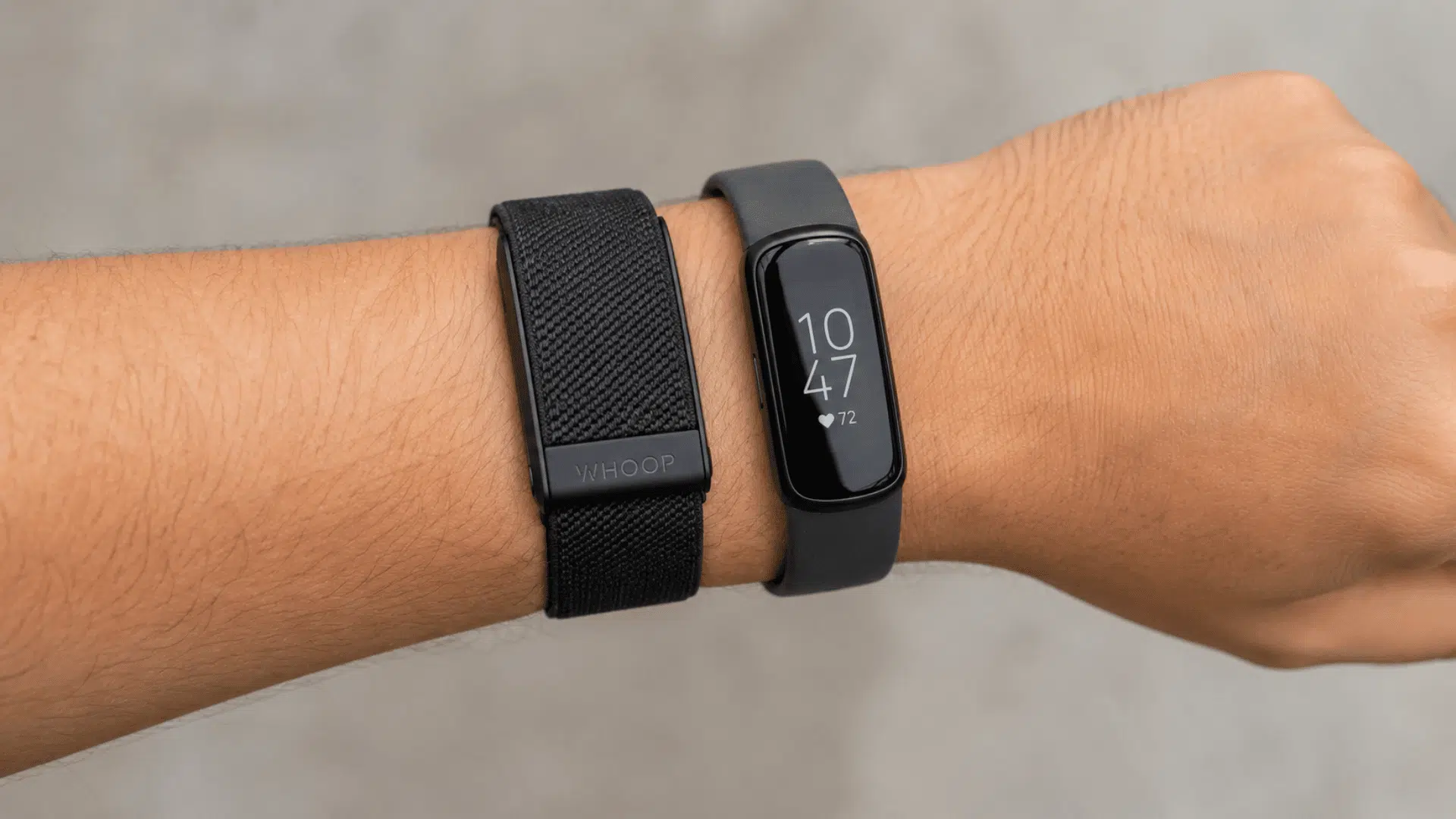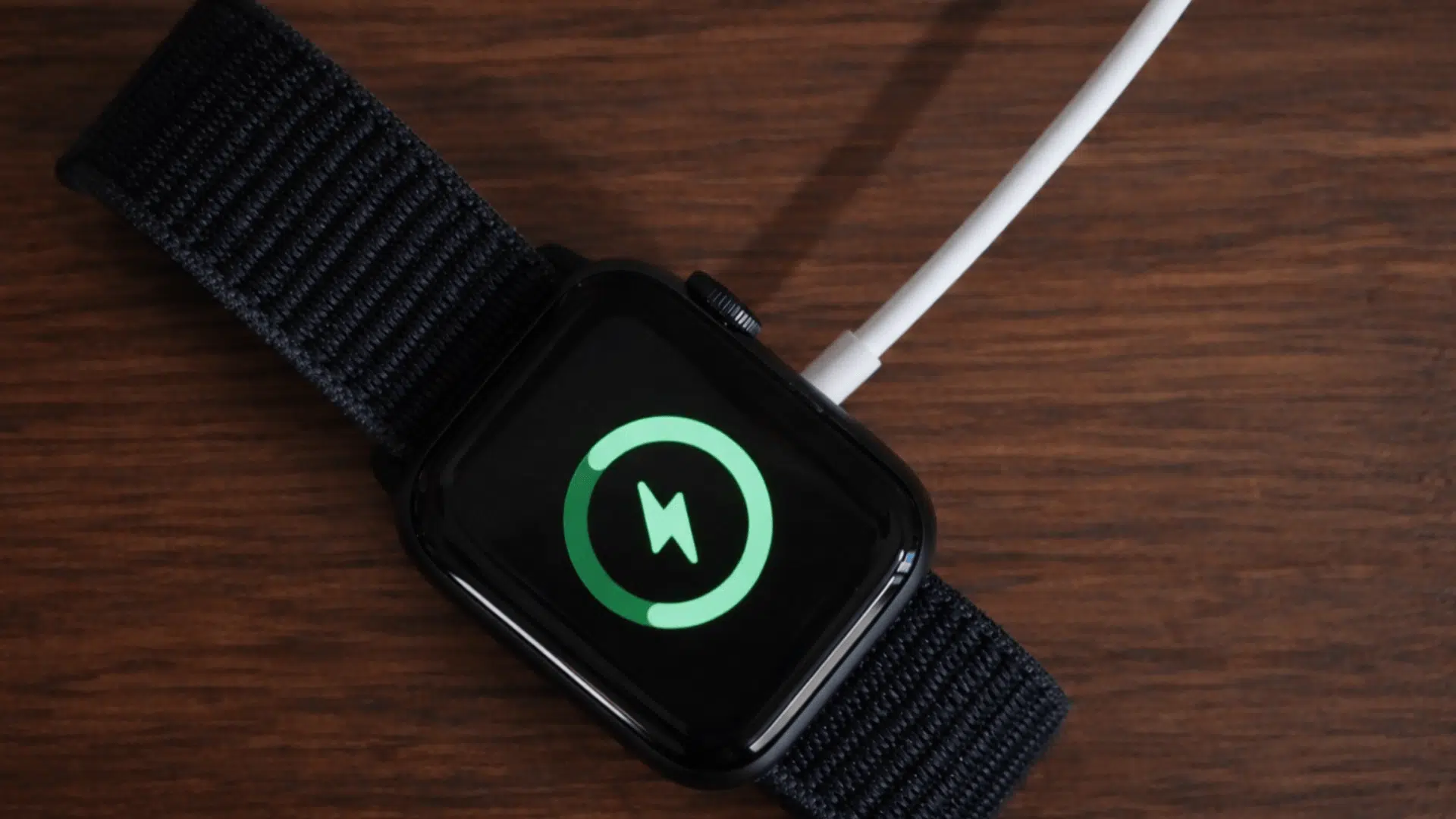



Apple Watch dying too fast is frustrating; mine faced the same problem, and I can help you find the culprit, which is rarely just one thing.
Background activity, display settings, and aging hardware silently work against your battery all day.
Most causes are fixable in minutes, so this guide breaks down exactly why it happens and what you can do about it today.
How to Check Your Apple Watch Battery Health First
Before tweaking any settings, diagnose the problem. On your Apple Watch, go to Settings → Battery → Battery Health to see your maximum capacity.
Open the Watch app on your iPhone, tap Battery, and review both the “Last 24 Hours” and “Last 10 Days” views to spot which apps are draining power.
If your maximum capacity is 80% or lower, that signals significant degradation, and anything below 75% likely explains why your watch dies so fast.
Why Is My Apple Watch Dying So Fast?
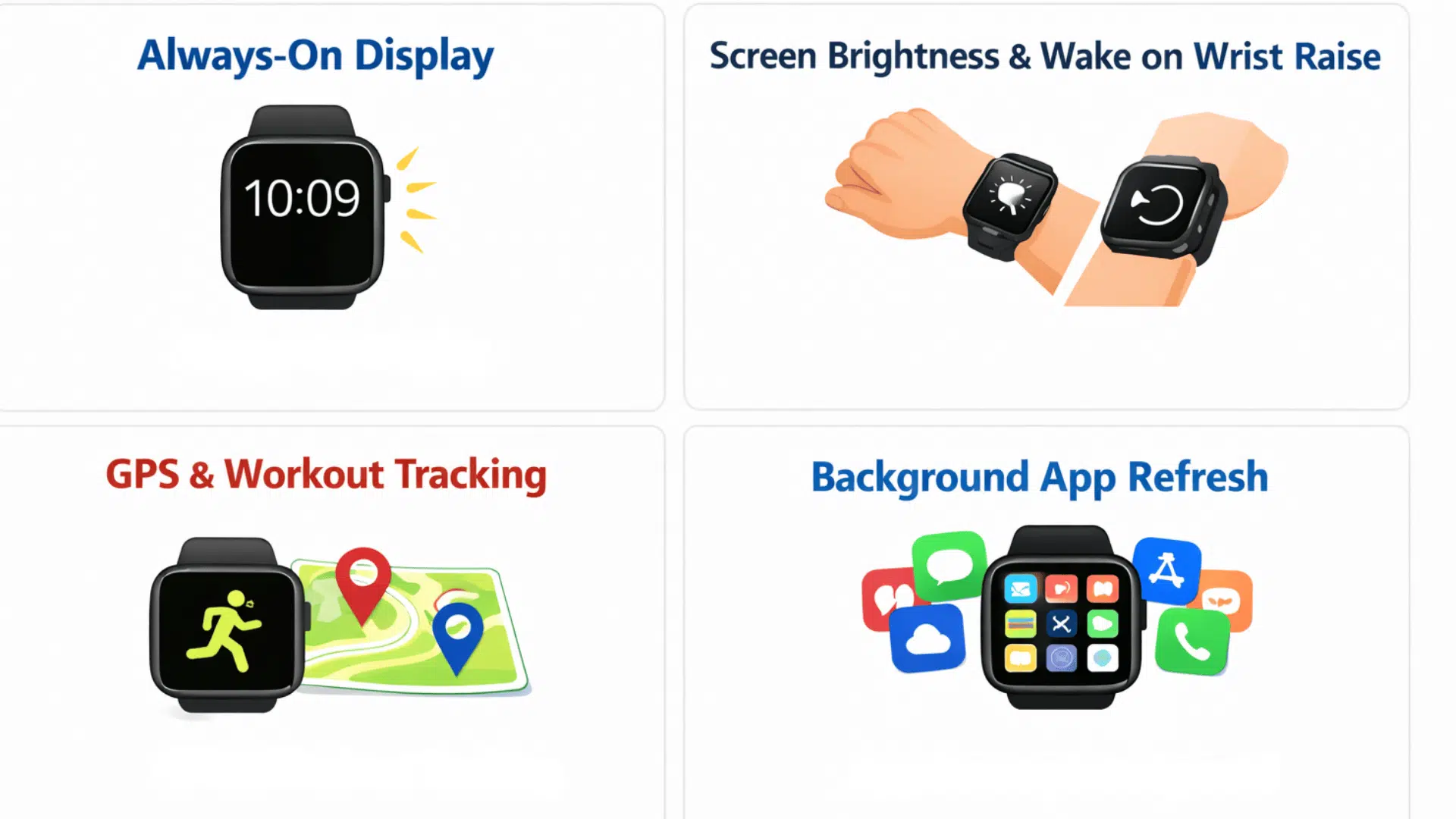
Apple Watch battery drain usually comes down to a handful of settings and habits working against you. Here are the eight most common causes.
1. Always-On Display
The Always-On Display on Series 5 and later keeps the screen lit at all times. On Series 6, the screen runs 2.5x brighter in this mode, pulling noticeably more power throughout the day.
Turning this off is one of the fastest ways to recover battery life without losing core functionality.
2. Screen Brightness and Wake on Wrist Raise
The Raise-to-Wake feature turns the screen on every time you lift your arm. Across a full day, that adds up to dozens of unnecessary activations draining your battery in the background.
Reducing the brightness along with this setting can really make a noticeable difference.
3. GPS and Workout Tracking
Starting a workout with GPS tracking sharply increases battery consumption. Pair that with cellular music streaming, and your watch can drain its battery much faster than expected.
For shorter workouts, switching to iPhone-connected GPS reduces the load on your watch.
4. Background App Refresh
Apps refresh their content in the background even when you are not using them. This ongoing activity is one of the more common reasons your Apple Watch battery runs low by midday.
Disabling it for apps you rarely check gives your battery meaningful relief.
5. Cellular vs. Bluetooth Connection
Your watch runs most efficiently over Bluetooth when paired with your iPhone. Without the phone nearby, it switches to Wi-Fi or cellular, and cellular draws significantly more power.
Keeping your iPhone close during the day is a simple fix that many people overlook.
6. Notification Volume
Every notification wakes the screen and triggers haptics. If you receive a high volume of alerts daily, your watch is lighting up and buzzing hundreds of times without you even realizing it.
Auditing which apps can send notifications is a quick and effective step.
7. A Recent watchOS Update
After a watchOS update, background tasks continue running for a few days. This is normal, but it can make battery life appear worse than usual until those processes finish.
Waiting two to three days before drawing conclusions about battery performance is worth doing.
8. Aging Battery or Older Watch Model
Older Apple Watch models are more prone to rapid drain. As the battery degrades and software becomes more demanding, the gap between charging and usage only widens over time.
Checking your battery health percentage gives you a clear picture of where things stand.
Fixes: Why Is My Apple Watch Battery Draining So Fast
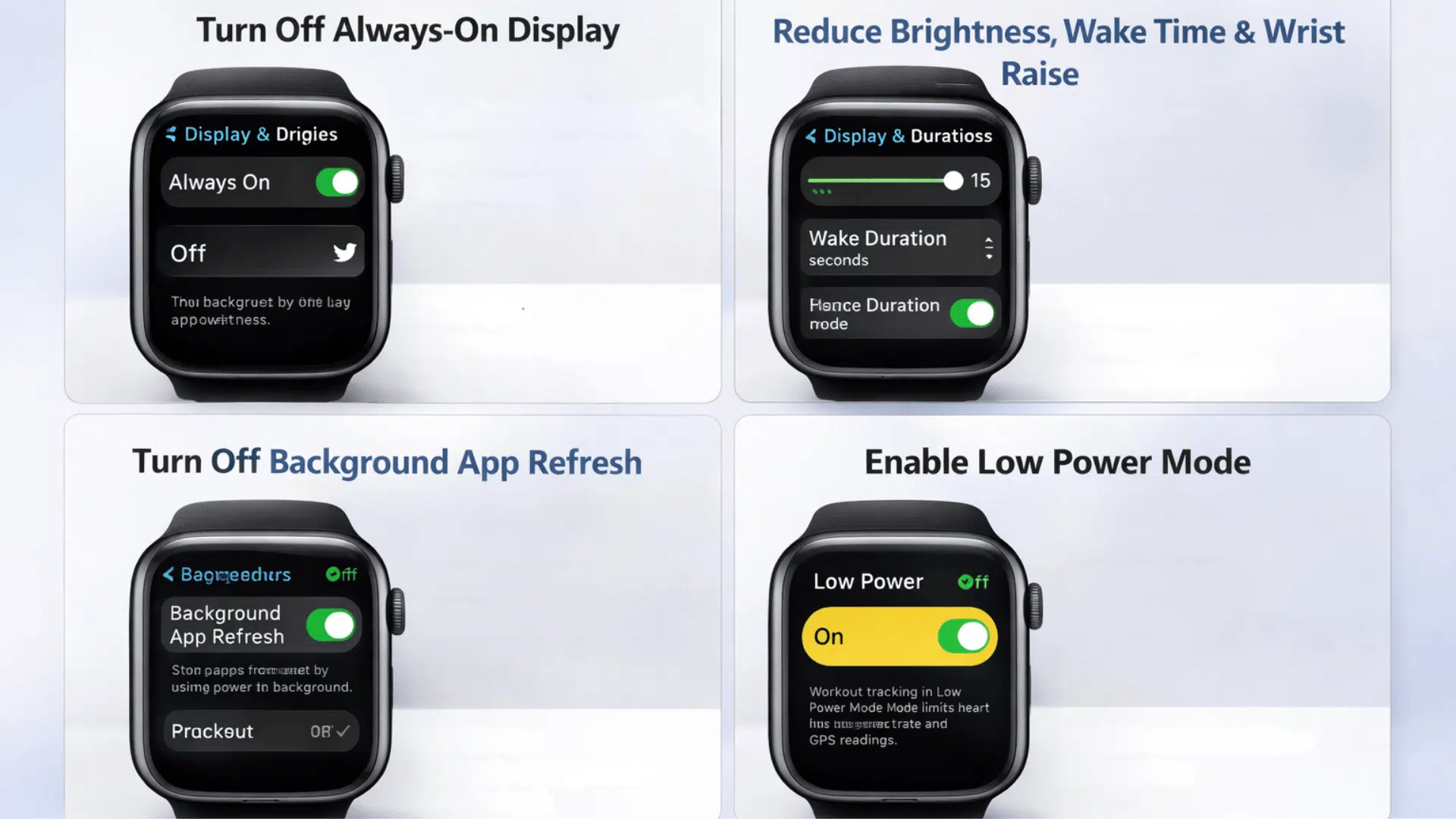
These fixes are ordered from quickest wins to deeper troubleshooting; work through them one by one. Most take under a minute and require no technical knowledge.
1. Turn Off Always-On Display
This single change can add hours of battery life, especially on Series 6 and later models. It is the first fix most Apple Watch users should try before anything else.
Troubleshoot: Go to Settings → Display & Brightness → Always On and switch it off.
2. Reduce Brightness, Wake Time, and Wrist Raise
Small adjustments here add up significantly over a full day, cutting dozens of unnecessary screen activations that quietly drain your battery without you noticing.
Troubleshoot: Go to Settings → Display & Brightness, lower brightness, reduce wake duration, and disable Raise to Wake.
3. Turn Off Background App Refresh
Most people are surprised by how many apps are refreshing in the background without their knowledge, silently consuming power throughout the day.
Troubleshoot: Open Watch app → My Watch → General → Background App Refresh and toggle off all apps.
4. Enable Low Power Mode
Introduced in watchOS 9, Low Power Mode is a reliable middle ground between full functionality and battery savings, still allowing workout tracking while cutting unnecessary background activity.
Troubleshoot: Hold the side button and select the battery icon to enable Low Power Mode.
5. Disable Hey Siri
Hey Siri remains actively listening even when your display is off, making it a constant background drain most users never think to check.
Troubleshoot: Go to Settings → Siri and turn off Listen for Hey Siri.
6. Manage Notifications and Keep iPhone Nearby
Keeping your iPhone close and reducing alert volume are two simple habits that together can make a noticeable difference in battery life by the end of the day.
Troubleshoot: Go to the Watch app → Notifications, disable non-essential alerts, and keep your iPhone nearby to stay on Bluetooth.
7. Restart, Update, or Re-pair Your Watch
Software glitches and outdated watchOS versions are common causes of abnormal battery drain that most users overlook before reaching for deeper fixes.
Troubleshoot: Hold the side button to restart, then check Watch app → General → Software Update for pending updates.
Apple Watch Battery Drain After an Update: What to Do
A sudden battery drain after a watchOS update is common and usually temporary.
In most cases, performance stabilizes within a few days as background processes finish.
| ISSUE | WHAT’S HAPPENING | WHAT TO DO |
|---|---|---|
| Post-update drain | Background tasks running | Wait 24–48 hours |
| Faster recovery | System processes ongoing | Restart Watch & iPhone daily |
| Overnight drain | Indexing not complete | Charge overnight for 2–3 days |
| Early judgment | System not stabilized | Wait at least 3 days |
| Persistent drain | Software issue | Unpair and set up as new |
When to Replace Your Apple Watch Battery
At some point, no setting change will fix the problem, and the battery itself needs attention. Knowing when to replace rather than troubleshoot saves you time and frustration.
- Once battery capacity drops below 80%, you will notice significantly more frequent charging needs throughout the day
- Under AppleCare+, battery replacement is covered at no extra cost once capacity falls below that 80% threshold
- To check your current capacity, go to Settings → Battery → Battery Health directly on your watch
- Your options include visiting an Apple Store, contacting Apple Support via chat, or upgrading to a newer model if your watch is several generations old.
Tips to Make Your Apple Watch Battery Last Longer
Staying on top of a few simple habits can stretch your battery life well beyond what most users experience. These are worth building into your daily routine.
- Enable Low Power Mode: On days away from a charger, this is the quickest way to stretch battery life without losing core features
- Limit notifications: Keep alerts to essential apps only, so your screen and haptics are not firing unnecessarily all day
- Turn off unused features: Noise Monitoring, Heart Rate, and Blood Oxygen draw background power if you do not use them daily
- Switch to a darker watch face: Minimal complications and dark backgrounds draw less power throughout the day
- Charge consistently overnight: A regular charging habit helps preserve long-term battery health over time
Wrapping It Up
If your Apple Watch is dying so fast, the fix is usually closer than you think. Start with the quick wins like turning off Always-On Display and trimming notifications, then work deeper if needed.
Most users see a noticeable improvement within a day of making these changes.
And if the battery health reading is already low, a replacement is worth considering before upgrading the entire watch.
Frequently Asked Questions(FAQ)
How Long Should an Apple Watch Battery Last?
Apple claims an average of 18 hours of battery life per charge. If your watch is dying well before that window, a setting or battery health issue is likely the cause.
Why Is My Apple Watch Battery Draining Fast After an Update?
Background indexing after a watchOS update typically runs for 24 to 48 hours and drains battery faster than usual. Waiting a few days before drawing conclusions is worth doing.
At What Battery Health Percentage Should I Replace My Apple Watch Battery?
Once capacity drops below 80%, frequent charging throughout the day becomes necessary. Under AppleCare+, a battery replacement is covered at no extra cost once that threshold is reached.
Why Does My Apple Watch Die Fast Even With No Apps Open?
Background processes, Bluetooth instability, and features like Hey Siri can drain battery even with no apps running. A full restart of both your watch and iPhone often resolves this quickly.