


Your favorite headphones sound great everywhere else, yet the PS5 refuses to list them.
That small pairing problem can hold up a game night and make the console settings feel more confusing than they should.
If you want to know how to connect Bluetooth headphones to PS5, the quickest answer is to add a compatible USB audio transmitter.
A headset made for PlayStation can also work through its supplied USB dongle. Your TV, a wired controller connection, and Remote Play offer other routes.
Below, you can match the method to the equipment already on your desk, set the correct sound output, check voice chat, and fix common pairing problems without buying the wrong accessory.
Why PS5 Bluetooth Audio Needs an Extra Step?
Although the PS5 includes Bluetooth, it cannot pair directly with Bluetooth headphones for game audio.
Its Bluetooth Accessories menu is designed mainly for supported controllers and approved devices, which is why most headphones and earbuds do not appear.
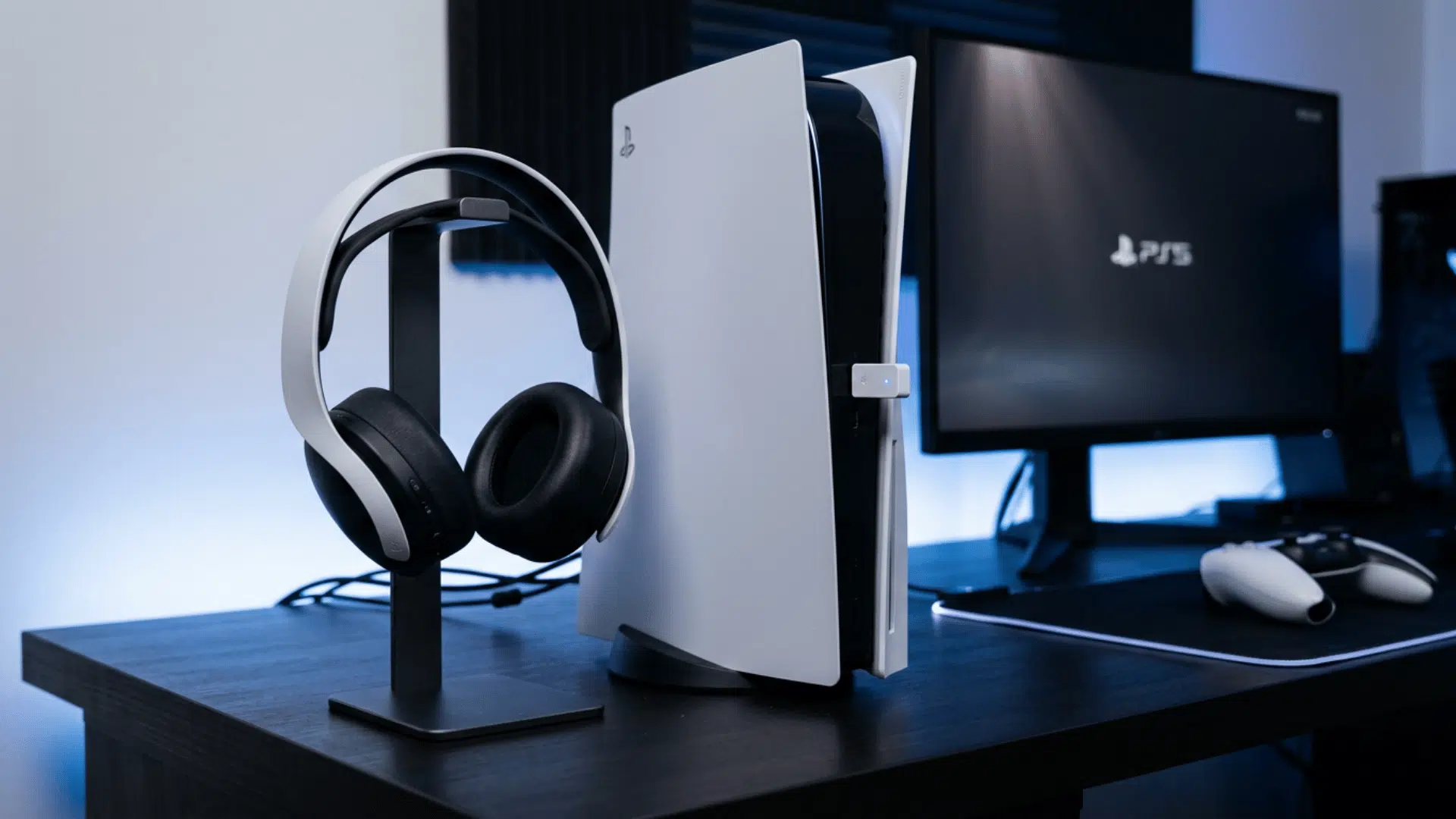
Players can still hear PS5 audio by using a compatible USB Bluetooth transmitter, a wireless gaming headset with its USB dongle, a Bluetooth-enabled television, or PS Remote Play on another device.
Headphones with a 3.5 mm cable can also plug into the DualSense controller. USB transmitters and dedicated gaming headsets generally provide reliable sound, and gaming models often include party-chat microphones.
Ways to Connect Headphones to a PS5
These methods help you hear PS5 game audio through wireless or wired headphones using equipment that matches your home setup.
Method 1: Use a USB Bluetooth Transmitter

A USB Bluetooth transmitter sends PS5 audio to headphones that cannot connect directly.
- Confirm PS5 compatibility and fully charge your headphones before pairing.
- Insert the transmitter into an available USB-A or USB-C port on the console.
- Activate pairing mode on the transmitter until its indicator starts flashing.
- Pair the headphones nearby and wait until both lights become steady.
- Choose USB Headset under Settings > Sound > Audio Output, then test volume and delay levels.
Method 2: Use the Headset’s USB Dongle

A compatible gaming headset uses its USB dongle for console audio and party chat.
- Charge the headset and insert its supplied dongle into the PS5.
- Turn it on and wait for the status light to stop flashing.
- Choose the headset under Settings > Sound > Audio Output.
- Choose its microphone input and check the level while speaking normally.
- Test game sound, voices, mute controls, and microphone clarity in a private party first.
Method 3: Pair Through a Bluetooth TV

Bluetooth televisions can receive headphone audio from the PS5 through the console’s HDMI connection.
- Open the television’s sound menu and activate its Bluetooth audio feature.
- Place the headphones in pairing mode using their Bluetooth button.
- Choose the headphone name from the television’s available device list.
- Keep PS5 audio routed through HDMI and test game sound.
- Adjust audio sync if sound arrives late, and choose another microphone source for party chat.
Method 4: Listen Through PS Remote Play

PS Remote Play sends console sound to headphones paired with a phone, tablet, computer, or Mac.
- Pair the headphones with the second device and test regular audio.
- Install Remote Play and sign in with your PlayStation account.
- Open Settings > System > Remote Play on the console and activate access.
- Launch the app, choose your PS5, and wait for connection.
- Check headphone sound, controller response, and connection delay after starting your game.
Method 5: Connect Through the DualSense Controller

A 3.5 mm cable carries PS5 sound from the DualSense controller to compatible headphones without wireless pairing.
- Check that the headphones have a 3.5 mm audio socket.
- Connect one end of the cable to the headphones and the other to DualSense.
- Choose Controller Headset under Settings > Sound > Audio Output.
- Set Output to Headphones for all audio and adjust volume.
- Use a four-pole TRRS cable when you need the microphone for party chat.
AirPods and similar wireless earbuds follow the steps listed under Method 1.
Choose the method that matches your equipment, microphone needs, and acceptable sound delay.
Connect AirPods and Bluetooth Earbuds to PS5
AirPods and wireless earbuds connect to a PS5 through a USB Bluetooth transmitter because they cannot pair from the Bluetooth Accessories menu.
Plug the transmitter into the console and activate pairing mode. Place AirPods inside their case, open the lid, and hold the rear button until the light flashes white.
After pairing, open Settings > Sound > Audio Output and choose the USB device. If AirPods reconnect to an Apple device, temporarily disable Bluetooth.
For party chat, use the DualSense microphone or a chat-ready adapter.
Compare PS5 Headphone Connection Methods
The right connection depends on your headphones, chat needs, and tolerance for sound delay.
Use this table to compare the main choices before adding hardware.
| Connection | Game Sound | Microphone | Sound Delay | Extra Item |
|---|---|---|---|---|
| PS5 headset dongle | Yes | Usually | Low | Supplied dongle |
| USB Bluetooth transmitter | Yes | Model-dependent | Low to moderate | Compatible transmitter |
| TV Bluetooth | Yes | Rarely | Moderate | Bluetooth-ready TV |
| Remote Play | Yes | Device-dependent | Network-dependent | Phone, tablet, PC, or Mac |
| DualSense cable | Yes | With TRRS cable | Low | 3.5 mm cable |
A USB transmitter suits a favorite pair used mainly for game sound, while TV pairing and Remote Play work as occasional backups.
Check Microphone and Party Chat Support
A transmitter can play clean audio in the headphones while giving the PS5 no path back from its built-in microphone.
Before buying an adapter, look for explicit PS5 chat or microphone support. Then check the input inside the console settings.
- Open Settings > Sound > Microphone.
- Choose the intended device under Input Device.
- Open Adjust Microphone Level and speak at a normal volume.
- Check the mute button on the controller and headset.
- Join a private party to test both incoming and outgoing voice.
If the transmitter is listed only under Audio Output, it probably sends sound in one direction.
The DualSense microphone can fill that role, though it may pick up room noise and controller sounds.
Fix PS5 Headphone Pairing and Sound Problems
Most connection faults come from an old pairing, the wrong output device, low charge, or an adapter that the console cannot treat as USB audio.
1. Headphones Do Not Pair: Charge both devices, remove old connections, restart pairing while they remain close, and confirm the transmitter supports the headphone model.
2. Headphones Connect but Stay Silent: Choose the USB audio output, send all sound to headphones, raise volume, restart the console, and try another compatible port.
3. Sound Arrives Late or Keeps Dropping: Move wireless devices away, keep headphones close, reduce television processing, activate low-delay mode, and strengthen the Remote Play network connection.
4. The Microphone Is Missing: Choose the microphone input, confirm two-way chat support, unmute every device, reconnect the controller microphone, or use DualSense voice input.
What to Check Before Buying a PS5 Adapter
Read the device details and buyer manual before ordering, especially when voice chat matters. Look for these points:
- PS5 or USB Audio Class support stated by the maker
- A connector that fits an available USB-A or USB-C port
- Microphone input or a separate controller mic for chat
- A low-delay mode shared by the transmitter and headphones
- Clear pairing controls and visible status lights
- Pass-through charging if the transmitter occupies a needed USB-C port
Avoid buying from a listing that only promises Windows Bluetooth support.
A PS5-ready audio transmitter should tell you how the console names it, which features work, and how microphone input is handled.
The Bottom Line
Getting your favorite headphones working with a PS5 is possible, but the right connection depends on the equipment you own.
A compatible USB transmitter suits regular Bluetooth models, while headsets with dedicated dongles often handle party chat more reliably.
Television pairing and Remote Play offer cable-free alternatives, and the DualSense jack works well when a wired setup is acceptable.
After connecting, confirm the audio output, check voice input, and watch for sound delay during gameplay.
These checks make connecting Bluetooth headphones to PS5 much simpler. Share your setup or pairing tips in the comments to help other players.
Frequently Asked Questions
Can Two People Listen at The Same Time?
Yes, a transmitter with dual-device pairing can connect two headsets. TV speakers may also remain active, depending on the television’s sound settings.
Will Headset Controls Change Console Volume?
Some headset buttons only control internal volume. The PS5 slider must then be adjusted separately to change the console’s audio level.
Does Wireless Audio Work With Streaming Apps?
Yes, streaming apps normally play through the active USB audio device, though language, surround, and playback settings may differ between apps.