


Ever wondered how to set up a smart home without it turning into a weekend-long tech nightmare?
Most people hit the same wall. They buy a smart bulb or a voice speaker, get it working, and then have no idea what to do next. The whole thing stalls, and the device ends up collecting dust next to the router.
This blog walks through how to set up a smart home step by step, from picking the right ecosystem to creating routines that actually save time.
No technical background needed. Just a working Wi-Fi connection and a clear starting point. Keep reading to get your smart home up and running the right way.
What is a Smart Home?
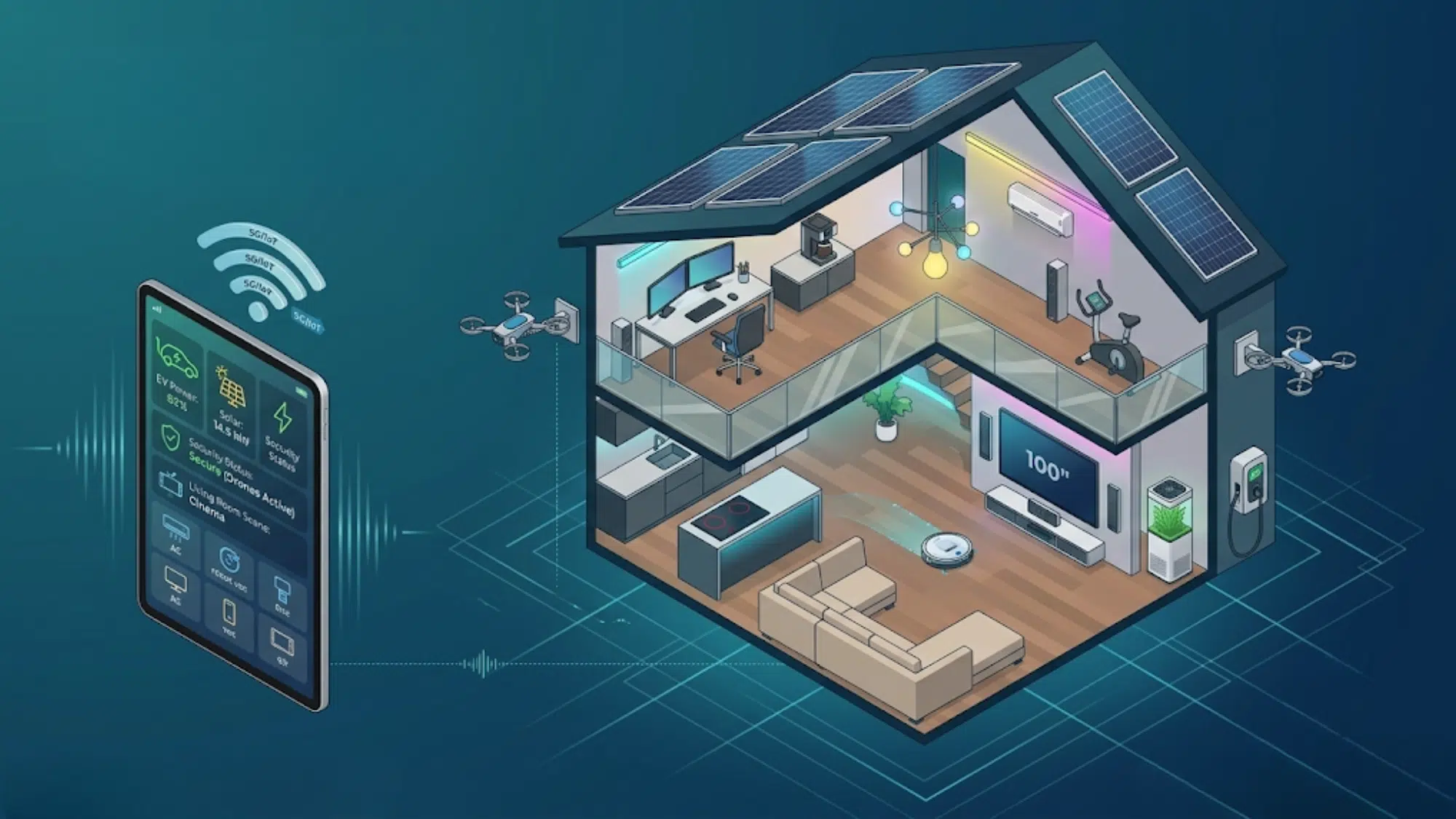
A smart home is a house where everyday devices, such as lights, thermostats, locks, and cameras, connect to the internet and can be controlled remotely.
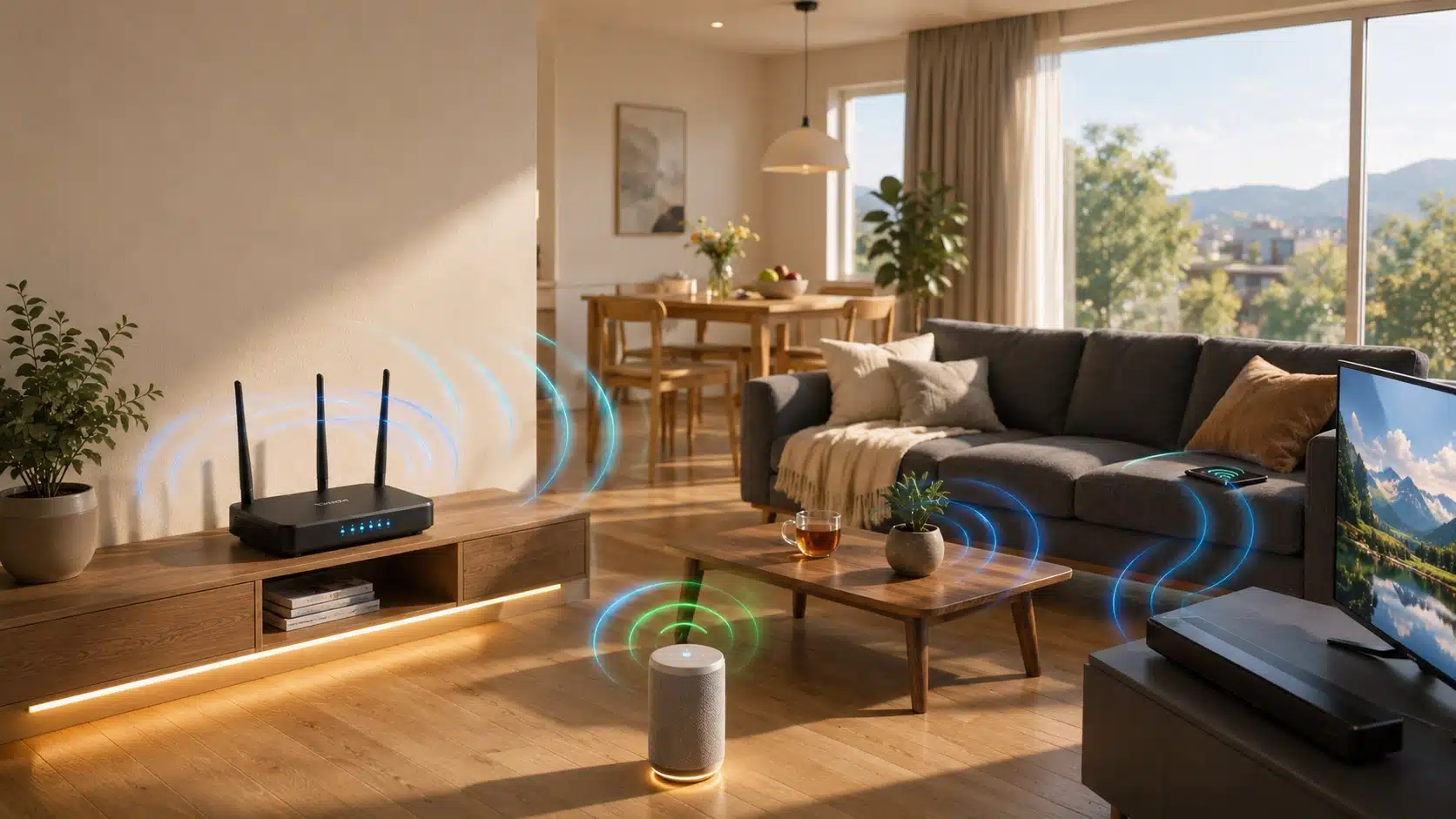
Most of them work through a smartphone app, a voice assistant, or both. These devices communicate over Wi-Fi, Bluetooth, or a hub.
The hub acts as a central connection point that keeps everything connected. Without one, devices from different brands often work in separate apps with no way to control them together.
Smart homes are more practical now than they were a few years ago.
Devices are cheaper, setup is faster, and a newer standard called Matter means products from different brands can work together without constant compatibility headaches.
What to Think About Before Getting Started
Jumping in without a plan is the fastest way to end up with a drawer full of devices that don’t talk to each other. A few minutes of planning upfront save a lot of time.
1. Decide What to Automate First: Lighting is the most common starting point; it’s low-cost and easy to set up.
Security cameras, smart thermostats, and smart locks are popular next steps. Pick one area, get comfortable, and expand from there.
2. Set a Budget: A basic smart home setup with a hub, a few bulbs, and a smart plug can cost under $100.
More advanced setups with cameras, locks, and sensors range from $300 to $600+. Starting small is a smarter move than buying everything at once.
3. Check the Wi-Fi: Smart devices need a stable, strong connection. A spotty network is the most common reason devices drop off or behave unpredictably. For homes larger than 1,500 square feet, a mesh Wi-Fi system is worth considering.
How to Set up a Smart Home Step-By-Step

Getting started is simpler than it looks. Follow these steps in order, and the setup stays manageable.
Step 1: Choose a Smart Home Ecosystem
An ecosystem is the platform that connects all the devices. The three most common options are Amazon Alexa, Google Home, and Apple HomeKit.
| Ecosystem | Best For | Voice Assistant | Device Range |
|---|---|---|---|
| Amazon Alexa | Beginners, budget shoppers | Alexa | Very wide; thousands of devices |
| Google Home | Android users, Google fans | Google Assistant | Wide, strong Android integration |
| Apple HomeKit | iPhone users, privacy-focused | Siri | Smaller but tightly controlled |
For most beginners, Amazon Alexa or Google Home is the easiest starting point. They support the widest range of affordable devices and have straightforward apps.
Apple HomeKit works well for households already deep in the Apple ecosystem, though compatible devices tend to cost more.
Step 2: Set up a Reliable Wi-Fi Network
This step is skipped more often than it should be. A smart home is only as reliable as the network it runs on.
Most standard routers handle a handful of devices fine. But once there are 15–20 smart devices in the house- lights, cameras, plugs, sensors- the network can get congested.
At that point, a mesh Wi-Fi system (like Eero or Google Nest WiFi) provides better coverage and fewer dropouts.
One practical tip: set up a separate network for smart home devices. Most modern routers let users create a guest or secondary network.
Keeping IoT devices on their own network adds a layer of security and reduces interference with laptops and phones.
Step 3: Pick a Smart Hub or Central Controller
A smart hub is the brain of the setup. It receives commands from an app or a voice and sends them to the right device.
Popular options include the Amazon Echo (Alexa), Google Nest Hub, and Apple HomePod Mini.
Each one ties directly into its respective ecosystem. Download the companion app, follow the setup steps in the app, and organize devices by room.
Naming rooms clearly (Living Room, Bedroom, Kitchen) makes voice commands much easier to use.
Step 4: Start with Easy Devices
The worst thing a beginner can do is buy ten devices at once. Start with two or three. Get comfortable before adding more.
The best entry-level devices are:
- Smart bulbs: Screw in, connect to the app, done. Brands like Philips Hue and LIFX are reliable and widely compatible.
- Smart plugs: Turn any standard lamp or appliance into a controllable device. Great for coffee makers, fans, and lamps.
- Smart thermostat: Ecobee and Google Nest are beginner-friendly picks. Both walk users through the installation process.
- Smart doorbell: A Ring or Nest doorbell adds real-time video and motion alerts. Installation is straightforward but does involve mounting and basic wiring.
Step 5: Connect and Configure Each Device
Every device comes with an app and a pairing process.
- Download the device’s companion app or open the ecosystem app (Alexa, Google Home, or Apple Home).
- Follow the in-app setup flow: it usually involves scanning a QR code or pressing a button on the device.
- Assign the device to a room.
- Test it before moving on.
Testing each device right after setup catches problems early.
If something isn’t responding, check that it’s connected to the correct Wi-Fi network (not the 5GHz band; most smart devices only support 2.4GHz).
Step 6: Set up Automations and Routines
This is where a smart home starts to feel useful. Automations are preset rules that trigger device actions without any manual input.
Some practical examples could be:
- Lights turn on at sunset and off at a set bedtime.
- The thermostat adjusts when everyone leaves the house (using phone location).
- A good morning routine turns on the lights, adjusts the thermostat, and reads out the day’s weather at a set time.
In the Google Home or Alexa app, look for the “Routines” section. Pick a trigger (a time, a voice phrase, or a device event) and choose what happens as a result.
Start with one or two routines. Adding too many at once makes it hard to track what’s working and what isn’t.
How to Keep a Smart Home Secure
Security is worth paying attention to from the beginning. Connected devices are entry points into the home network.
- Use a strong, unique password for the router and each device account.
- Turn on two-factor authentication for the main ecosystem account (Amazon, Google, or Apple).
- Keep firmware on all devices up to date to close known security gaps.
- For complicated setups involving wired cameras or smart alarm systems, consider working with a certified installer or contacting the manufacturer’s support team.
Common Mistakes to Avoid
Setting up a smart home is straightforward, but a few missteps can turn a simple project into a frustrating one.
1. Buying incompatible devices: Not every smart device works with every ecosystem. Before purchasing, check the box or product listing for the ecosystem logo (Works with Alexa, Works with Google Home, etc.).
2. Skipping the Wi-Fi setup: A weak signal leads to persistent connectivity issues. Solve the network problem first, then add devices.
3. Automating everything at once: It sounds like a good idea, but it creates a complicated system that’s hard to troubleshoot. Build up automations one at a time.
4. Ignoring firmware updates: Smart devices receive software updates that fix bugs and patch security issues. Check for updates in the companion app every few months, or enable automatic updates where available.
5. Replacing all physical switches: Some smart devices require the physical switch to stay on for them to function. Turning off a smart bulb at the wall switch cuts its power and disconnects it from the network.
Final Thoughts
Setting up a smart home does not have to be an overwhelming project. Start with the right ecosystem, get the network in good shape, and bring in devices one at a time.
Avoid the common mistakes: skipping Wi-Fi setup, buying incompatible devices, and automating too much too soon, and the process stays manageable from the beginning.
A connected home makes daily routines faster, more convenient, and far easier to control. Lights, thermostats, locks, and cameras all working together from a single app is more achievable than most people expect.
The key is to start small, stay consistent, and gradually build out the setup.
Frequently Asked Questions
What are the Disadvantages of a Smart Home?
Smart homes depend heavily on internet connectivity, can be costly to set up, raise privacy concerns, and may face compatibility issues between devices from different brands.
Can Smart Devices Work without Internet?
Most smart devices need an active internet connection to function. Some offer limited local control, but core features like remote access and voice commands stop working without it.
What is the Most Popular Smart Home App?
Amazon Alexa is widely considered the most popular smart home app, thanks to its broad device compatibility, straightforward setup process, and support for thousands of third-party products.