


Apple’s Lightning connector powered and connected millions of iPhones, iPads, and accessories for more than a decade.
Introduced in 2012, the small 8-pin connector supports charging, data transfer, and compatible audio or accessory connections on many older Apple devices.
Although USB-C has replaced Lightning across newer Apple products, the connector remains common on devices still in everyday use.
This article explains what a Lightning connector is, how it works, which devices use it, and how it compares with USB-C.
Keep reading to understand Lightning compatibility and choose the right cable for your device.
What is a Lightning Connector?
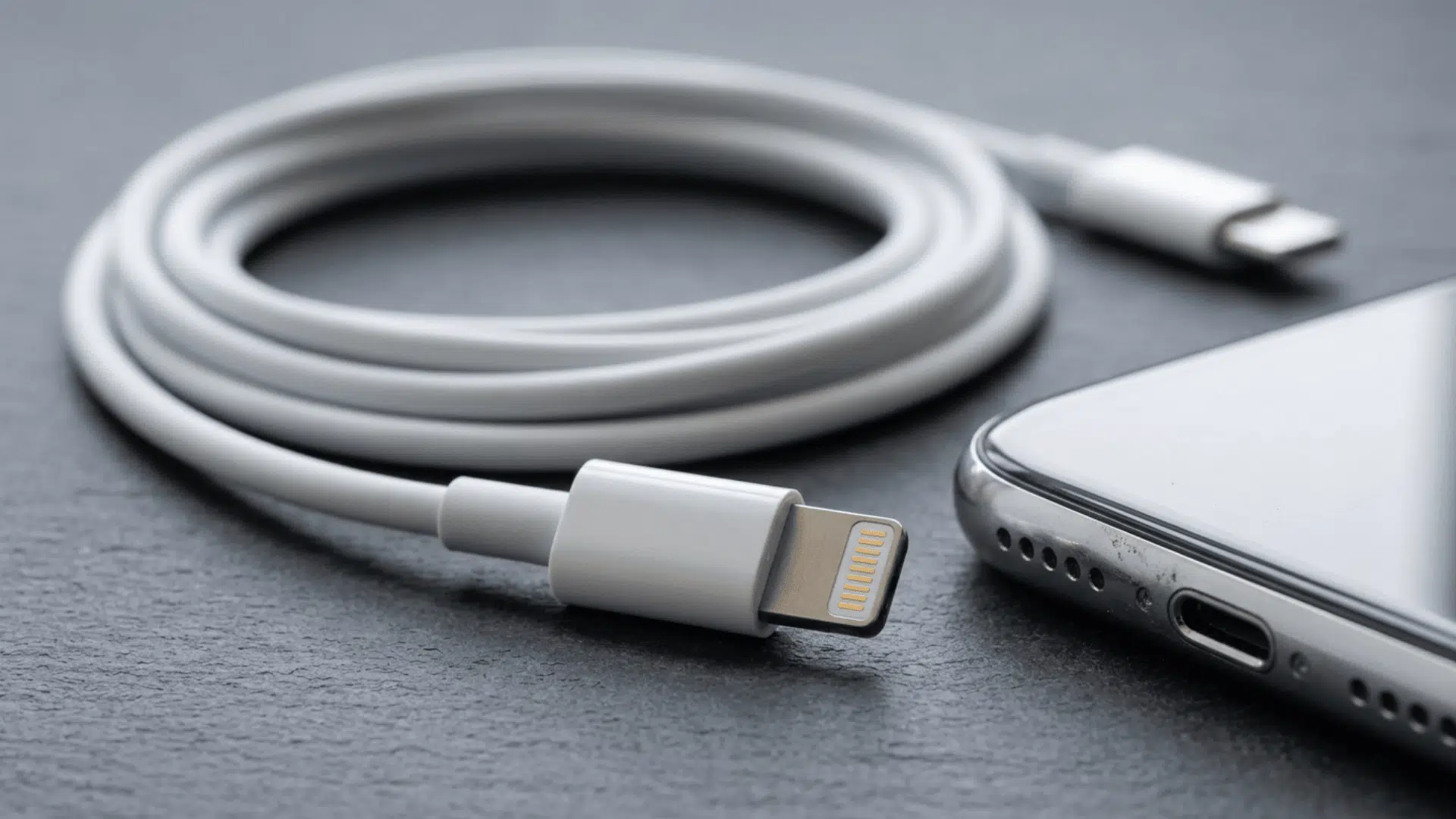
A Lightning connector is an 8-pin plug that Apple designed to replace the older, wider 30-pin dock connector.
It launched alongside the iPhone 5 in September 2012 and remained the default port on every iPhone through the entire iPhone 14 lineup.
The plug handles three main jobs: charging, data syncing with a computer, and audio output on models that dropped the headphone jack.
Apple recommends MFi-certified Lightning cables and accessories, which are designed to meet its compatibility and performance requirements.
How The Connector Actually Works
The plug itself is flat and symmetrical, which means you can insert it facing either direction. No more flipping the cable around three times like older USB-A plugs forced you to do.
This is what happens inside:
- Eight pins that work in either orientation.
- An authentication chip and internal circuitry help the connected device identify compatible Lightning cables and accessories.
- The Lightning connector uses its contacts and internal circuitry to support charging, data transfer, and compatible accessories.
- Depending on what is plugged in (a charger, a pair of headphones, or a camera adapter), the connector automatically reassigns pin roles.
For data, most Lightning cables run at USB 2.0 speeds, which top out at 480 Mbps. Charging speed depends on the iPhone, cable, and power adapter; compatible Lightning iPhones can charge faster with a USB-C-to-Lightning cable.
Every Apple Device That Still Uses a Lightning Port

Not every Apple product has moved to USB-C yet. This is a breakdown of what still relies on Lightning and what has already switched.
iPhones
Every iPhone from the 5 through the 14, including the first three SE generations, uses a Lightning port for charging and syncing. The 4th-generation SE switched to USB-C.
The iPhone 15 and newer models all switched to USB-C, so they no longer need a Lightning cable at all.
iPads
The standard iPad from the 4th through 9th generation, iPad Mini from the 1st through 5th generation, and iPad Air from the 1st through 3rd generation all use a Lightning port. Earlier iPads (1st through 3rd generation) used Apple’s older 30-pin dock connector instead.
Every newer version across these lines has since moved to USB-C.
iPods
The iPod Touch carried a Lightning port from the 5th generation onward until Apple discontinued the entire product line in 2022.
Accessories
The 1st and 2nd generation AirPods cases and the 1st generation AirPods Pro case all charge through a Lightning port.
The Magic Mouse, Magic Keyboard, and Magic Trackpad models released before 2024 use Lightning, along with older Siri Remotes for Apple TV.
Note: If your device is on this list, a Lightning cable is still part of your daily setup.
Lightning Compared to USB-C
Apple did not drop Lightning because it failed. Apple gradually transitioned its devices from Lightning to USB-C, with the iPhone lineup making the switch starting with the iPhone 15 in 2023.
| Feature | Lightning | USB-C |
|---|---|---|
| Data Speed | Up to 480 Mbps (USB 2.0) | Up to 5-40 Gbps (USB 3.0) |
| Charging | Around 12W | 27W or more |
| Device Support | Apple and MFi accessories only | Widely used across many brands and device types |
| Transition | 2012 through iPhone 14 | iPads from 2018; iPhones from 2023 |
Common Lightning Port Problems and How to Fix Them
A few issues pop up often with Lightning connectors. Most of them are easy to fix at home.
1. Liquid Detected Warning: Moisture sensors inside the port block charge when dampness is present. Unplug the cable, tap the port side down gently, and air-dry for 30 minutes.
2. Lint and Debris Buildup: Pocket fibers collect inside the port over time and stop the cable from clicking in fully. Check for visible debris and follow Apple’s recommended cleaning instructions to avoid damaging the contacts inside the port.
3. Frayed or Damaged Cables: Lightning cables tend to fray near the connector head from sharp bending or tight wrapping. Replace them with an MFi-certified option once wires show.
4. Slow Charging: A worn cable, a low-wattage adapter, or port debris can all slow things down. Swap the cable first, then check the adapter and port.
Signs of a Safe, Reliable Lightning Cable

A safe, reliable Lightning cable should come from Apple or a reputable third-party manufacturer with MFi certification.
Check that the connector has smooth, evenly finished contacts and fits firmly into the Lightning port without feeling loose. Before use, inspect the insulation for exposed wires, swelling, cracks, or split areas.
The cable should support both charging and data transfer when required. Choose a suitable length that does not create excessive bending or tension near either connector end.
A well-built cable with proper certification and an undamaged connector is more likely to provide dependable everyday performance.
Tip: Apple says uncertified accessories may become hot, fit poorly, fail to sync, or damage an iOS product. Its cable identification page shows the MFi badge and physical signs found on certified cables.
Picking The Right Lightning Cable for Your Charger
Check the ports on your phone, charger, computer, or accessory before buying. The connector on each cable end must match the socket. Match each cable end to its socket before spending money. A quick look can save a return trip or an online exchange.
- USB-C to Lightning: Connect the Lightning end to an older iPhone and the USB-C end to a newer adapter for supported fast charging at home.
- USB-A to Lightning: Plug the Lightning end into an older Apple product and the rectangular USB-A end into wall adapters, computers, cars, or power banks.
- Adapter for Older Accessories: Connect selected Lightning accessories to a USB-C iPhone for charging, data, or audio. Performance and compatibility may differ based on the accessory and cable used.
Do You Still Need a Lightning Cable?
Your need for a Lightning cable depends on the Apple products you still use. Keep one if you own an iPhone 5 through 14, an iPhone SE through the third generation, an older iPad, or a Lightning-based accessory.
You may also need a cable for your car, charging dock, speaker, or AirPods case. iPhone 15 and later models charge through USB-C.
Some older accessories can work with an adapter, but charging and data speeds may be lower.
Check every port before discarding old cables, and keep a spare where you charge most often for unexpected low-battery moments away from home.
Wrapping Up
Apple’s Lightning connector handled charging, syncing, and audio across iPhones, iPads, and iPods for over a decade.
Understanding what a Lightning connector is and how it works helps you spot port problems early and avoid cables that waste your money.
USB-C has replaced Lightning on newer Apple devices, although many older Lightning-equipped products remain in everyday use.
Keeping your port clean and your cable in solid shape goes a long way toward trouble-free daily use.
Have a question about your device or a charging issue you just cannot figure out? Drop it in the comments section below.
Frequently Asked Questions
Does Cable Length Affect Charging Speed?
A very long or poorly made cable may lose more power along the wire, which can slow charging compared with a shorter cable.
Can Wireless Charging Work When the Port is Damaged?
Yes, wireless charging can work even if the port is damaged, as long as the phone supports it and its back stays dry.
Can Old Charging Cables Be Recycled?
Many electronics recycling centers accept old charging cables. Check your city or county website before placing them in household or curbside bins.